
Home > Amped Wireless > amped wireless RTA1750 High Power Wi-Fi Router User Guide
amped wireless RTA1750 High Power Wi-Fi Router User Guide


This is the second page of the Setup Guide. Start on the opposite side first.
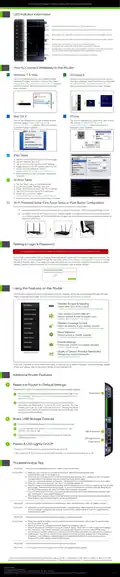
LED Indicator Information
Power:
Indicates when the Router is powered on. The LED will remain on.
WPS:
5.0GHz Wireless Activity:
2.4GHz Wireless Activity:
Internet Connection:
Blinks when Wi-Fi Protected Setup (WPS) is activated and the Router awaits a connection.
Blinks rapidly when data traffic is transmitted or received over the 5GHz wireless network.
Blinks rapidly when data traffic is transmitted or received over the 2.4GHz wireless network.
Indicates when the Router is connected to a broadband modem.
The LED will blink rapidly when Internet traffic is transmitted or received.
Gigabit Wired Ports 1-4:
Indicates when a networking device is connected to a wired port on the back of the Router.
The LED will blink rapidly when wired data traffic is transmitted or received.
USB Connection:
Indicates when a USB storage device is connected to the USB port.
How to Connect Wirelessly to the Router
Windows 7 & Vista
Windows 8
Click on the Wireless icon to see available wireless
networks (For Vista, click Start > Connect To). Select
Amped_RTA1750_2.4 or Amped_RTA1750_5.0 network
and click Connect. When prompted for a password,
enter "wireless".
Swipe in from the right edge to access the charms
bar, tap on Settings, select the Wi-Fi icon, and select
Amped_RTA1750_2.4 or Amped_RTA1750_5.0.
When prompted for a password, enter "wireless".
Amped_RTA1750_5.0
Amped_RTA17...
iPhone
Mac OS X
Tap on your Settings icon, select Wi-Fi, and choose
the network, Amped_RTA1750_2.4 or
Amped_RTA1750_5.0. When prompted for a
password, enter "wireless".
Click on the Wireless icon to see available wireless
networks. Select Amped_RTA1750_2.4 or
Amped_RTA1750_5.0 network. When prompted for
a password, enter "wireless".
Amped_RTA1750_5.0
Amped_RTA1750...
iPad Tablet
A. Tap the "Home" button to get to the home page
B. Tap the "Settings" app icon
C. Tap on Wi-Fi to enter the iPad’s Wi-Fi settings
D. Toggle the Wi-Fi "On/Off" selector switch to "On"
E. Under "Choose a Network," select:
Amped_RTA1750_2.4 or Amped_RTA1750_5.0
F. When prompted, enter the wireless security key:
"wireless"
Amped_RTA1750_5.0
Android Tablet
A. Tap the "Apps" menu on the tablet screen
B. Locate and tap the "Settings" app icon
C. Under "Wireless & networks," tap "Wi-Fi settings"
D. Tap the Wi-Fi box to turn on Wi-Fi and scan
E. Under "Wi-Fi networks," select:
Amped_RTA1750_5.0
Amped_RTA1750_2.4 or Amped_RTA1750_5.0
F. When prompted, enter the Password key: "wireless"
Wi-Fi Protected Setup (One-Touch Setup or Push Button Configuration)
If your Wi-Fi device has WPS one-touch setup, you can use it to connect to the Router:
A. Hold down the WPS button on the Router (back panel) for 3 seconds. The Power LED will begin to blink.
B. As it blinks, push the WPS button on your wireless adapter or enable WPS with the provided software for
your wireless adapter. WPS will automatically configure the connection settings for your wireless adapter to
connect to the Router.
Setting a Login & Password
This login/password is NOT the wireless network key used to connect to your wireless network.
It is strongly recommended that you change these settings and select your own personal login and password. The
Password menu can be accessed through the web menu under More Settings > Management > Password on the
left side of the web menu. If you forget your login and password, you will need to reset the Router back to default
settings. View the instructions below on how to reset your Router back to default settings.
Using the Features on the Router
The Router is equipped with many powerful security features which can be accessed through the web
menu on the left side under Smart Features, Firewall Settings and Quality of Service:
Wireless Access Scheduling
Control when your Wi-Fi is on/off
Location: 2.4 or 5GHz Wi-Fi Settings > Access Schedule
12:26
User Access Control (MAC/IP)
Restrict network access to specific users
Location: Smart Features > User Access
Wireless Coverage Control
Adjust the distance of your wireless network
Location: 2.4 or 5GHz Wi-Fi Settings > Wireless Coverage
Block Websites
Prevent access to specific websites
Location: Smart Features > Block Websites
www
Firewall Settings
Protect your network from outside intruders
Location: Firewall Settings
Quality of Service (Prioritize Bandwidth)
Manage your network bandwidth
Location: Quality of Service
Web Menu (Left Side)
If you are unfamiliar or want more information on how to set up Smart Features, Firewall Settings, Quality
of Service, please refer to the User’s Guide on the included CD.
Additional Router Features
a
Reset the Router to Default Settings
There are two options to reset the Router back to factory default settings:
a
Reset Button
Access the Reset button through the web menu on the left side under
More Settings > Management > Save/Reload Settings. Select the Reset
Settings to Default.
1
2
Access the physical Reset button on the back panel of the Router:
Hold down the Reset button for five to ten (5-10) seconds. You may
need to use a pen tip or pin to access the button. Pressing the Reset
Button for less than five (5) seconds will simply reboot the Router while
saving your existing settings.
Share USB Storage Devices
b
Connect a USB storage device to the USB port on the back panel.
1
2
click the USB Storage tab.
USB Storage Port
b
c
3
Follow the instructions for configuring the settings to share the
USB storage device.
LED Lights On/Off
Power On/Off
c
Power & LED Lights On/Off
• Power On/Off: Push button to quickly turn the Router on or off.
• LED Lights On/Off: Push button to turn the LED indicators on the front of the Router on or off.
Troubleshooting Tips
PROBLEM:
I entered setup.ampedwireless.com and it failed to open the Web Menu.
SOLUTIONS: a. Make sure your computer is connected to the Router using the included Ethernet cable.
Ensure that the power on the Router is on.
b. Check that your computer IS NOT connected to any wireless networks. If it is, disable your Wi-Fi connection
and disconnect from all wireless networks. Reboot the Router and try again.
c. Close your current web browser and reopen it. Use Google Chrome, Internet Explorer (8.0 and up), or Safari.
d. Open your web browser and enter 192.168.3.1 into the web address bar.
e. Reset the Router to default settings by holding the Reset Button (located on the back panel) for ten (10) seconds
and try again. The Setup Wizard should appear. To access the Dashboard, complete or skip the Setup Wizard.
The Setup Wizard appears only when the Router has not yet been configured.
f. If you still cannot access the menu, disconnect the Ethernet cable and connect wirelessly to the Router. Open
your web browser to setup.ampedwireless.com.
g. If the Setup Wizard appears instead of the Dashboard, the Router has not yet been configured. Complete the
Setup Wizard or skip the Setup Wizard to access the Dashboard.
I am having problems with features on the Web Menu. When clicking buttons, it does not register my action.
PROBLEM:
SOLUTION:
a. Check that you are using a supported web browser: Google Chrome, Internet Explorer (8.0 and up) and Safari.
If you are using an unsupported web browser, such as Firefox, please change to one of the supported web
browsers and try again.
The Setup Wizard could not automatically configure my Internet connection.
PROBLEM:
a. Reset your modem by holding down the Reset button located on the back of the modem for approximately
ten (10) seconds. Try again.
b. Reboot the Router by unplugging the power adapter and plugging it back in.
SOLUTIONS:
c. Static IP: Your Internet connection may require a static IP setting. Check with your ISP to obtain the IP settings.
d. DSL Connection: Your Internet connection may require login information. If you are using PPPoE mode,
you will need to manually configure your Internet connection settings and obtain your username and password.
e. Cable Modem: Your Internet connection may require you to clone your MAC address. Go to More Settings >
IP Settings > Internet Network (WAN) and select Automatic/Dynamic (DHCP) from the dropdown menu.
Clone your PC’s MAC address under the DNS settings.
I cannot find the 5GHz network when scanning from my computer.
PROBLEM:
SOLUTION: a. Your computer may have a single band, 2.4GHz only capable network adapter.
If you continue to have issues setting up the Router, give us a call — we’re here to help: 888-573-8820 or 909-217-3168
Amped Wireless
A Division of Newo Corporation
Copyright © 2014 Amped Wireless / Newo Corporation. All rights reserved.
Amped Wireless, Newo Corporation, the Amped Wireless Logo are registered trademarks or trademarks of Newo Corporation.
v100614

| General | Details |
|---|---|
| Name | amped wireless RTA1750 High Power Wi-Fi Router User Guide |
| Make | Amped Wireless |
| Language | English |
| Filetype | PDF (Download) |
| File size | 0.45 MB |
 (1 votes, average: 5.00 out of 5)
 Loading...
If you have any questions regarding amped wireless RTA1750 High Power Wi-Fi Router User Guide, please ask here and describe the problem in detail.

Amped Wireless R10000 High Power Wireless N 600mW Router User Guide

amped wireless ATHENA-R2 High Power Ac2600 Router User Guide

amped wireless R10000G High Power Wireless N 600mW Gigabit Router User Guide

Amped Wireless R10000 High Power Wireless N 600mW Smart Router User Guide


NETGEAR RBR20 Orbi Mesh WiFi Router User Guide

AVRTX AVRT9 Portable APRS Track Router User Manual

GL iNet GL-A1300 AC1300 Gigabit Wireless Router User Guide

TP-Link AX3000 High Power Gigabit Wi-Fi 6 Router User Guide

LANCOM SYSTEMS LANCOM 1790-4G Plus High-Performance VPN Router Instruction Manual

Juniper NETWORKS PTX10001-36MR Packet Transport Router User Guide

NETGEAR R6300 WiFi Router Instruction Manual

ZTE MC888 Pro 5G CPE Router User Guide

eero V010001 Router User Guide

HUAWEI Router User Guide