
ASUS ROG Rapture GT-BE19000 Wi-Fi 7 Tri Band Gaming Router User Guide


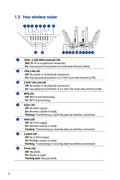


A. Wired connection
NOTE: You can use either a straight-through cable or a
crossover cable for wired connection.
To set up your wireless router via wired connection:
1. Plug your router into a power outlet and power it on.
Connect the network cable from your computer to a LAN
port on your router.
Smart phone
Tablet
Modem
Laptop
LINE
LAN
RESET
PWR
2
Wall Power Outlet
Power
1
4
LAN
3
WAN
Laptop
Printer
2. The Web GUI launches automatically when you open a
web browser. If it does not auto-launch, enter
3. Set up a password for your router to prevent unauthorized
access.
12

| General | Details |
|---|---|
| Name | ASUS ROG Rapture GT-BE19000 Wi-Fi 7 Tri Band Gaming Router User Guide |
| Make | Asus |
| Language | English |
| Filetype | PDF (Download) |
| File size | 0.32 MB |
 (1 votes, average: 5.00 out of 5)
 Loading...

ASUS RT-AC86U AC2900 WiFi Gaming Router User Guide

ASUS AC1750 WiFi Dual Band Wireless Internet Router User Guide

ASUS TUF-AX5400 Dual Band WiFi 6 Router User Guide

ASUS ET12 ZenWiFi Pro AXE11000 Tri Band Router User Guide

ASUS RT-AX82U V2 AX5400 Dual Band WiFi Router User Guide

ASUS TUF-AX4200 Dual Band WiFi Router User Guide

ASUS RT-N10U 150 mbps Wireless Router Instructions

ASUS RT-BE96U Tri Band WiFi Router User Guide

ASUS GT-AX6000 Dual Band WiFi 6 Extendable Gaming Router User Guide

ASUS RT-BE88U Dual Band WiFi Router User Guide


SIEMENS PXG3.L BACnet Router Instruction Manual

MERCUSYS MB112-4G 300Mbps Wireless N 4G LTE Router User Guide

NEXXT Nyx1200-AC Plus Dual Band AC Wireless Router User Guide

LINOVISION IoT-R32L Router User Guide

Ruijie RG-EG105GW-X Wi-Fi High Performance Router User Manual

ZYXEL NETWORKS 2AU6R03993 Security Router User Guide

TP-Link Archer AX3200 Tri Band Wifi 6 Router Installation Guide

GUDE OF 1200 E Router Instructions

TP-Link AX21 Wi-Fi 6 Router Installation Guide

GL Technologies 2AFIW-X2000 Wi-Fi 6 4G LTE CAT 12 Router User Guide