
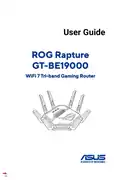
ASUS ROG Rapture GT-BE19000 Wi-Fi 7 Tri Band Gaming Router User Guide


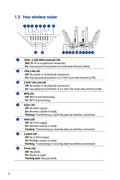


2.2 Quick Internet Setup (QIS) with Auto-detection
FAQ (Frequently Asked Questions)
•
•
•
Setting up via ASUS Router app
Setting up via Web GUI (ASUSWRT)
Setting up via QIS (Quick Internet Setup)
The Quick Internet Setup (QIS) function guides you in quickly
setting up your Internet connection.
NOTE: When setting the Internet connection for the first time,
press the Reset button on your wireless router to reset it to its
factory default settings.
To use QIS with auto-detection:
1. Launch a web browser. You will be redirected to the ASUS
Setup Wizard (Quick Internet Setup). If not, key in
2. The wireless router automatically detects if your ISP
connection type is Dynamic IP, PPPoE, PPTP and L2TP.
Key in the necessary information for your ISP connection
type.
IMPORTANT! Obtain the necessary information from your ISP
about the Internet connection type.
15

| General | Details |
|---|---|
| Name | ASUS ROG Rapture GT-BE19000 Wi-Fi 7 Tri Band Gaming Router User Guide |
| Make | Asus |
| Language | English |
| Filetype | PDF (Download) |
| File size | 0.32 MB |
 (1 votes, average: 5.00 out of 5)
 Loading...
If you have any questions regarding ASUS ROG Rapture GT-BE19000 Wi-Fi 7 Tri Band Gaming Router User Guide, please ask here and describe the problem in detail.

ASUS RT-AC86U AC2900 WiFi Gaming Router User Guide

ASUS AC1750 WiFi Dual Band Wireless Internet Router User Guide

ASUS TUF-AX5400 Dual Band WiFi 6 Router User Guide

ASUS ET12 ZenWiFi Pro AXE11000 Tri Band Router User Guide

ASUS RT-AX82U V2 AX5400 Dual Band WiFi Router User Guide

ASUS TUF-AX4200 Dual Band WiFi Router User Guide

ASUS RT-N10U 150 mbps Wireless Router Instructions

ASUS RT-BE96U Tri Band WiFi Router User Guide

ASUS GT-AX6000 Dual Band WiFi 6 Extendable Gaming Router User Guide

ASUS RT-BE88U Dual Band WiFi Router User Guide


Tenda RX2 Pro, TX2 Pro Dual Band Gigabit WiFi 6 Router Installation Guide

dahua DH-MAX18-3 MAX18 Mesh Wireless Router User Guide

BT Hub 3 Broadband Router User Guide

TP-Link Archer C80 Wi-Fi 5 Router Instructions

GL iNet GL-MT3000 Beryl AX AX3000 Wifi 6 Router User Manual

NEXTIVITY Shield Megafi Wireless Wan Router User Guide

Ruijie E4 Networking Router Instruction Manual
wis network WIS-AX3000 WiFi 6 Gigabit PoE Router User Guide

TP-Link G36 Gigabit VPN Router Installation Guide

Tenda 4G180 4G LTE Advanced Pocket Mobile Wi-Fi Router User Manual