×
- 1. Wireless Router (User Manual → N 150)
- 2. Getting Started (Troubleshooting, Support, And Warranty → Whats In The Box → Initial Setup → Advanced Tools & Settings → The Belkin Router Manager → Using Your Router)
- 3. How To Set It Up
- 4. Getting Started (Connect Your Routers Ethernet Cable To Your Modems Ethernet Port → Plug The Routers Power Supply Into A Wall Outlet → Put The Cd Into Your Computer → Click The Setup Icon On The Cd Menu)
- 5. Getting Started
- 6. Getting Started
- 7. Getting Started (Advanced Tools & Settings → Network Name & Security → Internet Service Provider & Login Settings)
- 8. The Belkin Router Manager (Router Settings → Check For Updates → Options)
- 9. Manual Setup Using Your Browser
- 10. Getting Started (Using The Cd → Adding Computers To Your Network)
- 11. Getting Started (Manually → Using The Wps Button → Troubleshooting)
- 12. Getting To Know Your Router (Front Panel → Wi-fi Protected Setup (wps) Light And Button → Router Status Light)
- 13. Getting To Know Your Router (Back Panel → Modem (wan) Connector → Reset Button → Power Connector → Wired (lan) Connectors)
- 14. Technical Features (Universal Plug-and-play (upnp) Compatibility → Integrated 802.11n Wireless Access Point → Web-based Advanced User Interface → Nat Ip Address Sharing → Belkin Router Monitor → Spi Firewall)
- 15. Technical Details (Setup Software → System Requirements → Router)
- 16. Using Your Router (Enabling Auto Update On Your Belkin Router → Setup Steps)
- 17. Using Your Router (Auto Update Firmware Enabling → System Settings)
- 18. Using Your Router (Updating Your Router Via Your System Tray (windows) Or Menu Bar (mac) → Setup Steps)
- 19. Using Your Router (Updating The Routers Firmware → Via The Web Interface → Setup Steps)
- 20. Using Your Router
- 21. Using Your Router
- 22. Using Your Router
- 23. Using Your Router (Resetting The Router → Restoring Your Router To Factory Defaults → Reset Button Red)
- 24. Using Your Router (Restoring The Router To Default Settings → Symptoms → Setup Steps)
- 25. Using Your Router
- 26. Using Your Router (The Router Will Begin The Restoring Process → Your Router Has Successfully Been Restored To Its Factory Settings → A Warning Box Will Open That Says, 'warning: All Your Settings Will Be Lost. Are You Sure You Want To Do This?')
- 27. Troubleshooting (Belkin Setup Cannot Find My Router → The Setup Cd Does Not Automatically Start → Manual Setup Using Your Browser → Manually Configuring Network Settings)
- 28. Troubleshooting, Support, And Warranty (Belkin Setup Cannot Connect My Router To The Internet → The Light On The Front Of My Router Is Blinking Amber → If Belkin Setup Is Not Able To Connect The Router To The Internet → Manually Configuring Network Settings)
- 29. Troubleshooting Support And Warranty (I Cant Connect To The Internet Wirelessly → The Light On The Front Of My Router Is Solid Amber → Adding Computers To Your Network → Manually Configuring Network Settings)
- 30. Troubleshooting (Support → Warranty → Wireless Network Performance → Vpn Connection → Changing The Wireless Channel)
- 31. Troubleshooting (Support → Warranty → Limiting The Wireless Transmit Rate → Connecting Network Clients → Wireless Transmit Rate Adjustment → Finding Network Settings)
- 32. Troubleshootingsupportandwarranty (Does The Router Support Wireless → Protected Access (wpa) Security? → I Am Having Difficulty Setting Up Wpa Security On My Router)
- 33. Troubleshooting, Support, And Warranty (Privacy (wep) Security On My Router → Log In To Your Router → Click 'wireless' In The Left-hand Menu → Select The '128-bit Wep' Option → You May Type In A Wep Key Manually, Or Generate One From A Passphrase)
- 34. Technical Support (Australia → New Zealand → Singapore → Europe)
- 35. Troubleshooting, Support, And Warranty (What Is Not Covered By This Warranty? → Year Product Warranty → What This Warranty Covers → What The Period Of Coverage Is → What Will We Do To Correct Problems?)
- 36. Troubleshooting, Support, And Warranty (How To Get Service)
- 37. Troubleshooting, Support, And Warranty (How State Law Relates To The Warranty → This Warranty Contains The Sole Warranty Of Belkin.)
- 38. Regulatory Information (Fcc Statement → Declaration Of Conformity With Fcc Rules → Caution: Exposure To Radio Frequency Radiation → Fcc Caution)
- 39. Regulatory Information (Canada-industry Canada (ic) → Wireless Radio Compliance → Operation Conditions)
- 40.
×
BELKIN F9K1001 N150 Wireless Router User Manual
UsInG YOUR ROUTeR
ꢀ
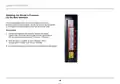
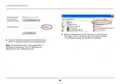
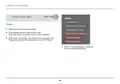
5 Toward the lower-half side of the screen you will
find “Auto Update Firmware Enabling”.
6 Select “Enable” by clicking the radio button and then
click “Apply Changes” at the bottom of the screen.
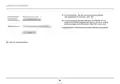
4 Click on “System Settings” in the left-hand
column under the “Utilities” heading.
16
| General | Details |
|---|---|
| Name | BELKIN F9K1001 N150 Wireless Router User Manual |
| Make | belkin |
| Language | English |
| Filetype | PDF (Download) |
| File size | 1.45 MB |
If you have any questions regarding BELKIN F9K1001 N150 Wireless Router User Manual, please ask here and describe the problem in detail.


REYEE RG-E6 WiFi 6 Router Installation Guide

MERCKU M6S Ms Router User Guide

Ruijie RG-EG310GH-P-E 10 Port Gigabit Router User Manual
xunison Hub M50 Mesh Tower High Performance Router User Guide

Spectrum RAC2V1S WiFi 5 Wave 2 Router User Guide

Sagemcom Broadband FAST 5290 Fiber Wireless Router Installation Guide

GRANDSTREAM GWN7052F Dual Band Wi-Fi Router Installation Guide

Starlink Mesh Nodes wifi router User Guide

porodo PD-4GCPMF-BK 4G/LTE Home and Outdoor Portable Router Instruction Manual

HQ TELECOM HQ-3232B Call Re Router Instructions
Table of Contents
- 1. Wireless Router - User Manual →
- 2. Getting Started - Troubleshooting, Support, And Warranty →
- 3. How To Set It Up →
- 4. Getting Started - Connect Your Routers Ethernet Cable To You... →
- 5. Getting Started →
- 6. Getting Started →
- 7. Getting Started - Advanced Tools & Settings →
- 8. The Belkin Router Manager - Router Settings →
- 9. Manual Setup Using Your Browser →
- 10. Getting Started - Using The Cd →
- 11. Getting Started - Manually →
- 12. Getting To Know Your Router - Front Panel →
- 13. Getting To Know Your Router - Back Panel →
- 14. Technical Features - Universal Plug-and-play (upnp) Compatib... →
- 15. Technical Details - Setup Software →
- 16. Using Your Router - Enabling Auto Update On Your Belkin Rout... →
- 17. Using Your Router - Auto Update Firmware Enabling →
- 18. Using Your Router - Updating Your Router Via Your System Tra... →
- 19. Using Your Router - Updating The Routers Firmware →
- 20. Using Your Router →
- 21. Using Your Router →
- 22. Using Your Router →
- 23. Using Your Router - Resetting The Router →
- 24. Using Your Router - Restoring The Router To Default Settings →
- 25. Using Your Router →
- 26. Using Your Router - The Router Will Begin The Restoring Proc... →
- 27. Troubleshooting - Belkin Setup Cannot Find My Router →
- 28. Troubleshooting, Support, And Warranty - Belkin Setup Cannot... →
- 29. Troubleshooting Support And Warranty - I Cant Connect To The... →
- 30. Troubleshooting - Support →
- 31. Troubleshooting - Support →
- 32. Troubleshootingsupportandwarranty - Does The Router Support ... →
- 33. Troubleshooting, Support, And Warranty - Privacy (wep) Secur... →
- 34. Technical Support - Australia →
- 35. Troubleshooting, Support, And Warranty - What Is Not Covered... →
- 36. Troubleshooting, Support, And Warranty - How To Get Service →
- 37. Troubleshooting, Support, And Warranty - How State Law Relat... →
- 38. Regulatory Information - Fcc Statement →
- 39. Regulatory Information - Canada-industry Canada (ic) →
- 40. Page 40 →