
BELKIN F9K1001 N150 Wireless Router User Manual















TROUblesHOOTInG, sUPPORT, anD WaRRanTY
Does the Router support Wireless
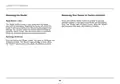
5 Click “Apply Changes” to finish. Your wireless
connection is now encrypted. Each computer using your
wireless network will need to use the new key.
Protected access (WPa) security?
The Router ships with WPA/WPA2 security turned on.
Windows XP and some older network hardware may
require a software update to support WPA/WPA2.
note: If you are configuring the Router over a wireless
connection, you will have to re-connect to the
Router after changing any security settings.
I am having difficulty setting up WPa security on my Router
note: Some older networking hardware supports
only WEP encryption. If your older computers cannot
connect to your network, try 128-bit or 64-bit WEP, or
seek software updates from their manufacturers.
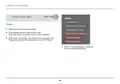
Click on the “Login” button in the top right-hand corner of the
screen. You will be asked to enter your password. If you have never
set a password, leave the “Password” field blank and click “Submit”.
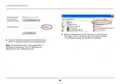
2 Click “Wireless” in the left-hand menu. Then
click “Security” just below that.
3 Select the “WPA/WPA2” option.
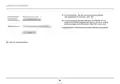
4 Enter a password. This can be from 8–63 characters of your choice,
including spaces and punctuation, OR a 64-digit hexadecimal
number (using only the numbers 0–9 and letters A–F).
31

| General | Details |
|---|---|
| Name | BELKIN F9K1001 N150 Wireless Router User Manual |
| Make | belkin |
| Language | English |
| Filetype | PDF (Download) |
| File size | 1.45 MB |
 (1 votes, average: 5.00 out of 5)
 Loading...
If you have any questions regarding BELKIN F9K1001 N150 Wireless Router User Manual, please ask here and describe the problem in detail.


COMFAST CF-WR631AX Wireless Router Installation Guide

ESR C4DM-ADAE-C0S0CCLEH-HCv1 4G Hybrid Router Installation Guide

TP-Link Archer A7 Wireless Dual Band Gigabit Router User Guide

Spectrum 20240729 WiFi 6E Router User Guide

MERCUSYS MR60X AX1500 Wi-Fi 6 Router User Guide

STRONG REPEATERAX3000 Wi-Fi 6 Repeater 3000 Router User Guide

UniFi WiFi 6 Router User Manual

NETGEAR MR6110 M6 5G WiFi 6 Mobile Router User Manual

H3C Magic NX30 WLAN Wireless Router User Guide

Cudy WR3600 Gigabit Mesh Wi-Fi 7 Router Installation Guide