×
- 1. Wireless Router (User Manual → N 150)
- 2. Getting Started (Troubleshooting, Support, And Warranty → Whats In The Box → Initial Setup → Advanced Tools & Settings → The Belkin Router Manager → Using Your Router)
- 3. How To Set It Up
- 4. Getting Started (Connect Your Routers Ethernet Cable To Your Modems Ethernet Port → Plug The Routers Power Supply Into A Wall Outlet → Put The Cd Into Your Computer → Click The Setup Icon On The Cd Menu)
- 5. Getting Started
- 6. Getting Started
- 7. Getting Started (Advanced Tools & Settings → Network Name & Security → Internet Service Provider & Login Settings)
- 8. The Belkin Router Manager (Router Settings → Check For Updates → Options)
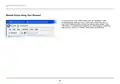
- 9. Manual Setup Using Your Browser
- 10. Getting Started (Using The Cd → Adding Computers To Your Network)
- 11. Getting Started (Manually → Using The Wps Button → Troubleshooting)
- 12. Getting To Know Your Router (Front Panel → Wi-fi Protected Setup (wps) Light And Button → Router Status Light)
- 13. Getting To Know Your Router (Back Panel → Modem (wan) Connector → Reset Button → Power Connector → Wired (lan) Connectors)
- 14. Technical Features (Universal Plug-and-play (upnp) Compatibility → Integrated 802.11n Wireless Access Point → Web-based Advanced User Interface → Nat Ip Address Sharing → Belkin Router Monitor → Spi Firewall)
- 15. Technical Details (Setup Software → System Requirements → Router)
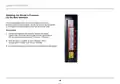
- 16. Using Your Router (Enabling Auto Update On Your Belkin Router → Setup Steps)
- 17. Using Your Router (Auto Update Firmware Enabling → System Settings)
- 18. Using Your Router (Updating Your Router Via Your System Tray (windows) Or Menu Bar (mac) → Setup Steps)
- 19. Using Your Router (Updating The Routers Firmware → Via The Web Interface → Setup Steps)
- 20. Using Your Router
- 21. Using Your Router
- 22. Using Your Router
- 23. Using Your Router (Resetting The Router → Restoring Your Router To Factory Defaults → Reset Button Red)
- 24. Using Your Router (Restoring The Router To Default Settings → Symptoms → Setup Steps)
- 25. Using Your Router
- 26. Using Your Router (The Router Will Begin The Restoring Process → Your Router Has Successfully Been Restored To Its Factory Settings → A Warning Box Will Open That Says, 'warning: All Your Settings Will Be Lost. Are You Sure You Want To Do This?')
- 27. Troubleshooting (Belkin Setup Cannot Find My Router → The Setup Cd Does Not Automatically Start → Manual Setup Using Your Browser → Manually Configuring Network Settings)
- 28. Troubleshooting, Support, And Warranty (Belkin Setup Cannot Connect My Router To The Internet → The Light On The Front Of My Router Is Blinking Amber → If Belkin Setup Is Not Able To Connect The Router To The Internet → Manually Configuring Network Settings)
- 29. Troubleshooting Support And Warranty (I Cant Connect To The Internet Wirelessly → The Light On The Front Of My Router Is Solid Amber → Adding Computers To Your Network → Manually Configuring Network Settings)
- 30. Troubleshooting (Support → Warranty → Wireless Network Performance → Vpn Connection → Changing The Wireless Channel)
- 31. Troubleshooting (Support → Warranty → Limiting The Wireless Transmit Rate → Connecting Network Clients → Wireless Transmit Rate Adjustment → Finding Network Settings)
- 32. Troubleshootingsupportandwarranty (Does The Router Support Wireless → Protected Access (wpa) Security? → I Am Having Difficulty Setting Up Wpa Security On My Router)
- 33. Troubleshooting, Support, And Warranty (Privacy (wep) Security On My Router → Log In To Your Router → Click 'wireless' In The Left-hand Menu → Select The '128-bit Wep' Option → You May Type In A Wep Key Manually, Or Generate One From A Passphrase)
- 34. Technical Support (Australia → New Zealand → Singapore → Europe)
- 35. Troubleshooting, Support, And Warranty (What Is Not Covered By This Warranty? → Year Product Warranty → What This Warranty Covers → What The Period Of Coverage Is → What Will We Do To Correct Problems?)
- 36. Troubleshooting, Support, And Warranty (How To Get Service)
- 37. Troubleshooting, Support, And Warranty (How State Law Relates To The Warranty → This Warranty Contains The Sole Warranty Of Belkin.)
- 38. Regulatory Information (Fcc Statement → Declaration Of Conformity With Fcc Rules → Caution: Exposure To Radio Frequency Radiation → Fcc Caution)
- 39. Regulatory Information (Canada-industry Canada (ic) → Wireless Radio Compliance → Operation Conditions)
- 40.
×
BELKIN F9K1001 N150 Wireless Router User Manual
ReGUlaTORY InfORMaTIOn
Canada-Industry Canada (IC)
The wireless radio of this device complies with RSS
139 & RSS 210 Industry Canada. This Class B digital
apparatus complies with Canadian ICES-003.
Operation is subject to the following two conditions: (1)
this device may not cause interference, and (2) this device
must accept any interference, including interference
that may cause undesired operation of the device.
Cet appareil numérique de la classe B conforme
á la norme NMB-003 du Canada.
38
| General | Details |
|---|---|
| Name | BELKIN F9K1001 N150 Wireless Router User Manual |
| Make | belkin |
| Language | English |
| Filetype | PDF (Download) |
| File size | 1.45 MB |
If you have any questions regarding BELKIN F9K1001 N150 Wireless Router User Manual, please ask here and describe the problem in detail.


TP-Link Archer AX53 AX3000 Gigabit Wi-Fi 6 Router User Guide

GL iNet AX1800 Slate AX Wireless Router User Manual

inseego FG2000e PRO 5G Router User Guide

ASUS RTAX6P00 ZenWiFi Hybrid MoCA Mesh Router User Manual
Cudy P4 Dual Band Whole Home Mesh Wi-Fi Router Installation Guide

Urant U20 Wireless Router Installation Guide

TOTOLINK LR350 4G LTE Router Installation Guide

WESTMANN GigaSpire BLAST U6 Router User Guide

ZTE MC801A 5G WiFi CPE Router User Manual
ASUS RP-AX56 Dual Band Wireless Router User Guide
Table of Contents
- 1. Wireless Router - User Manual →
- 2. Getting Started - Troubleshooting, Support, And Warranty →
- 3. How To Set It Up →
- 4. Getting Started - Connect Your Routers Ethernet Cable To You... →
- 5. Getting Started →
- 6. Getting Started →
- 7. Getting Started - Advanced Tools & Settings →
- 8. The Belkin Router Manager - Router Settings →
- 9. Manual Setup Using Your Browser →
- 10. Getting Started - Using The Cd →
- 11. Getting Started - Manually →
- 12. Getting To Know Your Router - Front Panel →
- 13. Getting To Know Your Router - Back Panel →
- 14. Technical Features - Universal Plug-and-play (upnp) Compatib... →
- 15. Technical Details - Setup Software →
- 16. Using Your Router - Enabling Auto Update On Your Belkin Rout... →
- 17. Using Your Router - Auto Update Firmware Enabling →
- 18. Using Your Router - Updating Your Router Via Your System Tra... →
- 19. Using Your Router - Updating The Routers Firmware →
- 20. Using Your Router →
- 21. Using Your Router →
- 22. Using Your Router →
- 23. Using Your Router - Resetting The Router →
- 24. Using Your Router - Restoring The Router To Default Settings →
- 25. Using Your Router →
- 26. Using Your Router - The Router Will Begin The Restoring Proc... →
- 27. Troubleshooting - Belkin Setup Cannot Find My Router →
- 28. Troubleshooting, Support, And Warranty - Belkin Setup Cannot... →
- 29. Troubleshooting Support And Warranty - I Cant Connect To The... →
- 30. Troubleshooting - Support →
- 31. Troubleshooting - Support →
- 32. Troubleshootingsupportandwarranty - Does The Router Support ... →
- 33. Troubleshooting, Support, And Warranty - Privacy (wep) Secur... →
- 34. Technical Support - Australia →
- 35. Troubleshooting, Support, And Warranty - What Is Not Covered... →
- 36. Troubleshooting, Support, And Warranty - How To Get Service →
- 37. Troubleshooting, Support, And Warranty - How State Law Relat... →
- 38. Regulatory Information - Fcc Statement →
- 39. Regulatory Information - Canada-industry Canada (ic) →
- 40. Page 40 →