
Home > Cradlepoint > cradlepoint R2100 Series 5G Ruggedized Router User Guide
cradlepoint R2100 Series 5G Ruggedized Router User Guide


If using PoE, thread the PoE cable to the PoE source.
If using a power adapter, thread the power cable to reach the power source.
Power socket pinouts
When creating a custom cable, you can find the proper pinouts below.
NOTE: The diagram is shown as looking at the socket on the cable descending from the router, or the back of the
connector on the custom cable.
Diagram
Pin Wire Color
Function
1
2
3
4
Black
Red
Ground
Power (12VDC)
Ignition Sense
N/C
Orange
Blue
STEP 5: Power up the router
The router powers up automatically once power is supplied to the unit from the source.
Tap the touch sensitive button to verify the power LED lights up (all LEDs will go dark a few moments after touching
the panel).
STEP 6: Activate the router in NetCloud Manager
Activate the router through NetCloud Manager (NCM). Device activation requires that you log into your NetCloud
Understanding LEDs

| General | Details |
|---|---|
| Name | cradlepoint R2100 Series 5G Ruggedized Router User Guide |
| Make | Cradlepoint |
| Language | English |
| Filetype | PDF (Download) |
| File size | 0.2 MB |
 (1 votes, average: 5.00 out of 5)
 Loading...
If you have any questions regarding cradlepoint R2100 Series 5G Ruggedized Router User Guide, please ask here and describe the problem in detail.

cradlepoint R920 Series Ruggedized Router User Guide

cradlepoint PepWave MAX BR1 Pro 5G Mobile Router User Guide

cradlepoint CTR35 Wireless Router User Guide
Cradlepoint E102 Series Enterprise Router User Guide

cradlepoint E110 Enterprise Branch Router User Manual

cradlepoint S5A037A Enterprise Branch Router User Manual

cradlepoint E100 Enterprise Router Endpoints User Guide

cradlepoint AER1600 LTE Router User Guide

cradlepoint S5A245A Router User Guide


AKYPACH A2 Wood Router Instruction Manual

ASUS RT-BE92U Wireless Router User Guide

LANCOM 884 VoIP Router User Guide

dahua AX1500 Wi-Fi6 Wireless Router Instruction Manual

airlive XG-XGS OLT MESH Router User Guide

ZTE MC888 Ultra 5G Router Instruction Manual

TP-Link AC1200 Dual Band Wi-Fi Router Installation Guide

D-Link R95 BE9500 Wi-Fi 7 Smart Router User Guide
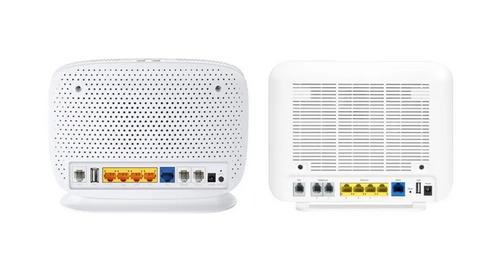
more FTTP BYO Router Installation Guide

HUAWEI B628-265 4G Router User Guide