
D-LINK DIR-827 HD 2000 Media Router Installation Guide


Before You Begin
Start Here
Wi-PnP Wireless Setup
Wi-PnP allows you to copy your wireless settings from your router to a USB flash
drive and use to automatically configure the wireless settings on yourWindows®
computers. Follow the steps below:
Quick Install Guide
• You can only use the Ethernet port on your modem. If you were using the
USB connection before using the router, then you must turn off your modem,
disconnect the USB cable and connect an Ethernet cable to the Internet port
on the router, then turn the modem back on. In some cases, you may need to
call your ISP to change connection types (USB to Ethernet).
Windows users can use the Quick Router SetupWizard (from the CD) to configure
their router. If you do not want to use the wizard, lost your CD, or are running Mac
or Linux, you will need to use the manual setup procedure.
HD Media Router 2000
1. Plug in USB Flash Drive in USB port on the back of the router.
Quick Router Setup Wizard
For the Wizard to work, the computer must be connected to the Internet and be
online. If you have disconnected any hardware, please re-connect your computer
back into the modem and make sure you are online.
2. Press and hold theWPS button (located on the front of the router) for 5 seconds.
The power LED will blink.
• IfyouhaveDSLandareconnectingviaPPPoE,makesureyoudisableoruninstall
any PPPoE software such as WinPoet, Broadjump, or Enternet 300 from your
computer or you will not be able to connect to the Internet.
3. Wait 10 seconds and unplug the USB Flash Drive from the router.
4. Plug the USB Flash Drive in a Windows-based computer.
Insert the CD into your drive on a computer that is online and click Install Router
to start the Quick Router Setup Wizard. Follow the on-screen instructions to install
and configure your router.
• When running the Setup Wizard from the D-Link CD, make sure the computer
you are running the CD from is connected to the Internet and online or the
wizard will not work. If you have disconnected any hardware, re-connect your
computer back to the modem and make sure you are online.
5. The window below will automatically appear. Double-click Connect to a
wireless network. Click Yes to add your computer to your wireless network.
Manual Setup
If you are using Mac or Linux, or are unable to use the wizard, use the manual setup
outlined below and refer to the user manual on the CD for more information.
Thank you for purchasing the DIR-827 HD Media Router 2000. Follow the easy
steps in this guide to properly set up your router. Please verify that all the package
contents listed below are available.
Note: If the window does not automatically pop up, proceed to the following
steps:
Router Placement
To get the best wireless coverage, place your router in an open area away from your
computer, monitor, and speakers.Try to position the router so that the signal passes
through drywall or open doorways. Materials and objects such as glass, steel, metal,
walls with insulation, water (fish tanks), mirrors,file cabinets, brick, and concrete will
degrade your wireless signal.
6. Open the folder contents of your USB thumb drive and double-click
WiPnP.exe.
Step 1
Position your router close to your modem and the computer that is already online.
Place this router in an open area of your intended work area for better wireless
coverage.
Package Contents
7. Click Yes to the pop-up window to continue. Click OK and then click Finish.
DIR-827 HD Media Router 2000
Repeat steps 4-7 on any other Windows computer that you want to wirelessly
connect to your router.
Step 2
Unplug the Ethernet cable from your modem that is connected to your computer.
Plug it into the blue port labeled 1 on the back of your router. The router is now
connected to your computer.
LEDs
Power LED
Please refer to the user manual for more information and alternate setup
procedures.
Ethernet Cable
A solid light indicates a proper connection to the power supply.
Power LED will be blinking blue when SD card is in use. Please do not eject the
SD card until the Power LED is solid blue. Removing SD card while Power LED is
blinking will cause adverse effect to your SD card.
Step 3
Technical Support
Having trouble installing your new product? D-Link’s website contains the latest
user documentation and software updates for D-Link products. U.S. and Canadian
customers can contact D-Link Technical Support through our website or by phone.
Plug one end of the included Ethernet cable that came with your router into the
port labeled INTERNET on the back of the router. Plug the other end of this cable
into the Ethernet port on your modem.
Power Adapter
CD-ROM with Manual and Setup Wizard
Internet LED
A solid light indicates connection on the Internet port. This LED blinks during
data transmission.
Step 4
Connect the supplied power adapter into the power port on the back of the router
and then plug into a power outlet or surge protector. Verify the power light is lit.
United States
Telephone: (877) 453-5465
Canada
Telephone: (800) 361-5265
Internet: http://support.dlink.com
Internet: http://support.dlink.ca
Step 5
If any of the above items are missing, please contact your reseller.
©2011 D-Link Corporation/D-Link Systems, Inc. All rights reserved. D-Link and the D-Link logo are registered trademarks of D-Link
Corporation or its subsidiaries in the United States and/or other countries. Other trademarks or registered trademarks are the
property of their respective owners. Product specifications, size and shape are subject to change without notice, and actual product
appearance may differ from that depicted on the package. Visit dlink.com (US) or dlink.ca (Canada) for more details.
press Enter. When the login window appears, set the user name to Admin and
leave the password box blank. Click Log In to continue the setup. Please refer to
the user manual for more detailed installation information and advanced features.
Version 1.1 | March 7, 2011 29072600D827A11
DIR-827


| General | Details |
|---|---|
| Name | D-LINK DIR-827 HD 2000 Media Router Installation Guide |
| Make | D-Link |
| Language | English |
| Filetype | PDF (Download) |
| File size | 0.09 MB |
 (1 votes, average: 5.00 out of 5)
 Loading...
If you have any questions regarding D-LINK DIR-827 HD 2000 Media Router Installation Guide, please ask here and describe the problem in detail.

D-Link BE3600 Mesh Gigabit Wireless Router Installation Guide

D-Link DBR-700 Router Installation Guide

D Link DIR-822 AC1200 WiFi Router User Guide

D-Link DIR-2660 AC2600 Mesh Wifi Router Installation Guide

D-Link EXO AX AX1800 Wi-Fi Router User Guide

D-Link N300 4G Router User Guide

D-Link M60 AX6000 Wi-Fi 6 Mesh Router Installation Guide

D-Link AX3200 Router Owner’s Manual

D-Link M30 2-pack Mesh Router User Guide

D-Link M30 AQUILA PRO AI AX3000 Wi-Fi 6 Mesh Router User Manual


NETGEAR AX1800 WiFi 6 Router User Guide

Cudy WR3600E Gigabit Wi-Fi 7 Router Installation Guide

WAVLINK AC1200 WiFi Router Instructions

HUAWEI B636-336 4G LTE Portable Broadband Router User Guide

Taiko Audio Extreme Router User Guide

prolink DL-7302 LTE CAT4 Wi-Fi Home Router Installation Guide

ASUS ROG Rapture GT-BE19000 Wi-Fi 7 Tri Band Gaming Router User Guide

MikroTIK CCR2004-1G-12S+2XS Cloud Core Router User Manual

Tenda F9 Wireless Router Installation Guide
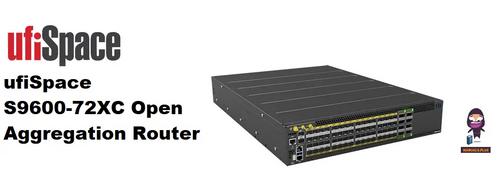
ufiSpace S9600-72XC Router Installation Guide