
D-Link M60 AX6000 Wi-Fi 6 Mesh Router Installation Guide



Setting your M60 up as a Range Extender
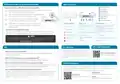
M60 Overview
1
2
3
4
5
6
7
8
LED On/Off button
Internet port
To pair your devices with M60, follow the steps below.
Plug in to power on M60 and place it near your wireless router. Wait for
M60’s LED indicator to start pulsing orange.
Ethernet port
1
2
3
4
/
RESET button
7
Press the WPS button on the router for 3 seconds. Refer to
your router’s user manual for router behavior.
Power connector : (12V/2.5A).
Power button
/
WPS button
Press the WPS button on your M60 for 3 seconds.
The LED indicator should start pulsing white.
8
1
2
3
4
5
6
/
/
LED status indicators
LED status indicators
Router modes
Extender modes
When M60’s LED indicator turns solid white (may take
up to 3 minutes), this indicates M60 is connected to your
wireless router.
Connected to the Internet and in
operation
Connected to an uplink router and with
good wireless signal
Solid white
Connected to an uplink router but with
weak wireless signal
Pulsing white
Pulsing orange
WPS in operation
You have now completed the setup !
You can move your M60 to any location you want for wireless coverage. By default,
your M60 shares the same Wi-Fi Name and password of your wireless router.
Cannot connect to an uplink router or is
not set up
Ready for connection or is not set up
Interleaving white/ orange Firmware updating
Firmware updating
NOTE
Booting up or resetting to factory
default
Pulsing red
Solid red
Booting up or resetting to factory default
Powering on
WPS may be disabled on certain routers. If the LED indicator does not blink after pressing
the WPS button, try again and press it a little longer. If that still does not work, use
AQUILA PRO AI App for setup instead.
Powering on
GPL Code Statement
FAQ
FCC Warning
This device complies with Part 15 of the FCC Rules.
Operation is subject to the following two conditions:
(1) The device may not cause harmful interface, and
(2) this device must accept any interface received,
including interface that may cause undesired
operation.
Why can’t I access the Internet?
Please reset your wireless router, and if it still does not work, please contact your
internet service provider.
GPL Source Code Support
https://tsd.dlink.com.tw/GPL
What do I do if I forgot my router’s login password?
Please reset your wireless router to default settings and set it up again.
How do I restore the router to its factory default settings?
With the router powered on, press the reset button with a paperclip for 1 second
and then release it. The M60 will now be at its factory default settings.
Technical Support
Having trouble installing your new product? D-Link’s website contains the latest user
documentation and software updates for D-Link products. Customers can contact D-Link
How to Build a Mesh Network with Ethernet Backhaul?
Technical Support through our website by choosing the relevant region.
To create a wired Ethernet backhaul connection, simply connect an Ethernet cable
from the LAN port on your Mesh Wi-Fi router to the LAN port on your Mesh Wi-Fi
node. The Status LED will turn solid white once it has finished pairing with your
Mesh Wi-Fi network in a few minutes.
United States
Contact Us
Canada

| General | Details |
|---|---|
| Name | D-Link M60 AX6000 Wi-Fi 6 Mesh Router Installation Guide |
| Make | D-Link |
| Language | English |
| Filetype | PDF (Download) |
| File size | 0.12 MB |
 (1 votes, average: 5.00 out of 5)
 Loading...
If you have any questions regarding D-Link M60 AX6000 Wi-Fi 6 Mesh Router Installation Guide, please ask here and describe the problem in detail.

D-Link BE3600 Mesh Gigabit Wireless Router Installation Guide

D-Link DBR-700 Router Installation Guide

D Link DIR-822 AC1200 WiFi Router User Guide

D-Link DIR-2660 AC2600 Mesh Wifi Router Installation Guide

D-Link EXO AX AX1800 Wi-Fi Router User Guide

D-Link N300 4G Router User Guide

D-Link AX3200 Router Owner’s Manual

D-Link M30 2-pack Mesh Router User Guide

D-Link M30 AQUILA PRO AI AX3000 Wi-Fi 6 Mesh Router User Manual

D-Link M60 AX6000 WiFi 6 Mesh Router User Guide


NETGEAR XR300 Nighthawk Gaming Router User Guide

Danone CPF101 4G Router User Manual

EnGenius XG60-FIT FitXpress 4 port Gigabit PoE plus VPV Router Owner’s Manual

HOLZMANN MASCHINEN OBF1200_230V Hand Held Devices Router User Manual

TP-Link AX53 Smart Internet Router User Guide

FiberHome SR1021Y Wireless Router User Manual

TELTONIKA RUTX12 Dual Cat 6 Cellular Router Owner’s Manual
ufiSpace S9600-72XC Router Installation Guide

ADVANTECH ICR-2431 LTE Router User Manual

ASUS ExpertWiFi EBG15 Gigabit VPN Router User Guide