×
- 1. Quick Installation Guide
- 2. Safety Instructions (This Product Is Designed For Indoor Use Only. → Static Electricity Can Be Harmful To Electronic Components. → The Device Contains No User Serviceable Parts. → Do Not Spill Food Or Liquid On Your Product. → Do Not Use This Product Near Water. → Keep The Product Away From Radiators. → Always Unplug The Product From Mains Power Before Cleaning.)
- 3. Installation (Plug The Included Power Adapter Into The Devices 5v Dc Power Port And The Other End Into An Electrical Socket. → Ensure That The Power Led Is Lit. → Use A Wi-fi Device To Search For A Wi-fi Network With The Ssid 'edimax_2.4g_xx' And Connect To It.)
- 4. Open A Web Browser And If You Do Not Automatically Arrive At The Login Screen Shown Below, Enter The Url Http://192.168.2.1 And Begin The Se…
- 5. Wi-fi Router (Wisp Mode → Universal Repeater → Access Point)
- 6. Troubleshooting (The System Led Does Not Light Up → The Wan Led Does Not Light Up → I Cant Access The Internet → I Cant Open The Web Based Configuration Interface → How Do I Reset My Device To Factory Default Settings)
- 7. Reset The Router To Its Factory Default Settings (Remove Wireless Network From Your Pc → Manage Wireless Networks)
- 8. Step 3: Select The Wireless Network And Click Remove Network. (Step 4: Right Click Wireless Network Connection And Then Select Properties.)
- 9. Wireless Networks (Preferred Networks → Command Prompt → Run As Administrator → Show Profiles)
- 10. Step 3. Locate The Profile Name Of The Network You Want To Remove. Type The Following Command 'netsh Wlan Delete Profile Name='profile Name'…
- 11. Step 1: Open The Wi-fi Popup From Your System Tray. Right-click Or Long-press The Name Of The Network You Want To Remove And Select 'forget'…
- 12. The Provided Html Code Does Not Contain Any Subheadings Related To Installation/setup/configuration. Therefore, I Will Take The First Senten… (Copyright Edimax Technology Co., Ltd. All Rights Reserved. No Part Of This Publication May Be Reproduced, Transmitted, Transcribed, Stored In A Retrieval System, Or Translated.)
- 13. Federalcommunicationcommissioninterferencestatement (Fcc Caution → Federalcommunicationscommission(fccradiationexposurestatement → Federalcommunicationscommission(fccrfeposurerequirements → Redcompliancestatement → Safety → Eucountriesintendedforuse)
- 14. The Etsi Version Of This Device Is Intended For Home And Office Use In Austria, Belgium, Bulgaria, Cyprus, Czech, Denmark, Estonia, Finland,…
- 15. Declaration Of Conformity (Equipment → Model No. → Directives → Safety (lvd) → The Product Carries The Ce Mark → Date & Place Of Issue)
×
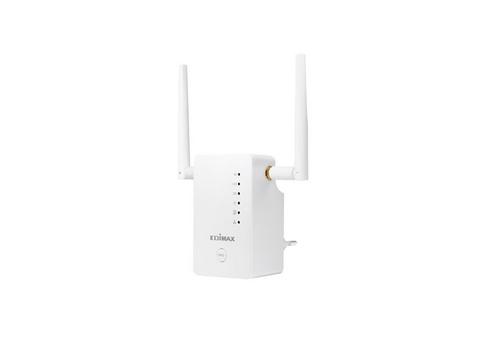
EDIMAX BR-6428NS V5 4 in 1 N300 WiFi Router Installation Guide
| General | Details |
|---|---|
| Name | EDIMAX BR-6428NS V5 4 in 1 N300 WiFi Router Installation Guide |
| Make | EDIMAX |
| Language | English |
| Filetype | PDF (Download) |
| File size | 0.74 MB |
If you have any questions regarding EDIMAX BR-6428NS V5 4 in 1 N300 WiFi Router Installation Guide, please ask here and describe the problem in detail.

EDiMAX EW-7489WAX Wireless Router Installation Guide


AVCOMM AP224 WLAN Compact LTE WLAN Router Installation Guide
TP-Link Archer BE550 Pro Tri-Band Wi-Fi 7 Router Instructions

TELTONIKA Networks RUTM50 Cellular 5G Router User Guide

GL iNet XE2000 Dual SIM Wi-Fi 6 Router User Guide

ESR C4DM-ADAE-C0S0CCLEH-HCv1 4G Hybrid Router Installation Guide

Gigastone R101 Mini Wireless Pack Travel Router Installation Guide

LUXUL XWR-1750 Dual Band Wireless AC1750 Gigabit Router User Guide

HUAWEI WiFi Mesh 7 Tri-Band Router User Guide

NETGEAR RAX36 Nighthawk WiFi 6 Router User Guide

ASUS RT-AX59U Dual Band WiFi 6 AiMesh Router User Guide
Table of Contents
- 1. Quick Installation Guide →
- 2. Safety Instructions - This Product Is Designed For Indoor Us... →
- 3. Installation - Plug The Included Power Adapter Into The Devi... →
- 4. Open A Web Browser And If You Do Not Automatically Arrive At... →
- 5. Wi-fi Router - Wisp Mode →
- 6. Troubleshooting - The System Led Does Not Light Up →
- 7. Reset The Router To Its Factory Default Settings - Remove Wi... →
- 8. Step 3: Select The Wireless Network And Click Remove Network... →
- 9. Wireless Networks - Preferred Networks →
- 10. Step 3. Locate The Profile Name Of The Network You Want To R... →
- 11. Step 1: Open The Wi-fi Popup From Your System Tray. Right-cl... →
- 12. The Provided Html Code Does Not Contain Any Subheadings Rela... →
- 13. Federalcommunicationcommissioninterferencestatement - Fcc Ca... →
- 14. The Etsi Version Of This Device Is Intended For Home And Off... →
- 15. Declaration Of Conformity - Equipment →