
eero N010001 AX1800 Dual Band Mesh WiFi 6 Router User Manual


You’ll need to enter your phone number and email address. By default, we’ll send a verification
code to your email address, but you can opt to receive it via text message instead instead. Enter
this code on the verification screen of the app to create your account.
STEP 3: Set up your eero
The eero app will guide you through setting up your gateway eero. It’s three easy steps:
1. Unplug your modem. If you have other wireless equipment connected to your modem, please
unplug it as well.
o
Note: if you have a modem-router combination device from your provider, you can plug
the eero directly into one of the 4 Ethernet ports on the back without powering down.
2. Connect your eero to your modem using the Ethernet cable. You can use either of the Ethernet
ports on the back of your eero.
3. Plug your eero in with the power adapter that came in the box, then plug your modem back into
power. For placement tips, including DO's and DON'Ts, visit here.
STEP 4: Create your eero network
Now that you’ve got everything plugged in, it’s time to create your eero network.
After tapping Next, the eero app will begin to look for your eero. You will notice that your
gateway eero's LED will begin to flash blue and then turn solid once found. Once your eero has
been detected, you will select a name for your eero (naming the eero after its location is a
common choice).
If prompted, you may need to enter your eero’s serial number, which is located on a sticker
attached to the bottom of your eero. Just look for a barcode with the letters SN on it – it’s small,
but it’s there.
Once you've selected a name for your eero, you will choose your network name (SSID) and
network password. This is how devices will join your network.
If you’re replacing an existing router, one easy option for choosing a network name (SSID) and
password is to simply reuse your current SSID and password. This way, you won’t have to
reconnect devices that were previously on the network.
Keep in mind that running two networks with the same SSID can be problematic. If you have a
modem/router combo device, as mentioned above, we strongly encourage you to enable bridge
mode on that device. Need help? Give us a call and we’ll walk you through it.
Models N010001 and Q010001 draft
Confidential and Proprietary
9/9/2020

| General | Details |
|---|---|
| Name | eero N010001 AX1800 Dual Band Mesh WiFi 6 Router User Manual |
| Make | eero |
| Language | English |
| Filetype | PDF (Download) |
| File size | 0.18 MB |
 (1 votes, average: 5.00 out of 5)
 Loading...
If you have any questions regarding eero N010001 AX1800 Dual Band Mesh WiFi 6 Router User Manual, please ask here and describe the problem in detail.

eero 609R010111 6+ Dual-Band Mesh Wi-Fi 6 Router User Guide

eero Max 7 Mesh Wifi Router Owner’s Manual

eero 7 Dual Band Mesh Wi-Fi 7 Router User Guide

eero V010001 Router User Guide

eero Pro 6E Mesh Router User Guide

eero Pro 6 Mesh Wi-Fi Router User Guide

eero SN10001 Outdoor 7 PoE Mesh Wi-Fi Router Installation Guide
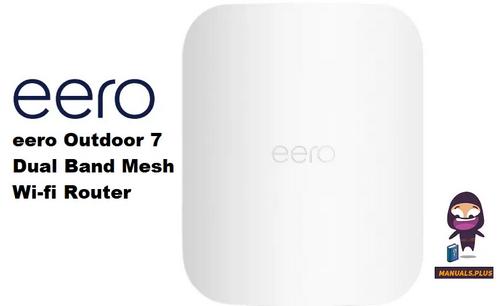
eero Outdoor 7 Dual Band Mesh Wi-fi Router Installation Guide


TP-Link AX1800 Wi-Fi 6 Gigabit Dual Band Wireless Router User Guide

COOSPO RC905 Router User Manual

LINKSYS EA7500 AC1900 Max Stream Wifi Router User Guide

TP-Link TL-WR841N Wireless N Router Installation Guide

TP-Link Tri-Band Wi-Fi 6E Router User Guide

TRANSLITE GLOBAL TL-HWR-13 Dual Band Smart Wireless Router Owner’s Manual

WINEGARD Converge Poplar Router Owner’s Manual

Cudy LT500 4G LTE AC1200 Dual Band WiFi Router User Guide

ADVANTECH ICR-2041 LTE Router User Manual

Juniper NETWORKS ACX Series Paragon Automation Router User Guide