
eero Pro 6 Mesh Wi-Fi Router User Guide


Privileged and Confidential
One final (and important) step is to remember to connect all of your devices to your new eero
network. To do this, simply find your eero network on your device, enter the network password that
you've created, and get connected. If you're using the same network name (SSID) and password as
your previous router, your devices should automatically reconnect. However, you may need to
toggle WiFi on these devices or power cycle for them to recognize the new eero network.
If you experience any trouble connecting specific devices to your new eero network, try
disconnecting and reconnecting WiFi on the device. If that doesn't work, try rebooting the device
and then reconnecting to the network once it powers back on.
Replacing an existing network
To replace an existing network, open the eero App and tap the blue plus sign located on the top
right corner of the home screen, then select "Add or Replace eero Devices." It's recommended to
start with replacing non-gateway nodes first, simply follow in-app instructions replacing each
node. Once all non-gateway nodes have been replaced, proceed to replace the Gateway eero.
When replacing the Gateway eero, we recommended unplugging your modem from power for 2
minutes to prevent potential issues with obtaining an IP address. Additionally, make sure the
Gateway eero is plugged directly into your ISP connection, do not place a switch between the
Gateway and the Modem or ONT, even if planning to use the network in bridge mode.

| General | Details |
|---|---|
| Name | eero Pro 6 Mesh Wi-Fi Router User Guide |
| Make | eero |
| Language | English |
| Filetype | PDF (Download) |
| File size | 0.18 MB |
 (1 votes, average: 5.00 out of 5)
 Loading...
If you have any questions regarding eero Pro 6 Mesh Wi-Fi Router User Guide, please ask here and describe the problem in detail.

eero 609R010111 6+ Dual-Band Mesh Wi-Fi 6 Router User Guide

eero 7 Dual Band Mesh Wi-Fi 7 Router User Guide

eero Max 7 Mesh Wifi Router Owner’s Manual

eero N010001 AX1800 Dual Band Mesh WiFi 6 Router User Manual

eero V010001 Router User Guide

eero Pro 6E Mesh Router User Guide

eero SN10001 Outdoor 7 PoE Mesh Wi-Fi Router Installation Guide
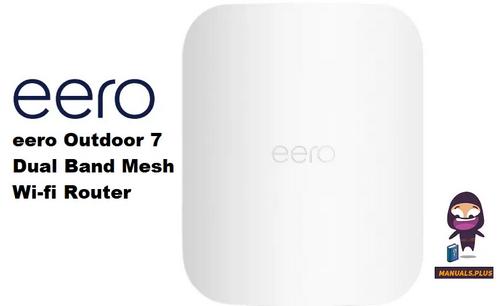
eero Outdoor 7 Dual Band Mesh Wi-fi Router Installation Guide


inseego FX3100 Wavemaker 5G Router User Guide
UniFi A3000 WiFi 6 Router User Manual

LANCOM SYSTEMS LANCOM OAP-830 Wireless Router User Guide

ASUS ET12 AXE11000 Tri Band WiFi Router User Guide

devolo 3600 5G LTE Wi-Fi 6 Router User Manual

D-Link M60 AX6000 WiFi 6 Mesh Router User Guide

WESTMANN GigaSpire BLAST U6 Router User Guide

LINKSYS AX3200 Dual-Band Gigabit Wi-Fi 6 Router User Guide

NETGEAR PR60X Pro 10G Multi Gigabit Dual WAN Pro Router Installation Guide

TANGERINE eero 6+ Router User Guide