
IQ WiFi 6 Router Installation Guide


S5TEP
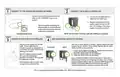
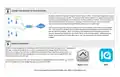
PAIR CONTROLLER TO IQ PANEL
1. Open settings tray
2. Look for the
3. Enter password
printed on sticker or
bottom of router.
Password is case
sensitive from the
Controller.
4. Touch connect. The
Panel will transition
to the security SSID
automatically
broadcasting SSID or
network name and
touch it. SSID will
be IQ_WiFi_XXXXXX
1
2
3
touch Settings,
Advanced Settings,
type valid Dealer or
Install code, then
touch WiFi.
4
*Please note: BEFORE pairing to IQ Panel, update panel software to a minimum: 2.7.1 (IQ Panel 2), 3.1.0 (IQ Hub), or 4.2.0 (IQ Panel 4).
STEP
S7TEP
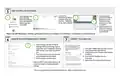
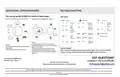
RENAME YOUR NETWORK (SSID) IF DESIRED
CONNECT TO ALARM.COM
1. Open settings tray from IQ Panel,
2
Settings, Advanced Settings, type in
valid code, touch Installation, Devices,
WiFi Devices, then touch the IQ WiFi
icon
1. From ADC Mobile Tech, find the customer
2. Touch Equipment, Add Devices
3. Scroll down to Wi-Fi Router, select Qolsys
IQ WIFI 6
4. Scan the MAC Address from the
Controller
2. Touch the down arrows to make edits
to the Network Name (SSID’s)
3. Enter a unique network name.
5. Reboot the Controller when instructed
Note: IQ WiFi 6 uses band-steering. All
nodes will reboot if changing default
settings.

| General | Details |
|---|---|
| Name | IQ WiFi 6 Router Installation Guide |
| Make | IQ |
| Language | English |
| Filetype | PDF (Download) |
| File size | 0.21 MB |
 (1 votes, average: 5.00 out of 5)
 Loading...
If you have any questions regarding IQ WiFi 6 Router Installation Guide, please ask here and describe the problem in detail.


ADVANTECH SL302 SmartStart LTE Router User Manual

ADVANTECH ICR-2701 Engineering Portal Cellular Router User Guide

TP-Link AC1200 Dual Band Wi-Fi Router Installation Guide

Tenda HG Series xPON ONT Network Router Installation Guide

LANCOM 1793VA VPN Router User Guide
eero Outdoor 7 Dual Band Mesh Wi-fi Router Installation Guide

D-Link DIR-615 Wireless Router User Manual

KMC CONTROLS BAC-5051AE BACnet Router Owner’s Manual

ASUS ROG Rapture GT6 Router User Guide

Tenda RX2 Pro Dual Band WiFi 6 Router Installation Guide