
JuniPer ACX7024 Cloud Metro Router User Guide





8
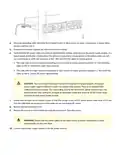
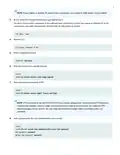
NOTE: If your laptop or desktop PC doesn't have a serial port, use a serial-to-USB adapter (not provided).
3. At the Junos OS Evolved login prompt, type root to log in.
You don't need to enter a password. If the soſtware boots before you connect your laptop or desktop PC to the
console port, you might need to press the Enter key for the prompt to appear.
re0 login: root
4. Start the CLI.
[vrf:none] root@re0:~# cli
5. Enter configuraꢀon mode.
root@re0> configure
6. Stop the chassis auto-upgrade process.
[edit]
root@re0# delete chassis auto-image-upgrade
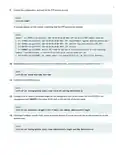
7. Stop zero-touch provisioning (ZTP).
[edit]
root@re0# delete system commit factory-settings
NOTE: ZTP is enabled on the ACX7024 in the factory-default configuraꢀon. You must stop ZTP before you
configure any seꢁngs. Unꢀl you assign a root password and make an iniꢀal commit, you might see ZTP-
related messages on the console. You can safely ignore these messages while you configure the root
password.
8. Add a password for the root administraꢀon user account.
[edit]
root@re0# set system root-authentication plain-text-password
New password: password
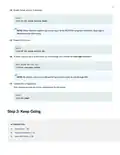
Retype new password: password

| General | Details |
|---|---|
| Name | JuniPer ACX7024 Cloud Metro Router User Guide |
| Make | JUNIPer |
| Language | English |
| Filetype | PDF (Download) |
| File size | 0.15 MB |
 (1 votes, average: 5.00 out of 5)
 Loading...
If you have any questions regarding JuniPer ACX7024 Cloud Metro Router User Guide, please ask here and describe the problem in detail.

JUNIPER SSR1300 Session Router User Guide

JUNIPER SSR1400 Session Router User Guide

JuniPer Cloud-Ready SSR1500 Session Router User Guide

JUniPer MX304 Universal Router User Guide

JUNIPer SSR120 Session Router User Guide

JUNIPer SSR120 Session Smart Router User Guide

JUNIPER SSR1400 Session Smart Router User Guide

JUNIPER SSR1300 Session Smart Router User Guide

JuniPer Cloud-Ready SSR1500 Session Smart Router User Guide

Juniper ACX7509 Cloud Metro Router User Guide


Vantron R102 Router Instruction Manual

ASUS RT-AX92U Wireless AX6100 Tri band Gigabit Router User Guide

ZYXEL NETWORKS 2AU6R03993 Security Router User Guide
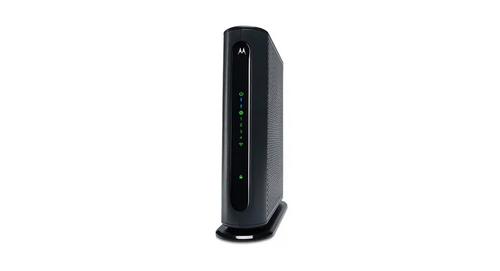
motorola Cable Modem Plus N450 Router User Guide

JENSEN Air:Link 3000DG Dual Band Router User Manual

ZYXEL NR2301 5G NR Portable Router User Guide

Tenda RX2LP Dual Band Gigabit Wi-Fi 6 Router Installation Guide

Cudy LT400 Outdoor 4G Wi-Fi Outdoor Router Installation Guide

NETGEAR RS100 Nighthawk Dual Band WiFi 7 Router User Guide

UBIQUITI U-LTE-Backup Pro LTE Router Installation Guide