
JUNIPER SSR1400 Session Smart Router User Guide


10
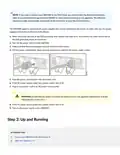
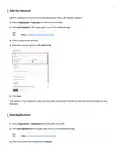
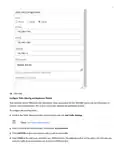
4. Enter 0.0.0.0/0, or all IPv4 address spaces in the IP Addresses field.
5. Click Add.
Your organizaꢁon is now set up to provide access to the Internet.
Create a Template
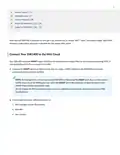
Excellent! Now you have the SSR1400 waiꢁng to be claimed, a network for your LAN, and an Internet applicaꢁon. Next,
you need to create a WAN Edge template that ꢁes them all together. Templates are reusable and keep the configuraꢁon
consistent for every SSR1400 you deploy.
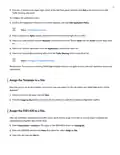
1. Select Organizaꢁon > WAN Edge Templates from the menu on the leſt.
2. Click Create Template in the upper-right corner of the WAN Edge Templates page.
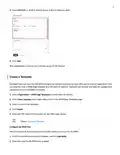
3. Enter a name for the template.
4. Click Create.
5. Enter the NTP and DNS informaꢁon for the WAN edge device.
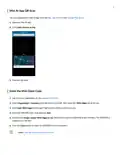
Video: Create the Template
Configure the WAN Port
The first thing to do in your template is to define which port to use for the WAN.
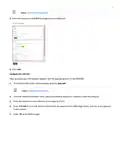
1. Scroll to the WAN secꢁon of the template, and click Add WAN.
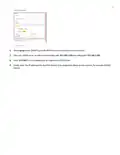
2. Enter the name for the WAN port as wan1.

| General | Details |
|---|---|
| Name | JUNIPER SSR1400 Session Smart Router User Guide |
| Make | JUNIPer |
| Language | English |
| Filetype | PDF (Download) |
| File size | 0.22 MB |
 (1 votes, average: 5.00 out of 5)
 Loading...
If you have any questions regarding JUNIPER SSR1400 Session Smart Router User Guide, please ask here and describe the problem in detail.

JUNIPER SSR1400 Session Router User Guide

JUNIPER SSR1300 Session Router User Guide

JuniPer Cloud-Ready SSR1500 Session Router User Guide

JUniPer MX304 Universal Router User Guide

JUNIPer SSR120 Session Router User Guide

JUNIPer SSR120 Session Smart Router User Guide

JUNIPER SSR1300 Session Smart Router User Guide

JuniPer Cloud-Ready SSR1500 Session Smart Router User Guide

JuniPer ACX7024 Cloud Metro Router User Guide

Juniper ACX7509 Cloud Metro Router User Guide


MERCUSYS AC12G Wireless Router Installation Guide

Zbtlink AX1800 Wi-Fi 6 4G LTE Router User Manual

BEC AirConnect 8112 5G Enterprise Router User Guide

Teltonika Networks RUTM50 Router User Manual
SIERRA WIRELESS AirLink LX40 Enterprise LTE Router User Guide

ASUS ZenWiFi BD4 Be3600 Dual Band Wi-Fi Router User Guide

RANGEXTD RJ45 WIFI Router User Guide

Cisco Router RV345 / RV345P User Guide

BROWAN COMMUNICATIONS INCORPORATION MI14 Wi-Fi 6 AX3000 Dual-Radio Router User Guide

TP-Link AX5400 Multi Gigabit Wifi 6 Router User Guide