
JUNIPER SSR1400 Session Smart Router User Guide


8
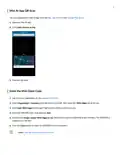
Mist AI App QR Scan
You can download the Mist AI App from the Mac App Store or from Google Play Store.
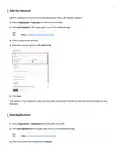
1. Open the Mist AI app.
2. Click Claim Devices to Org.
3. Scan the QR code.
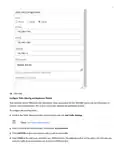
Enter the Mist Claim Code
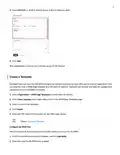
1. Log in to your organizaꢁon on the Juniper Mist cloud.
2. Select Organizaꢁon > Inventory from the menu on the leſt, then select the WAN Edges tab at the top.
3. Click Claim WAN Edges in the upper right porꢁon of the inventory screen.
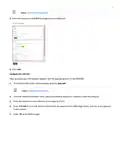
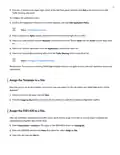
4. Enter the SSR1400 claim code and click Add.
5. Uncheck the Assign claimed WAN Edges to site check box to place the SSR1400 in the inventory. The SSR1400 is
assigned to a site later.
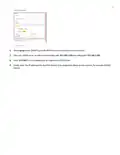
6. Click the Claim buꢂon to claim the SSR1400 into your inventory.
Video: Add the Claim Informaꢁon in Mist

| General | Details |
|---|---|
| Name | JUNIPER SSR1400 Session Smart Router User Guide |
| Make | JUNIPer |
| Language | English |
| Filetype | PDF (Download) |
| File size | 0.22 MB |
 (1 votes, average: 5.00 out of 5)
 Loading...
If you have any questions regarding JUNIPER SSR1400 Session Smart Router User Guide, please ask here and describe the problem in detail.

JUNIPER SSR1300 Session Router User Guide

JUNIPER SSR1400 Session Router User Guide

JuniPer Cloud-Ready SSR1500 Session Router User Guide

JUniPer MX304 Universal Router User Guide

JUNIPer SSR120 Session Router User Guide

JUNIPer SSR120 Session Smart Router User Guide

JUNIPER SSR1300 Session Smart Router User Guide

JuniPer Cloud-Ready SSR1500 Session Smart Router User Guide

JuniPer ACX7024 Cloud Metro Router User Guide

Juniper ACX7509 Cloud Metro Router User Guide


unifi DPN-FX3060V Optical Network Router User Manual

SWAGTEK M1C 4G LTE Mobile Router Installation Guide

wis network WIS-N300-LTE 4G LTE Router User Guide

TP-Link ARCHER C7 AC1750 Wireless Dual Band Gigabit Router User Guide

verizon CR1000 Access Point Router Instructions

STARLINK Mini Kit Dish With Built In Router User Guide

COMCAST CGA4332COM Advanced WiFi Gateway Router User Guide

accelerated 6300-LX USB Router User Guide

Spectrum 20240729 WiFi 6E Router User Guide

Tenda N301 Wi-Fi 4 Router Installation Guide