
LINKSYS MX4200 Router Installation Guide


StarHub Installation Guide
MX4200 Router
Wireless Router
StarHub – Typical Fibre Set Up
Optical Network Terminal (ONT)
Power Sockets
LAN Cable Cat 5e or
Cat 6/RJ45
DECT phone
Fibre Termination
Point (FTP)
Fibre Cable/Patch Cord
(attach to Optical port underneath ONT)
1
StarHub Router Installation Guide
ONT
First, switch off power to your ONT.
Unplug and remove your old router from the ONT.
Connect an Ethernet cable from the LAN port on your ONT to the Internet Port of the Linksys MX4200
router.
Plug your ONT back into power and wait about a minute while it starts up.
Power
Socket
Router
Plug the power adapter into your Linksys MX4200 and connect it to an available power outlet or surge
protector. If the LED does not light up, switch on the Power button on the bottom of your Linksys
MX4200 router.
When the light on top of your router is solid purple it is ready for setup.
Download and launch the Linksys app. Follow the app instructions to complete setup.
LED: Solid Purple
Set up a New WiFi
Network
Configuring Your
Node
Log in or Create a
Linksys Account
Personalized you
WiFi Name and
Password
Locate your Node
Set up is completed
* Please note that if you have your own CCTV/Security/PABX installation/Gaming/ other port forwarding setup in your home premises (current router), please refer to your
specific vendor/provider for further assistance when you are replacing your current router with a NEW router.
2
3
4
5
Monitor and control your home WiFi. Anytime. Anywhere
– Download the Linksys App
Download the Linksys App to your phone for easy set up. Follow the App instructions to complete set up.
Quick and Easy Setup
Managing your home WiFi with Linksys App is fast and easy:
1
2
3
10:19 AM
100%
Belkin
10:19 AM
100%
Parental Controls
The Flux Capacitor is Online
Parental Controls
Control
a
Device
Adam’s Macbook
Blocked Manually
2
Timmy’s iPad
Blocked Manually
Jason’s phone
Internet
Devices
Blocked Until
8
am
Jon’s Desktop
Blocked at pm onight
9
T
Adam’s Macbook
7
The Flux Capacitor 2.4 GHz
TheFlux_Guest
Set up your home WiFi
with Linksys App
Use Your Mobile Device to Manage
Your Home WiFi
Download the free Linksys App
Manage your home WiFi from any mobile device
DEVICE LIST
See Who’s Online
GUEST ACCESS
Share Your WiFi
MOBILE GAMING
Reduce Latency
PARENTAL CONTROLS
Set Boundaries
View which devices are
connected to your home WiFi
Permit up to 40 guests
WiFi access
Giving WiFi priority to specific
phones and tablets for better gameplay
Manage your kids’ access
and usage
ADVANCED SETTINGS
Connect Better
WIRELESS
Connect and Share Safely
DASHBOARD
WiFi at Your Fingertips
MANAGE NETWORKS
Simplify Network Access
Access advanced features to
get more out of your router
Password retrieval, connect and
share home WiFi
Get real-time info about your
WiFi network
Manage your network,
all in one place
Automatic updates ensure you get the best performance form your router
Upgrading the firmware of your router allows you to fully enjoy its complete features. If you don’t updated the firmware after installing
your Linksys Smart WiFi router the first time, you will be prompted to do so the next time you try to access router settings. If the Linksys
app was used to configure your Linksys MX4200, automatic updates will be turned on by default. You can enable automatic updates by
following the steps below.
Enabling Automatic update
Managing your home WiFi with Linksys app is fast and easy:
Keeping your home router updated is a
crucial part of not just staying secure but
to also enhance the performance of
your router.
Log in to the Linksys app with your email address and
password. Select “Network Administration”
Step 1:
Security Features and Fixes
Linksys may issue firmware updates to upgrade
features such as outdated encryption modules or to
add entirely new security mechanisms that weren’t
in previous versions of the firmware.
Performance Enhancements
Step 2: Under the Automatic Firmware Update section, toggle the switch to turn it on.
Updates can boost speeds or add features to
improve your overall WiFi experience.
When connected to the
internet, the router will be
able to detect available
updates and apply them to
your router.
QSG_8820-03180_SHub-MX4200_Guide_A6_R09.indd
1
16/4/2021 10:50


| General | Details |
|---|---|
| Name | LINKSYS MX4200 Router Installation Guide |
| Make | Linksys |
| Language | English |
| Filetype | PDF (Download) |
| File size | 0.38 MB |
 (1 votes, average: 5.00 out of 5)
 Loading...
If you have any questions regarding LINKSYS MX4200 Router Installation Guide, please ask here and describe the problem in detail.

LINKSYS EA7500 AC1900 Max Stream Wifi Router User Guide

Linksys WRT300N Wireless-N Broadband Router User Guide

LINKSYS N600 Dual Band Router User Guide

LINKSYS WRT54G Wireless G Router Instructions

LINKSYS E2500 Dual Band Router User Guide

LINKSYS AX3200 Dual-Band Gigabit Wi-Fi 6 Router User Guide

LINKSYS FGW5500 5G WiFi 6 Router User Guide

LINKSYS AX1800 Dual-Band WiFi 6 Router E7350 User Guide

LINKSYS 750MR7500 Hydra Pro 6E Mesh Router User Guide

LINKSYS E900 Wi-Fi Router User Manual


ASUS RT-AXE7800 Wireless AXE7800 Tri Band Gigabit Router User Guide

cradlepoint CTR35 Wireless Router User Guide

ADTRAN 1200824G1 Netvanta 3458 Access Router User Guide

HQTelecom HQ-3232B-911 Call Re Router Instruction Manual
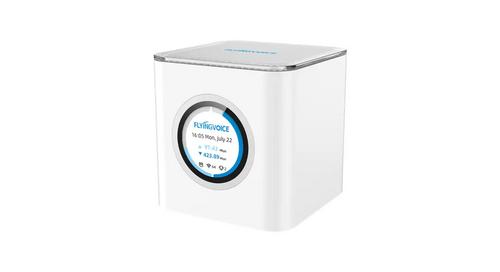
FLYINGVOICE SR3000 Wi-Fi 6 EasyMesh PoE Wireless Router Installation Guide

LUXUL ABR-5000 Epic 5 Gigabit Router User Guide

ARISTA AWE-5510 Wifi Router User Guide

triton TWX7 Router Table Module Instruction Manual

Zetronix WiFi Network Router User Manual

MERCUSYS BE3600 Dual-Band Wi-Fi 7 Router Installation Guide