
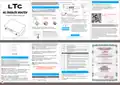
LTC 1221 4G Wireless Router Installation Guide


2
Connect the power adapter
Power supply socket
Thank you for choosing our product. Please read this manual carefully before
using this product. We at LTC reserve the right to improve and change
specifications and performance without special notice.
Computer settings
Wireless connection
Wireless name and
WiFi password
Available on the
device label
If you use the mobile phone to configure the connection, you can
connect the WiFi signal directly. You do not need to set up the
computer. This step can be skipped.
Hardware connection
Confirm that your computer is [automatically obtain IP address]
1
Insert standard size SIM card (NO PIN CODE)
Please connect your computer network cable to the LAN interface
of this product, or connect to the default WiFi of this product.
1. Open the computer - right click Network - properties - change
adapter settings;
2. For wired connection, right-click [local connection] (wireless
connection, click [WLAN]).
Connect to
LAN network port
According to the interface identification on the device, insert the
SIM card, and pay attention to the metal contact and the lack
angle direction of the card. Do not insert the small size card, in
case it cannot be removed
4G wireless router
Wired connection
If you don't want a cable connection,
you don't need to connect
Quick installation guide
Select [attribute];
SIM卡
Micro SIM卡
Nano SIM卡
3
Use the device's WiFi signal
3. Double click [Internet Protocol version 4 (TCP / IPv4)] in the
connection item of the property dialog box.
(see the left figure below);
4. In the Internet Protocol version 4 dialog box, the confirmation
option is [obtain IP address automatically].
[obtain DNS service address automatically] (as shown in the right
figure below), click [OK].
15 x 25 (mm)
12 x 15 (mm)
8.8 x 12.3 (mm)
Search for WiFi, find and connect the WiFi wireless signal sent by the
device by default [each product has a unique WiFi name (SSID) and
password, which is located on the device label]
TIP: when the machine is used for the first time, it
will send a wireless signal with LTE WiFi as the
prefix by default, and the phone can be
Micro SIM or Nano SIM card needs to be restored by card sleeve to
SIM to insert; otherwise it will not be ejected inside the card.
LTC_mobile_XXXX
connected to the WiFi. If it is not found, it is
recommended to check the SSID name and
Password:**********
password on the product label. See FAQ FAQ for
details on how to reset the router.
As shown in the figure, the SIM card is facing
inward with the missing angle, and the metal
chip is facing downward. Insert the card slot,
and then fasten it when you hear the click.
Be sure to insert it correctly. (NO PIN CODE)
The device can successfully plug in the SIM card to use the traffic
of SIM card and supply network for other devices.
LTC Lejon Trading Co AB, Hortensiagatan 4, 256 68 Helsingborg, Sverige
1
2
3
sure that the proxy server is not checked.
For LTE antenna installation, do not confuse. Please tighten
LTE
configuration parameter
when installing.
2. If you want to use the computer settings, please check the
wireless network configuration or local network configuration of the
computer to ensure that the computer "automatically obtains the IP
address" and the DNS server address.
3. Restart the device, disconnect the power supply of the device,
and plug it in later.
LAN
SIM
A network interface used to connect switches or computers.
Sim standard large card interface for inserting traffic card.
Set Wi Fi network name and password
Reset the factory setting button, press and hold for 5 seconds
during the live operation of the device, and then release, the
device will return to the default factory configuration.
1. Enter 192.168.188.1 in the browser address bar to enter the
management background.
RESET
2. Enter the default account admin, the default password admin
(no spaces, all small Write). After logging in successfully, enter
the management interface and set the relevant parameters you
want to set.
4. If you still cannot log in to the device management interface after
the above operations are completed, it is recommended that you
reset the device. See faq1 for the reset method.
Faq4: the device indicator light is on, there is data transmission,
but the Internet speed is slow.
1. Please move the device to another location, such as near the
window, to ensure good signal reception
2. Power up again and restart the device.
Faq5: when the device is running, why can't the device read the
SIM card? The device doesn't support the hot plug-in of SIM card.
Please disconnect the router's power supply and plug in the power
supply later.
Indicator light
4G
Explain
The 4G mobile network indicator lights up when registering to
the network.
The 3G mobile network indicator lights up when registering to
the network.
3G
frequently asked questions
If it is set by mobile phone, you can
connect the WiFi, scan QR code, enter the
management background.
Internet status indicator, network connection succeeded
(flashing).
Faq1: what should I do if I forget my user name and password? (how
to reset the device?)
The lan2 interface is connected to the network cable, which is
normally on, and the indicator light flashes during data
transmission.
LAN2
LAN1
If you forget your user name and password, or you cannot enter the
background due to an error during the setting process, you can
press and hold the reset button on the device for 5 to 8 seconds
when the device is powered on, and then release it to restore the
device to its factory status.
Restoring the factory settings will clear the non default configuration
data of the device. Please operate carefully!
During the restoration of factory settings, the indicator light of the
equipment is obviously off or on.
The lan1 interface is connected to the network cable, which is
normally on, and the indicator light flashes during data
transmission.
Wi Fi wireless status indicator, wi-f enabled (long on), data
transmission (flashing).
Warm tip: if you are not familiar with the computer, it is
recommended to set up the router with your mobile phone.
The power indicator is always on when the power is on.
Faq2: can't find the device's Wi Fi signal?
3. In the router management background interface, click the
navigation bar "LAN settings" - > "Wi Fi 2.4G, enter the name you
want to set in the "network name (SSID)" input box, select "AES" in
"WPA password policy", and enter in the "wpa-psk key" input box.
Enter the password you want to set and click the "apply" button to
confirm the setting.
Warm tip: after setting up, your mobile wifi connection may be
disconnected. Reconnect the WiFi name you set and enter the
password you set to connect.
Matters needing attention
Connect the computer to the LAN port through the network cable, log
in to the "LAN settings" and "Wi Fi 2.4G" view page of the device
management interface to enable / disable the wireless function, and
confirm that this option is enabled. If you do not have a computer,
you can also reset the device, see faq1 for details.
Faq3: can't open the management page by entering 192.168.188.1 in
the browser address bar?
1. If you use computer settings, open the browser, click "tools" - >
"Internet Options", click "connection" - > "LAN settings", and make
1. Please use the rated power adapter of the device.
2. Pay attention to waterproof and moisture-proof in storage,
transportation and operation environment.
3. Please remove the power supply and all wiring of the equipment
in thunderstorm weather. To avoid damage by lightning.
4. Try not to install the equipment in the place of high-power radio
and radar transmitter.
Description of indicator key interface
Interface / key
DC
Explain
The power supply interface of the equipment is connected with
the DC connector of the adapter of the product.
For wifi antenna installation, do not confuse. Please tighten
when installing.
WiFi
4
5
6
7

| General | Details |
|---|---|
| Name | LTC 1221 4G Wireless Router Installation Guide |
| Make | LTC |
| Language | English |
| Filetype | PDF (Download) |
| File size | 0.7 MB |
 (1 votes, average: 5.00 out of 5)
 Loading...
If you have any questions regarding LTC 1221 4G Wireless Router Installation Guide, please ask here and describe the problem in detail.


Banggood TC66 4G Wireless Router Instruction Manual
motorola Cable Modem Plus N450 Router User Guide

Tenda 4G185 4G/3G Portable Mobile Hotspot Router User Guide

ASUS ExpertWiFi EBG15 Gigabit VPN Router User Guide

Cudy LT18 4G LTE Router Installation Guide

verizon CR1000 Access Point Router Instructions

TP-Link AX3000 Dual Band Gigabit WiFi 6 Router Installation Guide

HUAWEI Router User Guide

Cudy LT18 4G LTE Dual Band WiFi 6 Gigabit Cellular Hotspot Router Installation Guide

FALCON 1800 EVO 5G Ready Omni-Directional Antenna Plus Router User Manual