
Cudy LT18 4G LTE Router Installation Guide


How to upgrade firmware?
Customize The Router
Connect the power adapter to the router.
3
4
5
If the Internet is not connected, or you want to
customize the router yourself, click "Quick Setup"
and follow the step-by-step instructions to
configure the router.
Quick Installation(English)
1. Download the latest firmware from
2. Unzip the file you download
3. Connect to Cudy’s network via WiFi or Ethernet.
4. Open a web browser and go to http://cudy.net/
5. Log into the web management page.
6. Click Advanced Settings -> Firmware.
Connect the router via Ethernet cable or Wi-Fi.
Network name and password is printed on the
bottom of the router.
1
Quick Installation Guide
Status
Internet
Not connected
XX Router
XXXXX
Wi-Fi: Cudy-XXXX
Wi-Fi: Cudy-XXXX-5G
Password: XXXXXXXX
English
Italiano
Deutsch
Français
Español
Work Mode
Model
3
4
admin as password to login.
Quick Setup
Press the power button
System Status
System
Quick Setup
General Setting
Advanced Settings
Diagnostic Tools
Note:
1, If you are not sure about APN parameters, please contact your internet
provider.
Turn on the router. Waiting 2~5 minutes for it to
start.
2, If you meet any other problems, don't hesitate to contact our technical
support team: support@cudy.com
1
Install the Antenna
Auto
Time zone
Firmware
Backup/Restore
Admin Account
Language
Timed Restart
Email:
Website:
Password
Enjoy the internet!
Install the cellular antennas.
1
Log In
7. Choose the firmware you unzipped to upload.
Firmware Upgrade
5 Check the status of the
3 The page below would pop up if your SIM card
needs PIN to unlock. Please enter your PIN and
click Save & Apply, then wait 15 seconds to
connect to the Internet.
With the gold contacts facing down, gently slide
the nano SIM card into the SIM1 slot until you
hear a click sound.
LED.
2
LED and Button
Browse...
Firmware File Path
Mesh Unit
Name
Status
Off
LT18
Not powered on
System startup process or upgrade process
System startup is complete
Not powered on
No internet connection
2G/3G
4G or WAN connected 5G or WAN connected
Wi-Fi is disabled
P5
When the
LED turns solid blue or purple, it means the
NO.
1
Model
XXXX
Firmware Version
1.11.0
router is connected to the cellular network.
Main route
Flash
Solid
Off
If the
LED turns to solid red, please follow the instructions
Note 1:
Cellular
The router doesn't support SIM hot-swapping. You need insert or
remove the SIM card while the router is powered off, otherwise
they may get damaged.
of Customize the Router.
The SIM is locked, please enter the PIN code. You have
3 attempts at most for entering the PIN code.
8. Waiting 2~5 minutes for the router to restart.
9. Done
Red
Note:
Purple
Blue
Off
2G/3G/4G
PIN
For some ISP's SIM card (such as Verizon), it may take longer to
connect to the Internet. Please kindly wait another 2~5 minutes.
Save & Apply
Note 2:
If both SIM1 and SIM2 card slots are inserted with SIM cards, the
router will automatically choose which SIM card to use. Since the
automatic selection mechanism is time-consuming, it is highly
recommended to insert only one SIM card when using for the first
time.
Flash
Solid
Off
WPS pairing
Wi-Fi is enabled
Not detect the SIM card
Not connected to Cellular network
Signal is average
Signal is strong
No connection
Connected
Press for “Power ON”, bounce for “Power OFF“
Then please check cellular information card of the
4
status page. If the status is connected, it means the
internet connection is successful.
Red
Purple
Blue
Off
On
Power
WPS
Cellular
Status
Cellular
Status
Connected
Not connected
LAN LED
Button
Network Type
XX-XXXX XX-XX
770.63KB / 681.69KB
Network Type
-
Need help?
Upload / Download
Upload / Download
0.00 B / 0.00 B
Email:
Driver & Manual:
Press to take effect.
More Details
More Details
Press and hold it for over 2 seconds until all LED
lights flashing 3 times to reset the router to
default settings.
Reset
Connected
Not connected
3. Verbinden Sie das Netzteil mit dem Router.
3. Die folgende Seite würde erscheinen, wenn Ihre SIM-Karte zum
Entsperren eine PIN benötigt. Bitte geben Sie Ihre PIN ein und
klicken Sie auf Speichern & Übernehmen. Warten Sie dann 15
Sekunden, um eine Verbindung zum Internet herzustellen.
5. Wenn keine Internetverbindung besteht oder Sie den Router
selbst anpassen möchten, klicken Sie auf "Quick Setup"und
befolgen Sie die Schritt-für-Schritt-Anweisungen, um den Router zu
konfigurieren.
Schnelle Installation (Deutsch)
1. Installieren Sie die Mobilfunkantennen.
Anpassen des Routers
1. Verbinden Sie den Router über ein Ethernet-Kabel oder Wi-Fi.
Der Netzwerkname und das Passwort sind auf der Unterseite des
Routers aufgedruckt.
LED und Taste
Name
Status
Off
LT18
P5
Nicht eingeschaltet
Systemstart Prozess oder Upgrade Prozess
Systemstart ist abgeschlossen
Nicht eingeschaltet
Blinken
Fest
Off
Mobilfunk
Status
The SIM is locked, please enter the PIN code. You have
3 attempts at most for entering the PIN code.
3
4
Internet
Nicht verbunden
XX Router
Wi-Fi: Cudy-XXXX
Wi-Fi: Cudy-XXXX-5G
Password: XXXXXXXX
Rot
Keine Internetverbindung
Drücke den Power Knopf
Arbeitsmodus
Modell
2
PIN
Violett
Blau
Off
Blinken
Fest
Off
Rot
Violett
Blau
Off
2G/3G
2G/3G/4G
Nano SIM
1
Save & Apply
4. Schalten Sie den Router ein. Warten Sie 2 bis 5 Minuten, bis es
gestartet wird.
4G oder WAN verbunden
WLAN ist deaktiviert
WPS-Kopplung
5G oder WAN verbunden
XXXXX
Installieren Sie die Antenne
Quick Setup
2. Starten Sie einen Webbrowser und geben Sie http://cudy.net/
admin als Passwort, um sich anzumelden.
2. Schieben Sie die Nano-SIM-Karte vorsichtig mit den Goldkon-
takten nach unten in den SIM1-Steckplatz, bis Sie ein
Klickgeräusch hören.
4. Dann überprüfen Sie bitte die Mobilfunk-Informationskarte auf
der Statusseite. Wenn der Status verbunden ist, bedeutet dies,
dass erfolgreich mit dem Internet verbunden wurde.
5. Überprüfen Sie den Status der
LED.
WLAN ist aktiviert
SIM-Karte nicht erkennen
Nicht mit Mobilfunk-Netzwerk verbunden
Signal ist durchschnittlich
Signal ist stark
Keine Verbindung
Notiz:
Wenn die
LED dauerhaft blau oder violett leuchtet, bedeutet dies,
dass der Router mit dem Mobilfunknetz verbunden ist.
1, Wenn Sie sich bei den APN-Parametern nicht sicher sind, wenden Sie sich
bitte an Ihren Internetanbieter.
2, Wenn Sie auf andere Probleme stoßen, zögern Sie nicht, unser
technisches Support-Team zu kontaktieren: support@cudy.com
Mobilfunk
Status
Netzwerkart
Mobilfunk
Status
Notiz 1:
Wenn die
LED durchgehend rot leuchtet, befolgen Sie bitte die
Anweisungen zum Anpassen des Routers.
Der Router unterstützt kein SIM-Hot-Swapping. Sie müssen die SIM-Karte einlegen
oder entfernen, während der Router ausgeschaltet ist, da sie sonst beschädigt werden
können.
In Verbindung gebracht
XX-XXXX XX-XX
Nicht verbunden
Auto
Netzwerkart
-
LAN LED
Button
On
Power
WPS
In Verbindung gebracht
Drücken für „Power ON“, Prellen für „Power OFF“
Notiz:
Password
Upload / Download 770.63KB / 681.69KB
More Details
Upload / Download
0.00 B / 0.00 B
Notiz 2:
Bei einigen SIM-Karten von ISPs (z. B. Verizon) kann es länger dauern, eine Verbindung
zum Internet herzustellen. Bitte warten Sie weitere 2 bis 5 Minuten.
Wenn sowohl SIM1- als auch SIM2-Kartensteckplätze mit SIM-Karten eingesetzt sind,
wählt der Router automatisch die zu verwendende SIM-Karte aus. Da der automatische
Auswahlmechanismus zeitaufwändig ist, wird dringend empfohlen, bei der ersten
Verwendung nur eine SIM-Karte einzulegen.
Drücken Sie , um wirksam zu werden.
More Details
Log In
Genießen Sie das Internet!
Halten Sie die Taste länger als 2 Sekunden
gedrückt, bis alle LED-Leuchten dreimal blinken,
um den Router auf die Standardeinstellungen
zurückzusetzen.
Reset
In Verbindung gebracht
Nicht verbunden
3. Conecte el adaptador de corriente al enrutador.
3. Aparecerá la siguiente página si su tarjeta SIM necesita un PIN
para desbloquearse. Ingrese su PIN y haga clic en Guardar y
aplicar, luego espere 15 segundos para conectarse a Internet.
5. Si Internet no está conectado o desea personalizar el enrutador
usted mismo, haga clic en "Configuración rápida" y siga las
instrucciones paso a paso para configurar el enrutador.
Instalación Rápida (Español)
1. Instale las antenas celulares.
Personaliza el enrutador
1. Conecte el enrutador mediante un cable ethernet o Wi-Fi. El
nombre y la contraseña de la red están impresos en la parte
inferior del enrutador.
LED y Botón
Name
Status
Off
LT18
P5
No encendido
Estado
Celular
Proceso de inicio del sistema o proceso de actualización
El inicio del sistema está completo
No encendido
Destello
Sólido
Off
Rojo
Morado
Azul
Internet
No conectado
XX Router
XXXXX
The SIM is locked, please enter the PIN code. You have
3 attempts at most for entering the PIN code.
3
4
Wi-Fi: Cudy-XXXX
Wi-Fi: Cudy-XXXX-5G
Password: XXXXXXXX
Modo de trabajo
Modelo
PIN
Sin conexión a Internet
Presiona el boton de poder
2
2G/3G
2G/3G/4G
Save & Apply
Nano SIM
4. Encienda el enrutador. Esperando 2 ~ 5 minutos para que
comience.
1
4G o WAN conectado
Wi-Fi está deshabilitado
Emparejamiento WPS
Wi-Fi está habilitado
No detecta la tarjeta SIM
No conectado a la red celular
La señal es promedio
La señal es fuerte
5G o WAN conectado
Configuración rápida
Instale la antena
Off
contraseña para iniciar sesión.
Destello
Sólido
Off
Rojo
Morado
Azul
Off
On
Power
WPS
4. Luego, consulte la tarjeta de información celular de la página de
estado. Si el estado es conectado, significa que se conectó a
Internet correctamente.
5. Verifique el estado del
LED.
2. Con los contactos dorados hacia abajo, desliza suavemente la
tarjeta nano SIM en la ranura SIM1 hasta que escuches un clic.
Nota:
1, si no está seguro acerca de los parámetros de APN, comuníquese con su
proveedor de Internet.
Cuando el LED
se vuelve azul o morado fijo, significa que el
enrutador está conectado a la red celular.
2, si tiene algún otro problema, no dude en ponerse en contacto con
nuestro equipo de soporte técnico: support@cudy.com
Nota 1:
El enrutador no admite el intercambio en caliente de SIM. Debe insertar o quitar la
tarjeta SIM mientras el enrutador está apagado, de lo contrario, pueden dañarse.
Celular
Estado
Celular
Estado
Si el LED
se vuelve rojo fijo, siga las instrucciones de Personalizar el
Conectado
No Conectado
enrutador.
Sin conexión
Conectado
Presione para "Encender", rebote para "Apagar"
Auto
LAN LED
Button
Tipo de red
XX-XXXX XX-XX
770.63KB / 681.69KB
Tipo de red
-
Nota 2:
Nota:
Si se insertan las ranuras para tarjetas SIM1 y SIM2 con tarjetas SIM, el enrutador
elegirá automáticamente qué tarjeta SIM utilizar. Dado que el mecanismo de
selección automática requiere mucho tiempo, se recomienda enfáticamente insertar
solo una tarjeta SIM cuando se usa por primera vez.
Password
Subir / Descargar
Subir / Descargar
0.00 B / 0.00 B
Para la tarjeta SIM de algunos ISP (como Verizon), puede llevar más tiempo conectarse a
Internet. Espere otros 2 ~ 5 minutos.
Presione para que surta efecto.
¡Disfruta de Internet!
Más detalles
Más detalles
Log In
Manténgalo presionado durante más de 2
segundos hasta que todas las luces LED parpadeen
3 veces para restablecer el enrutador a la
configuración predeterminada.
Conectado
No conectado
Reset


| General | Details |
|---|---|
| Name | Cudy LT18 4G LTE Router Installation Guide |
| Make | Cudy |
| Language | English |
| Filetype | PDF (Download) |
| File size | 0.33 MB |
 (1 votes, average: 5.00 out of 5)
 Loading...
If you have any questions regarding Cudy LT18 4G LTE Router Installation Guide, please ask here and describe the problem in detail.

Cudy X6 AX1800 1800mbps Dual Band Wi-Fi 6 Router Installation Guide

Cudy WR1200 AC1200 Dual Band Wi-Fi Router Installation Guide

Cudy WR1200 Dual Band Wi-Fi Router Installation Guide

Cudy WR300 Multi Mode WiFi Router Installation Guide

Cudy TR3000 AX3000 2.5G Wi-Fi 6 Mini VPN Router Installation Guide

Cudy X6 AX1800 Dual Band Gigabit Wi-Fi 6 Mesh Router Installation Guide

Cudy WR3000E Gigabit Mesh WiFi 6 Router Installation Guide

Cudy AC1200 4G LTE Wi-Fi Router Instruction Manual

Cudy LT450 4G LTE AC1200 Dual Band WiFi Router User Manual

Cudy LT500 Wi-Fi 4G Router Installation Guide


BELKIN F9K1001 N150 Wireless Router User Manual

D-Link M30 AQUILA PRO AI AX3000 Wi-Fi 6 Mesh Router User Manual

Adtran SDG-8610 Service Delivery Gateway WiFi 6 Gigabit Router Instruction Manual

DIGITAL YACHT 4GXtream NMEA 2000 3G or 4G Router Instruction Manual

TP-Link Omada Network Router Installation Guide

TELTONIKA RUTC50 5G Router User Guide

AVCOMM AP224 WLAN Compact LTE WLAN Router Installation Guide

ONEX RV Wifi Router User Manual
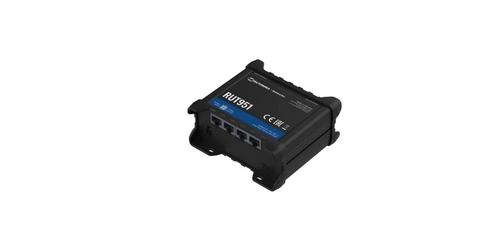
TELTONIKA Networks RUT951 4G LTE Router User Guide

airlive XG-XGS OLT MESH Router User Guide