
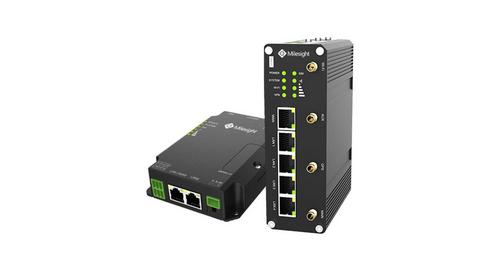
Milesight UR35 Dual SIM Router User Guide

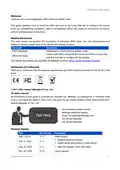


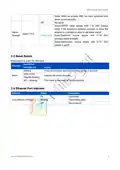
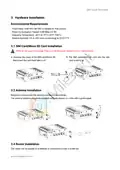
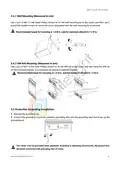


UR35 Quick Start Guide
5. Network Configuration
This chapter explains how to connect UR35 to network via WAN connection or cellular.
5.1 Ethernet WAN Configuration
A. Go to “Network > Interface > WAN” to configure WAN parameters. Take static IP configuration as an
example. DHCP client and PPPoE type are optional according to your requirements.
Click “Save & Apply” button to make the changes take effect.
B. Connect WAN port to another router or modem.
C. Log in UR35 web GUI via WAN port IP address and go to “Status > Network” to check if status is “up”.
D. Go to “Network > Interface > Link Failover” to rise the WAN priority to 1.
12

| General | Details |
|---|---|
| Name | Milesight UR35 Dual SIM Router User Guide |
| Make | Milesight |
| Language | English |
| Filetype | PDF (Download) |
| File size | 0.55 MB |
 (1 votes, average: 5.00 out of 5)
 Loading...
If you have any questions regarding Milesight UR35 Dual SIM Router User Guide, please ask here and describe the problem in detail.

Milesight UR75 UltraSeries Router User Guide

Milesight Lite Cellular Router User Guide

Milesight UF51 5G CPE Router User Guide

Milesight Routers Installation Guide

Milesight UR32S CCTV Router Owner’s Manual

D LINK R15 Router using Eagle Pro AI App User Guide

RV WI-FI 2024 V3 DishyDock Router User Manual

ASUS RT-BE92U Tri Band WiFi 7 Router User Guide

ATEL WB550 5G Fixed Wireless Access Router User Guide

Woodline DadoRight Dado Jig for Router Instructions

snap one Araknis 220 Router User Guide

LANCOM 1793VAW VPN Router User Guide

NET MODULE NB1601 Router User Manual

TP-Link AX3000 Dual Band Gigabit WiFi 6 Router Installation Guide
robustel R1520LG Dual SIM LTE Router User Manual