
Milesight UR35 Dual SIM Router User Guide

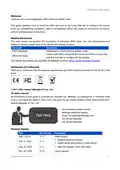


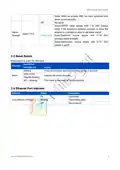
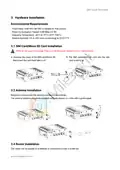
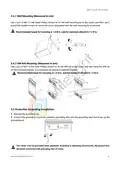


UR35 Quick Start Guide
E. Open your preferred browser on PC, then type any available web address into address bar and see if it
is able to visit Internet via UR35 router.
5.2 Cellular Connection Configuration
Take inserting SIM card into SIM1 slot as an example; please refer to the following detailed operations.
A. Click “Network > Interface > Cellular > Cellular Setting” to configure the cellular info, like APN and
network type.
B. Click “Save” and “Apply” for configuration to take effect.
If you select “Auto”, the router will obtain ISP information from SIM card to set APN, Username, and
Password automatically. This option will only be taken effect when the SIM card is issued from a
well-known ISP.
C. Go to “Network > Interface > Link Failover” to enable SIM1 and rise link priority of SIM1.
D. Click
to configure ICMP ping detection information.
13

| General | Details |
|---|---|
| Name | Milesight UR35 Dual SIM Router User Guide |
| Make | Milesight |
| Language | English |
| Filetype | PDF (Download) |
| File size | 0.55 MB |
 (1 votes, average: 5.00 out of 5)
 Loading...
If you have any questions regarding Milesight UR35 Dual SIM Router User Guide, please ask here and describe the problem in detail.

Milesight UR75 UltraSeries Router User Guide

Milesight Lite Cellular Router User Guide

Milesight UF51 5G CPE Router User Guide

Milesight Routers Installation Guide

Milesight UR32S CCTV Router Owner’s Manual

Promethean OPS-A Router Installation Guide

TP-Link AC1200 Wireless Dual Band Router Installation Guide

MikroTik C52iG-5HaxD2HaxD-TC Wireless Router User Guide

ASUS ExpertWiFi EBR63 Wireless AX3000 Dual-Band Router User Guide

westermo MRD-405 4G LTE Router User Guide

GL iNet GL-XE3000NR Puli AX 5G NR Wi-Fi 6 Router User Guide

msi RadiX AX6600 WiFi 6 Tri-Band Gaming Router User Guide

rock space RSD0616 AX1800 Wi-Fi6 WiFi Router Installation Guide

Wistron NeWeb XIONEWN Router User Manual

ASUS RT-AX55 Dual Band Router User Guide