
ONEPLUS CTD05 Hub 5G Router User Guide
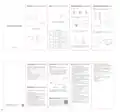


Appearance
Indicator
Set Up the Network with a SIM Card
Connecting to the router for Network Access
Method 1:
Prepare a nano-SIM card.
* A local SIM card is recommended.
Connect your device to the router via Wi-Fi. For the default Wi-Fi name (SSID) and
default Wi-Fi password, see the label aꢁached to the boꢁom of the router.
mini-SIM (2FF)
micro-SIM (3FF)
nano-SIM (4FF)
WLAN
5G signal
4G signal
Wi-Fi
XXXXXXX
XXXXXXX
XXXXXXX
XXXXXXX
SSID
Wi-Fi Password
Open the SIM card slot at the boꢁom of the router and inseꢀ the SIM card
as shown in the following figure.
Power
Power buꢁon
WPS buꢁon
LAN 1 / WAN
poꢀ
LAN 2 poꢀ
Power poꢀ
OnePlus Hub 5G Router
Indicator Status Descriptions
Connect your router to a power source. The router then automatically
powers on and searches for an available network.
Method 2:
Connect your device to the router via a network cable. If your device requires a
wired connection (e.g. a computer), connect it to a LAN poꢀ at the rear of the
router via a network cable.
White
Yellow
Red
Strong signal
Medium signal
Weak signal
5G/4G
signal
indicator
RESET buꢁon
SIM card not inseꢀed, SIM card invalid,
SIM card locked, or no signal
Off
SIM card slot
White
Blinking white
Off
Wi-Fi normal
Wi-Fi
WPS running/Mesh Searching
Wi-Fi turned off
indicator
White
Router running
Wait until the power-on initialization ends. If the 4G or 5G indicator is on, the
router has successfully connected to a network. If the 4G or 5G indicator
does not turn on, refer to "FAQ" for troubleshooting.
Power
indicator
Off
Router powered off
Quick Staꢀ Guide
6. How do I choose between 5 GHz Wi-Fi and 2.4 GHz Wi-Fi?
Mesh Networking
FAQ
Change the Passwords
5 GHz Wi-Fi provides a faster data transmission speed with less inteꢃerence.
However, 5 GHz Wi-Fi is not good at penetrating solid objects (such as walls and
ꢂoors) compared to 2.4 GHz Wi-Fi. Your device must suppoꢀ the 5 GHz Wi-Fi
frequency band in order to use it.
Method 2: Wired mesh networking
1 . How do I restore the router to factory seꢀings?
To prevent others from connecting to your router without your consent, aſter the
first connection, sign in to the Management Page, and follow the instructions to
change the router management password (used to sign in to the Management
Page) and Wi-Fi password, as follows:
Power on the router and wait until the indicators light up and are steady. Use a
pin to press and hold the RESET buꢁon at the boꢁom of the router for 3
seconds. Release the RESET buꢁon when the Wi-Fi indicator, 4G signal
indicator, and 5G signal indicator ꢂash 3 times quickly. The router will then staꢀ
to be restored to factory seꢁings. Once the router is restored to factory
seꢁings, all its parameters will be reset, and you will need to sign in to the
Router Management Page to configure them again.
Complete the first three steps of method 1, and then use a network cable to
connect the LAN 2 poꢀ of the primary router to any poꢀ of the secondary
router.
You can switch to "Uniꢂed Band Seꢀings" in "Wi-Fi Seꢀings" on the Router
Management Page. 2.4 GHz and 5 GHz signals will be displayed as one Wi-Fi
signal source. Aſter a device connects to this Wi-Fi network, it will automatically
select the best Wi-Fi frequency band.
Connect your mobile phone or computer to the router via Wi-Fi or a network
cable.
Press the WPS buꢁon on the back of the primary router twice in 3 seconds.
The Wi-Fi indicator should ꢂash white as wireless mesh networking begins.
Log in to "hꢁp://oneplus.home" on the browser to access the Management
7. What can I do if I can't access the Router Management Page?
If the Wi-Fi indicators of both routers are solid white and the Network
indicator of the secondary router is solid white, then mesh networking has
been successful. If the Wi-Fi indicators of both routers ꢂash white 10 times
before turning solid white, but the Network indicator of the secondary router
does not light up, then mesh networking has failed.
Page.
ꢀ
Make sure your device is connected to the router through a network cable or
Wi-Fi.
2. What can I do if I forget the Wi-Fi password or the router management
On the sign-in page, enter the default username and default password to sign
in to the plaꢄorm.
password?
•
Make sure your device is set to automatically obtain the IP address and DNS
server address.
If you forget the Wi-Fi password, connect your computer to a LAN poꢀ at the
rear of the router via a network cable, and sign in to the Router Management Page
to view the Wi-Fi password. You can also restore the router to factory seꢁings,
and then use the Wi-Fi password and router management password on the label
aꢁached to the boꢁom of the router to sign in again.
Follow the instructions to set a new Wi-Fi password, a new Router
management password, and select a network mode.
•
•
Restaꢀ the browser or use another browser.
Aſter changing the passwords and Wi-Fi name, you need to reconnect your
device to the router by the new password.
If this problem still persists, try to restore the router to factory seꢁings.
Primary router
Secondary router
8. If you encounter other problems when using the router, try the following
troubleshooting methods:
In addition to the above-mentioned, many other seꢁings can be configured on the
3. I inseꢁed a SIM card. Why doesn't the power indicator or 5G/4G signal
indicator turn on (or the 5G/4G signal indicator turns on but the router won't
connect to the Internet)?
Management Page (hꢁp://oneplus.home).
•
•
•
Restaꢀ the router.
Restore the router to factory seꢁings.
Contact OnePlus for help.
•
Check whether the power connector is properly inseꢀed into the power poꢀ
of the router and whether the router is powered on.
•
Check whether you are using the right-size SIM card and whether it is
correctly inseꢀed into the slot. For details, see "Set Up the Network with a
SIM Card".
LAN 2 poꢀ
Network cable
Any poꢀ
•
•
Contact your network provider to check whether the SIM card is activated
and confirm that is unlocked and your account is not in arrears.
If this problem still persists, try to restore the router to factory seꢁings.
Mesh Networking
4. How do I connect to the router through WPS?
If your device suppoꢀs WPS (Wi-Fi Protected Setup), peꢃorm the following
steps to connect your device to the router:
Method 3: Complete mesh networking on the Router Management Page
For users who need Wi-Fi coverage for larger spaces, we recommend purchasing
multiple 5G routers. Then follow the steps below to connect them in a mesh
network.
Complete the first three steps of method 1, and then follow the instructions on the
•
Press the WPS buꢁon on the router and hold for 3 seconds to staꢀ WPS. The
Wi-Fi indicator will staꢀ blinking.
Router Management Page (hꢁp://oneplus.home) to complete mesh networking.
•
Turn on the WPS function on your device within 2 minutes aſter you press the
WPS buꢁon of the router (generally, you can turn on this function in your
device's Wi-Fi seꢁings).
Method 1: Wireless mesh networking
Choose one OnePlus Hub 5G Router to serve as the primary router, which will
connect directly to the internet. The Network, Power, and Wi-Fi indicators on
this router should be solid white.
5. What can I do if the network speed is too slow?
•
Check the status of the 5G/4G signal indicator. If the indicator is red or yellow,
adjust the position of the router or move it to a different location to obtain
beꢁer signal strength. A white 5G/4G signal indicator means the mobile
network signal is strong; a red one indicates the signal is weak.
Sign in to the Router Management Page (hꢁp://oneplus.home), go to Wi-Fi
Seꢀings - Basic, and switch to "Uniꢂed Band Seꢀings".
The other router will serve as a secondary router*. Place it near the primary
router, plug it into a power outlet, and turn it on. The Power and Wi-Fi
indicators on this router should be solid white.
Manage your router with an App
•
•
ꢀ
If you access the network via Wi-Fi, make sure your devices are within range
of a good Wi-Fi signal.
* Ensure that the secondary router is set to factory seꢁings, and turn it on within 30 minutes.
Download and install the OnePlus Home App by scanning the
QR code below or going to your phone's app store.
Contact your network provider to check whether your network speed has
been restricted because you've reached your mobile data limit.
Press the WPS buꢁon on the back of the primary router twice in 3 seconds. The
Wi-Fi indicator should ꢂash white as wireless mesh networking begins.
Make sure your router is connected to the internet and
your phone is connected to the Wi-Fi network of the router.
Restaꢀ the router or your device and try connecting to the Internet again.
If the Wi-Fi indicators of both routers are solid white and the Network
indicator of the secondary router is solid white, then mesh networking has
been successful. If the Wi-Fi indicators of both routers ꢂash white 10 times
before turning solid white, but the Network indicator of the secondary router
does not light up, then mesh networking has failed.
Open OnePlus Home App and add your router as instructed.
Some content may differ from your device depending on the region, service
provider, or soſtware version, and is subject to change without prior notice.
OnePlus Home App
(Android 8.0 or later;
iOS 13.0 or later)
Aſter adding successfully, you can tap your router on the
© 2023 OnePlus All Rights Reserved
device list page to manage it.
All rights reserved.
MADE IN CHINA
612804000231
V1.0


| General | Details |
|---|---|
| Name | ONEPLUS CTD05 Hub 5G Router User Guide |
| Make | OnePlus |
| Language | English |
| Filetype | PDF (Download) |
| File size | 0.13 MB |
 (1 votes, average: 5.00 out of 5)
 Loading...
If you have any questions regarding ONEPLUS CTD05 Hub 5G Router User Guide, please ask here and describe the problem in detail.


Ruijie RG-EW300T N300 Wireless 4G LTE Router User Guide

TP-Link WR3002X WiFi 6 Portable Router Installation Guide

Spectrum IP6442B WiFi 6E Router User Manual

trend T18S-DS 18V Cordless 1-4 Inch Router Instructions

ioGiant AX1800 Wi-Fi Router Wireless Router Installation Guide

ASUS ZenWiFi BT10 BE18000 Tri Band WiFi Router User Guide

WYZE Pro WiFi 6E Mesh Router Instruction Manual

ASUS BE6500 Dual Band Wi-Fi 7 Router User Guide

ASUS TUF-BE6500 TUF Gaming Dual Band WiFi 7 Router User Guide

NETGEAR R6700AX 4 Stream AX1800 Wi-Fi 6 Router Owner’s Manual