
TP-Link WR3002X WiFi 6 Portable Router Installation Guide

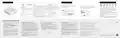


Appearance
Button Description
Interface Description
LED Indication
In Router mode, it functions as a WAN port.
In 3G/4G/5G USB Modem / USB Tethering mode, it
functions as a WAN/LAN port.
In Hotspot / Access Point / Range Extender / Client
mode, it functions as a LAN port.
This switch is used to change the power saving mode
of the router.
2.5 Gbps
WAN Port
ꢀ Boost Mode: Favors wireless range and transmis-
sion speed but may increase energy consumption
and raise device temperature.
ꢀ Balance Mode: Automatically balances wireless
range and transmission speed while considering
energy consumption and device temperature.
ꢀ ECO Mode: Saves energy and lowers device
temperature by reducing device’s wireless range and
transmission speed.
Status
Indication
The router is starting up / being upgraded /
establishing the WPS connection.
Blinking Blue
ECO Mode
Switch
Quick Installation Guide
LED
1 Gbps
LAN Port
For connecting your PC or other wired devices to the
router.
Wi-Fi 6 Portable Router
The router is connected to the internet or the main
network, or the WPS connection is successfully
established.
Solid Blue
Use this USB 3.0 port to connect your 3G/4G/5G
USB modem, mobile device, or USB storage device
to the router.
Your mobile device can be charged when it is
connected to the powered-on router via the USB
port (5 V/1 A).
USB 3.0
Port
The router has started up but is disconnected from
the internet.
Solid Red
Press the button for 1 second and immediately
press the WPS button on your client to start the
WPS process.
The router is being reset. Do not power off your
router.
Blinking Red
WPS/Reset
Button
This port is used to connect the USB-C charger
provided in the package.
Power Port
Press and hold the button for about 6 seconds until
the LED blinks red to reset the router to its factory
default settings.
Images may differ from your actual product.
©2024 TP-Link 7106511565 REV1.0.0
SD Card Slot
WPS/Reset Button ECO Mode Switch
SD Card Slot For inserting your microSD card into the router.
Set Up Your Router
Method ONE: Via the Tether App
Method TWO: Via a Web Browser
password to log in.
5. Choose how you would like to connect your router to the
1. Download the Tether app via Apple Store or Google Play,
3. Tap the button in the Tether app and select Portable
4. Choose how you would like to connect your router to the
1. Power on the router.
internet. Then follow the steps to complete the setup.
or simply scan the QR code.
Router.
internet. Then follow the steps to complete the setup.
ꢀ Connect via Ethernet: The router gets internet via an
Ethernet cable connected to the existing wired network.
ꢀ Connect via Wi-Fi: The router gets internet via an existing
public Wi-Fi and turns it into a private network.
ꢀ Connect via Mobile USB: The router gets internet via a
USB cable connected to a mobile device (with a SIM card
inserted).
ꢀ Connect via USB Modem: The router gets internet from a
USB modem (with a SIM card inserted).
2. Wait until the router’s LED turns solid (blue or red) before
moving on.
ꢀ Connect via Ethernet: The router gets internet via an Ethernet
cable connected to the existing wired network.
ꢀ Connect via Wi-Fi: The router gets internet via an existing
public Wi-Fi and turns it into a private network.
ꢀ Connect via Mobile USB: The router gets internet via a USB
cable connected to a mobile device (with a SIM card inserted).
ꢀ Connect via USB Modem: The router gets internet from a
USB modem (with a SIM card inserted).
Note: Due to Tether app updates, your actual user interface and
pathway may differ from those depicted here.
Note: If the login window does not appear, please refer to
Q1 of Need Help? in this guide.
3. Connect your device to the router (wireless or wired).
or
New Password:
ꢀ Wireless: Connect your device to the router’s Wi-Fi. The
default wireless network names (SSIDs) and wireless
password are printed on both the Wi-Fi info card and the
label at the bottom of the router.
ꢀ Wired: Turn off the Wi-Fi on your device and connect to
the LAN port of the router with an Ethernet cable.
*Router network mode
Choose Your Device Type
compatibility in the Tether
Scan for Tether
Tether
Gaming Router
app may vary between app
versions.
Note: If you want to use it in Access Point/Extender/Client Mode,
exit the quick setup, and click Change Mode on top of the page,
then select the mode as needed.
Range Extender
Note: If you want to use it in Access Point/Extender Mode, go to More >
Operation Modes to switch the mode as needed. For Client Mode, follow
Method TWO to switch the mode on the web page.
Confirm Password:
2. Open the Tether app and log in with your TP-Link ID.
Note: If you don’t have an account, create one first.
Portable Router
Let’s Get Started
To enjoy a more complete service from TP-Link, bind your TP-Link ID to
the router.
To enjoy a more complete service from TP-Link, bind your TP-Link ID to
the router.


| General | Details |
|---|---|
| Name | TP-Link WR3002X WiFi 6 Portable Router Installation Guide |
| Make | TP-Link |
| Language | English |
| Filetype | PDF (Download) |
| File size | 0.57 MB |
 (1 votes, average: 5.00 out of 5)
 Loading...
If you have any questions regarding TP-Link WR3002X WiFi 6 Portable Router Installation Guide, please ask here and describe the problem in detail.

TP-Link T150500-2-DT WiFi Router Instruction Manual

TP-Link Archer AX55 Wi-Fi 6 Router Installation Guide

TP-Link VR300 Archer Modem Router User Guide

TP-Link Omada ER8411 VPN Router Instructions

TP-Link Configure VDSL Router User Guide

TP-Link Archer BE805 BE19000 Tri-Band Wi-Fi 7 Router User Manual

TP-Link VR600 Wireless DSL Modem Router Installation Guide

TP-Link AX58 Dual Band Gigabit Wi-Fi 6 Router Installation Guide

TP-Link AC750 Wireless Dual Band Router Owner’s Manual

TP-Link AX6000 8-Stream Wi-Fi 6 Router Installation Guide


alhua DH-AX18 Wireless Router User Manual

TP-Link 7106511948 Outdoor Router Installation Guide

TP-Link Omada Pro Gigabit VPN Router Owner’s Manual

ASUS RT-AX57GO Dual Band WiFi 6 Router User Guide

HUAWEI EG8147X6-10 OptiXstar WiFi Router Instruction Manual

Winext GW5000 A Grade Gateway Router Instructions

LANCOM 883+ VoIP Single Site Router Installation Guide

TP-Link EC223-G5 Aginet AC1200 MU-MIMO Wi-Fi Router User Manual

LANCOM SYSTEMS 1800EFW-5G Router Installation Guide

PROSCEND M330 Series Cellular Router Installation Guide