
TP-Link WR3002X WiFi 6 Portable Router Installation Guide

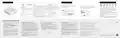


Network Modes
Wi-Fi Information
Secure Surfing with VPN Encryption
Network
Mode
Recommended
Scenarios
I Want to...
Requirements
The default wireless network names (SSIDs) and
wireless password are printed on the label at the
bottom of the router.
A Wi-Fi info card is included in the package.
Encryption
Access
Better
Adaptability
More
Devices
Remote
Network
Auto
Connect
Two
Functions
Router
Share the internet with more wireless devices when the
wired network is limited to one device at a time.
An existing wired network provided by
a modem or other network device.
(Default Mode)
When you set new SSIDs, Wi-Fi passwords, login
account info, and more, please write them down on the
card for convenient management.
A 3G/4G/5G USB modem (with a SIM
card inserted).
The router supports VPN Server and VPN Client.
3G/4G/5G USB Modem
During Travel
(e.g., hotel, airport, cafe,
cruise ship, RV, camp,
etc.)
Share a 3G/4G/5G USB modem’s data with other devices.
Share a mobile device’s cellular data with other devices.
By setting up a VPN Client, the device connected to the router
can directly access the VPN server for remote office and
cross-regional access. At the same time, your personal
information is encrypted and protected.
A mobile device (with a SIM card inserted).
A USB cable.
USB Tethering
Hotspot
Wi-Fi Info Card
Turn an existing public Wi-Fi into a private network
(wired and wireless).
A public Wi-Fi.
Default SSIDs and Password
Your Wi-Fi Names (SSIDs):
With VPN Server, external devices can access the VPN server,
including remote desktops, NAS, printers, cameras, and other
devices in the home network.
Turn an existing wired-only network into a wireless
network.
An existing wired network provided
by a router, switch, etc.
SSID: TP-Link_XXXX
Access Point
Range Extender
Client
SSID: TP-Link_XXXX_5G
Wireless Password/PIN: XXXXXXXX
Your Wi-Fi Password:
Your Login Account:
At Home
(e.g., home, office, etc.)
Wireless Password/PIN:XXXXXXXX
SSID:TP-Link_XXXX
SSID:TP-Link_XXXX_5G
Expand an existing Wi-Fi network for better Wi-Fi
coverage.
An existing Wi-Fi network.
An existing Wi-Fi network.
ꢀ Setup via Tether: Go to More > Advanced Setttings > VPN
Server/VPN Client.
ꢀ Setup via Web: Log in to the web management page of the
router and go to Advanced > VPN Server/VPN Client.
QR Code
Example Only
Scan to join the
default Wi-Fi network
Connect a wired-only device, such as a smart TV, media
player, or game console, to a Wi-Fi network.
Frequently Asked Questions (FAQ)
Q1. What should I do if I can’t access the web management page?
ꢀ Reboot your router and try again.
Safety Information
Q4. What should I do if there is no internet access?
ꢀ Check if the internet is working normally by connecting a
Q6. What should I do if my wireless signal is unstable or too weak?
It may be caused by too much interference.
• Set your wireless channel to a different one.
Q7. What should I do if I cannot enter the captive portal when the router
is set to Hotspot mode?
ꢀ If the portal login page didn't open during the Quick Setup process,
connect your smartphone or computer to the router, then open any
website, and you will be redirected to the portal login page.
ꢀ If some public hotspots limit the number of devices each customer
can access by MAC address, do the following:
ꢀ Keep the device away from water, fire, humidity or hot environments.
ꢀ Do not attempt to disassemble, repair, or modify the device. If you need
service, please contact us.
ꢀ Do not use damaged charger or USB cable to charge the device.
ꢀ Do not use any other chargers than those recommended.
ꢀ Do not use the device where wireless devices are not allowed.
ꢀ Adapter shall be installed near the equipment and shall be easily
accessible.
Please read and follow the above safety information when operating the
device. We cannot guarantee that no accidents or damage will occur due to
improper use of the device. Please use this product with care and operate at
your own risk.
ꢀ If the computer is set to a static IP, change its settings to obtain
an IP address automatically.
computer/phone directly to the current network. If it is not, contact
your internet service provider. If you’re in a hotel room or on a trade
show, the internet may be limited and requires that you authenticate
for the service or purchase the internet access.
ꢀ Choose a location with fewer obstacles that may block the signal
between the portable router and the main AP. An open corridor or a
spacious location is ideal.
ꢀ Move the router to a new location away from Bluetooth devices and
other household electronics, such as cordless phones, microwaves,
and baby monitors, to minimize signal interference.
ꢀ In Range Extender mode, the ideal location to place the router is
halfway between your main AP and the Wi-Fi dead zone. If that is not
possible, place the router closer to your main AP to ensure stable
performance.
the web browser.
ꢀ Use another web browser and try again.
ꢀ Disable and enable the network adapter in use.
• If you are using a cable modem, power off your modem for about 5
minutes, then power it on and check the internet. If your modem has
more than one Ethernet port, keep other ports unconnected.
ꢀ Log in to the web management page, and go to the Network Map
page to check whether the internet IP address is valid or not. If it’s
valid, go to Advanced > Network > Internet, click Advanced Settings,
select Use the Following DNS Addresses, set the primary DNS to
8.8.8.8, and set the secondary DNS to 8.8.4.4. If it is not, check the
hardware connection or contact your internet service provider.
1. Connect a smartphone to the public hotspot’s Wi-Fi. Find the
smartphone’s MAC address on its Wi-Fi list, and write the MAC
address down.
2. Log in to the web management page of the router and go to
Advanced > Network > Internet > Router MAC Address. Select Use
Custom MAC Address, enter the MAC address that your smartphone
uses to connect to the public hotspot’s Wi-Fi, and click SAVE.
Q2. What should I do if I forget the router’s web management
password?
ꢀ If you are using a TP-Link ID to log in, click Forgot Password?
on the login page and then follow the instructions to reset it.
ꢀ Alternatively, refer to FAQ > Q3 to reset the router. Then visit
http://tplinkwifi.net to create a new login password.
TP-Link hereby declares that the device is in compliance with the essential
requirements and other relevant provisions of directives 2014/53/EU, 2009/125/EC,
2011 /65/EU and (EU) 2015/863.
The original EU Declaration of Conformity may be found at
TP-Link hereby declares that the device is in compliance with the essential
requirements and other relevant provisions of the Radio Equipment Regulations 2017.
The original UK Declaration of Conformity may be found at
Q8. What should I do if I want to change the router’s network mode?
1. Log in to the web management page of the router and go to
Advanced > System > Operation Mode or click Change Mode on top
of the page.
Q5. What should I do if I forget my Wi-Fi password?
ꢀ If you have not changed the default wireless password, it can be found
on the label of the router.
ꢀ Connect a computer directly to the LAN port of the router using an
Ethernet cable. Log in to the router’s web management page at
your wireless password.
Q3. How do I restore the router to its factory default settings?
2. Select your desired network mode, and click SAVE. Then follow the
instructions to complete the settings.
ꢀ With the router powered on, press and hold the Reset button
for 6 seconds until the LED blinks red to restore the factory
default settings.
For technical support, replacement services, user guides, and other
scan the QR code.

| General | Details |
|---|---|
| Name | TP-Link WR3002X WiFi 6 Portable Router Installation Guide |
| Make | TP-Link |
| Language | English |
| Filetype | PDF (Download) |
| File size | 0.57 MB |
 (1 votes, average: 5.00 out of 5)
 Loading...

TP-Link VR300 Archer Modem Router User Guide

TP-Link T150500-2-DT WiFi Router Instruction Manual

TP-Link Archer AX55 Wi-Fi 6 Router Installation Guide

TP-Link Omada ER8411 VPN Router Instructions

TP-Link Configure VDSL Router User Guide

TP-Link Archer BE805 BE19000 Tri-Band Wi-Fi 7 Router User Manual

TP-Link VR600 Wireless DSL Modem Router Installation Guide

TP-Link AX58 Dual Band Gigabit Wi-Fi 6 Router Installation Guide

TP-Link AC750 Wireless Dual Band Router Owner’s Manual

TP-Link AX6000 8-Stream Wi-Fi 6 Router Installation Guide


MEIG SRT838iPro 5G CPE WiFi Router User Manual

ASUS RT-AX82U Dual Band Wi-Fi Router User Guide
evolution DIGITAL SG0006D2VA GPON WiFi6 Mesh Router Installation Guide

Juniper NETWORKS ACX7024 Cloud Metro Router User Guide

Harvilon MF302 4G LTE Wi-Fi Router User Guide

Sagemcom FAST 5295 WiFi Router Instructions

alhua DH-AX18 Wireless Router User Manual

ADVANTECH ICR-3200 Cellular Router Instruction Manual

TP-Link MR600 4G Cat6 Wireless Dual Band Gigabit Router User Manual

CP PLUS CP-GR-DE412 Dual-Band 4G Router Installation Guide