
REGIN M4G951 Router Instructions
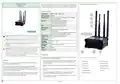
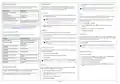
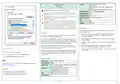
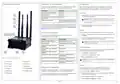
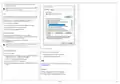


Ethernet port LEDs
Configuration
5. Go to Status > Overview and verify that the mobile type fields are
filled in.
positions 1–4). Any activity on a port is reflected on the LED.
When the router is installed, it needs to be configured for a mobile
network. Connect to the router and log in. Then follow the System
Setup Wizard or make the necessary changes at will.
Note! The easiest way of changing the APN (Access Point Name) man-
ually is via the Setup Wizard.
Port function
LED mode
Operating as a 10/100 Mbps
connection
LED turned on
Connection
WiFi
1. Connect wirelessly to the unit or use an Ethernet cable from one of
the LAN Ethernet ports.
No link established
LED turned off
The recommendation is to not use the WiFi function during operation,
or use a secure password to limit data usage on the network.
Connection established, activity on the LED blinking
port (data being transferred)
Note! The WiFi SSID and password can be found on the bottom of
the router. You can also scan the QR code at the bottom of the
router for easy wireless connection.
WiFi is configured in the wireless settings. To disable or enable WiFi
Access Point function:
Router in bootloader menu state*
LEDs light up and turn off in sequence
from the WAN port to the LAN1 port
1. Go to Network -> Wireless.
* The bootloader menu is a recovery tool if the router cannot be accessed
after a factory reset. It can be used to update firmware or bootloader
2. Under WiFi 2.4GHz, set the off/on radio button to the desired
position.
2. Make sure that dynamic IP-address is activated on the computer (see
3. Click a pen icon to make any desired changes.
Logging in
4. Click [Save and apply].
Connection status LED
To continue with the setup, you need to log in to the router.
Reset button
connection state and network type.
1. Open a web browser and write the router’s IP-address (192.168.1.1)
in the address field.
The router resets to its factory settings when you press and hold the reset
button on the back of the router for at least 5 seconds. The router should
be powered when the button is pressed.
2. Use the default username and password printed on the bottom of the
router to log in.
Function
Colour and mode
No SIM or bad PIN
Green and red blinking alternatively
recovery options.
Note! The first time you log in, you are prompted to change the de-
fault password.
Connecting to GSM
Green, red and orange blinking
alternatively
Note! The main SIM pin is the only user parameter kept after a factory
reset.
Connected to 2G, no data session
established
Red blinking
System Setup Wizard
Connected to 3G, no data session
established
Orange blinking
Green blinking
To quickly get your M4G951 up and running, follow the system setup
wizard after logging in.
Network settings
Connected to 4G, no data session
established
1. Go to System > Setup Wizard.
2. Follow the setup wizard to configure the router.
3. Click [Finish].
Dynamic IP-address
Connected to 2G, data session
established
Red lit and blinking rapidly during data
transfer
1. Locate the network settings on the computer (e.g. Control Panel ->
Network and Internet -> Network connections)
Connected to 3G, data session
established
Orange lit and blinking rapidly during
data transfer
2. Select WiFi and Change adapter options.
Note! To configure your router settings manually, click [Skip wizard].
Connected to 4G, data session
established
Green lit and blinking rapidly during da-
ta transfer
3. Right-click WiFi and select Properties.
4. Verify that Internet protocol version 4 (TCP/IPv4) is selected, see
SIM cards
Signal strength LEDs
If you set up the router manually, you need to configure any installed
SIM card for the mobile network to function.
1. Go to Network > Mobile > General
strength. The more LEDs that are lit, the stronger the signal.
2. Select a PIN code if you use a protected SIM card. The PIN is the
same as on the SIM card.
The signal strength LEDs can also be used as a time indicator when you
press and hold the reset button on the back of the router.
3. Make any necessary settings changes.
4. Click [Save and apply].
M4G951
2 (5)

| General | Details |
|---|---|
| Name | REGIN M4G951 Router Instructions |
| Make | REGIN |
| Language | English |
| Filetype | PDF (Download) |
| File size | 0.2 MB |
 (1 votes, average: 5.00 out of 5)
 Loading...
If you have any questions regarding REGIN M4G951 Router Instructions, please ask here and describe the problem in detail.


Dynalink AX3600 Stream WiFi Router User Guide

GL iNet GL-SFT1200 AC1200 Opal Wireless Travel Router User Manual
NETGEAR Nighthawk 6-Stream AX5200 WiFi Router RAX48 User Guide

Milesight UR75 UltraSeries Router User Guide

ATEL WB550 5G Fixed Wireless Access Router User Guide

altice UBN2309 XGS-PON Labs Delivers Router Instruction Manual

intelbras GX 1001 LT 5G WiFi 6 Router Installation Guide

Firstnum C401 CPE Router User Manual

UBIQUITI UniFi Dream Router Instruction Manual

intwine connected ICG-150 Gateway 150 Cellular Router User Guide