
RV Wi-Fi 2024v1 DishyDock Router User Guide




Connecting yourdeviceviaWi-Fitoyour RV Wi-Fi DishyDock Router
Turn on the device/s (phone/laptop etc.), that you wish to
1
connect to the internet.
Click on: ‘Settings’or equivalent page on your device
2
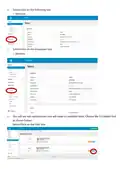
Click on : ‘Wi-Fi’and choose the RV Wi-Fi network: On some de-
vices you will notice that RV Wi-Fi comes up twice with the same
series of letters and numbers, but 5.8 included.
This is because newer devices recognise the faster 5.8 Wi-Fi as well
as the standard 2.4.
Scan to watch:
How to connect your
smart device to
RV Wi-Fi
3
Click on the 5.8 option if available.
You will need to set passwords for both versions if available. This
is simply completing the process for one, then repeating it again
for the other.
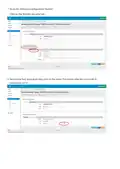
You will be asked for the Wi-Fi password or Security Key.
Type in: rvwifi1234 (all lower case, no gaps)
4
5
Click the: ‘Connect Automatically’Box
Click: ‘Connect’,
6
7
5.8
5.8
2.4 SSID
5.8 SSID
********

| General | Details |
|---|---|
| Name | RV Wi-Fi 2024v1 DishyDock Router User Guide |
| Make | RV Wi-Fi |
| Language | English |
| Filetype | PDF (Download) |
| File size | 0.46 MB |
 (1 votes, average: 5.00 out of 5)
 Loading...
If you have any questions regarding RV Wi-Fi 2024v1 DishyDock Router User Guide, please ask here and describe the problem in detail.

RV WI-FI 2024 V3 DishyDock Router User Manual


ASUS RT-BE96U Wi-Fi 7 Ethernet Wireless Router User Guide

DIGITAL YACHT 4GXtream NMEA 2000 3G or 4G Router Instruction Manual

PROCEND M331 Cellular Router Installation Guide

Cudy LT700 LTE Router Installation Guide

SKYWORTH GN630 GPON ONT Wi-Fi Router Installation Guide

TP-Link NX200 5G CPE Router Installation Guide

inseego 5G FG2000 Router User Guide

URANT U10 Wireless Router Installation Guide

CSG m212 Dual SIM Wi-Fi 6 Router User Guide
JUOVI J8301 AC1200 Gigabit Router User Guide