
Shenzhen 802.11AX Wi-Fi 6 1800M Wireless Router Installation Guide





1.When the WPS function is enabled, press it once to staꢀ the
PBC function.
WPS
Button
2.Press and hold for 3 seconds to enable MESH networking.
Press and hold for more than 5 seconds to restore factoꢃ
RESET
settings.
Button
Ⅳ. Preparation
1. Connect the broadband cable to the WAN poꢀ of the router, ensure that it is
properly powered on. The indicator light will first be constantly red, followed by
alternating flashes of green, blue, and red. This indicates that the system is staꢀing
up and establishing a network connection. Once successfully connected, the
indicator light will turn green and remain constant, while it will blink during data
transmission.
2. Connect your mobile phone to the router’s WiFi network. The default WiFi
network name is “WR1800K-XXXX” (where XXXX denotes the last four digits of the
MAC address), and the default WiFi password is “9876543210”.
Ⅴ. Phone Setting
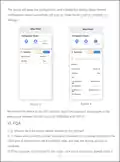
1. Open the browser and enter the default login address '192.168.100.1'. The
default username and password are both 'admin'. As shown in figure 1 below, after
entering the information, click the 'Login' button to access the device management
page.
Note: If the router cannot access the Internet, your phone will prompt
'WR1800K-XXXX cannot access the Internet. Allow WLAN Assistant to switch to a
better network?' Click 'Disallow' or 'No' to continue with the router setup process.
Otherwise, the router setup will not be completed.
- 2 -

| General | Details |
|---|---|
| Name | Shenzhen 802.11AX Wi-Fi 6 1800M Wireless Router Installation Guide |
| Make | Shenzhen |
| Language | English |
| Filetype | PDF (Download) |
| File size | 0.25 MB |
 (1 votes, average: 5.00 out of 5)
 Loading...
If you have any questions regarding Shenzhen 802.11AX Wi-Fi 6 1800M Wireless Router Installation Guide, please ask here and describe the problem in detail.


SMAWAVE SRE410 LTE CPE Router User Guide

D-Link DIR-882 EXO AC2600 MU-MIMO Wifi Router Installation Guide

Aetheros ESRMKV2C AOS Edge Server Router User Manual

TP-Link TL-MR110 Outdoor Router Installation Guide

Keep Your Home IP MA-B256 Router Owner’s Manual

Taiko TAP0016 Audio Extreme Router User Manual

ASUS XD4S AX1800 Dual Band WiFi Router User Guide

ASUS AX3000 Dual Band Wi-Fi Router RT-AX58U User Guide

Infinite Clouds 110 Wireless Router User Manual

CASTLENET EBM522C Mesh Wi-Fi Router Installation Guide