
TOTOLINK LR350 4G LTE Router Installation Guide
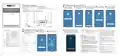


Configure the Router on Phone
2
Installation Diagram
1
Internet Setting. Choose a suitable
connection type from the list and
fill in the information required,
Wireless Setting. Create passwords
for 2.4G and 5G Wi-Fi (Here users
could also revise the default Wi-Fi
For security, please create a
new Login Password for your
The coming page is the Summary
informationfor your setting. Please
remember your Wi-Fi Name and
Time Zone setting. According to
Method 1: Wireless Connection to the Internet(with SIM card)
5
6
7
8
4
your location, please click the
Time Zone to choose a correct
one from the list, then click Next.
4. For security, please follow the below instructions to create
1. Insert the SIM car into the slot.
router, then click Next.(P8)
passwords for your router and Wi-Fi.
2. Power on the router.
then click Next.(P5/P6)
name) and then click Next.(P7)
Password, then click Done.(P9)
Note: Micro or Nano card must be turned into the SIM card by using the standard SIM card adapter.
3. Find the default Wi-Fi name on your Phone and choose to connect.
Now, you could enjoy Wi-Fi.
(P4)
Quick Installation Guide
TOTOLINK
T
O
T
O
L
I
N
K
TOTOLINK
TOTOLINK
TOTOLINK
Method 2: Wired Connection to the Internet(with Cable)
4G LTE Router
Default Wi-Fi Name: TOTOLINK_LR350
Model: LR350
Smartphone
TOTOLINK_LR350
TOTOLINK_LR350
Quectel EC200A
TOTOLINK_NR1800X_5G
TOTOLINK_NR1800X_5G
Tablet
Information in this document is subject to change without prior notice
PC
(P4)
(P5)
(P7)
(P8)
(P9)
Connection Type
Description
FCC Statement
It takes several seconds to save the settings and then
your router will restart automatically. This time your
Phone will be disconnected from the router. Please
back to the WLAN list of your phone to choose the
new Wi-Fi name and input the correct password. Now,
9
Configure the Router on Phone
2
Indicators, Ports, Buttons
Input the IP address, Subnet Mask, Default Gateway,
DNS from your ISP.
This equipment has been tested and found to comply with the limits for a Class B
digital device, pursuant to part 15 of the FCC Rules. These limits are designed to
provide reasonable protection against harmful interference in a residential
installation. This equipment generates, uses and can radiate radio frequency
energy and, if not installed and used in accordance with the instructions, may
cause harmful interference to radio communications. However, there is no
guarantee that interference will not occur in a particular installation. If this
equipment does cause harmful interference to radio or television reception,
which can be determined by turning the equipment off and on, the user is
encouraged to try to correct the interference by one or more of the following
measures:
Static IP
Activate the WLAN function on your Phone and
connect to TOTOLINK_LR350. Then run any
the address bar.(P1)
Enter admin for the password and
Click Quick Setup on this page,
then enter the setting interface.
(P3)
The equipment is powered on.
No information required. Please confirm with your ISP
if Dynamic IP is supported.
Dynamic IP
2
3
Green light is always on
then click LOGIN.(P2)
Press the WPS button, the WPS
function is awakened.
PPPoE
Input User Name and Password from your ISP.
you could enjoy the Wi-Fi.(P10)
The 4G connection is successful.
And the signal is strong.
Green Blinking
(1s:1s=On:Off)
(P6)
Green Blinking
Press the reset button for 5seconds.
TOTOLINK
TOTOLINK
(100ms:100ms=On:Off) Router is being reset, ready to reboot.
SYS
Orange Blinking
(1s:1s=On:Off)
The 4G connection is successful.
And the signal is average.
3
FAQs
(Frequently Asked Questions)
—Reorient or relocate the receiving antenna.
SIM card is detected, no 4G connection.
No SIM card is inserted or detected.
Red light is always on
1.Unable to open the router's login page on the browser?
Please check if your Phone has connected to the router and make sure
—Increase the separation between the equipment and receiver.
—Connect the equipment into an outlet on a circuit different from that to which the
receiver is connected.
Red Blinking
(1s:1s=On:Off)
DC In
Connect the power adapter.
Connect to the Internet.
Connect to PCs.
—Consult the dealer or an experienced radio/TV technician for help.
This device complies with part 15 of the FCC Rules. Operation is subject to the
following two conditions: (1) This device may not cause harmful interference, and
(2) this device must accept any interference received, including interference that
may cause undesired operation.
2.After the SIM card is plugged in, the SYS LED on Red Blinking,
the Internet cannot be accessed.
WAN Port
In this case, the SIM card is not inserted properly. The solution is to power
off the 4G router and re-insert the card. Because the card slot is deep and
the fingernails are short, it is recommended to insert the card together with
toothpicks; the other case is SIM If the card is not activated, you must
insert the card after activation according to the instructions of the card
manual.
LAN 1/2
Ports
SIM Slot
Insert the SIM card.
2
TOTOLINK_LR350
TOTOLINK_LR1200
Caution
Activate WPS function: when the router is powered on, press and hold
the button for 1 second , the System indicator keeps solid on for 2
minutes.
Any changes or modifications not expressly approved by the party responsible for
compliance could void the user's authority to operate the equipment.
LR350
WPS/RST
Button
3. After the SIM card is plugged in, the SYS LED on Red light is
always on, the Internet cannot be accessed.
Reset to factory defaults: when the router is powered on, press and hold
this button for 5 seconds or more until the System indicator blinks quickly.
Radiation Exposure Statement
First use the mobile phone card to plug in the router to confirm whether it
can be used. If the mobile phone card can be used normally, then ask the
4G SIM card provider if there is any traffic, whether the real-name
authentication is verified and whether the card is locked.
This equipment complies with FCC radiation exposure limits set forth for an
uncontrolled environment.
This transmitter must not be co-located or operating in conjunction with any other
antenna or transmitter.
This equipment should be installed and operated with minimum distance 20cm
between the radiator& your body.
4. After the card is used, the mobile phone is connected to Wi-Fi,
and the network speed is slow.
This situation is related to the card signal. Where the signal is poor, the
corresponding Wi-Fi is not ideal. To debug the routing position, place it
in a place with strong signal.
Manufacturer: ZIONCOM ELECTRONICS (SHENZHEN) LTD.
Address: Room 702, Unit D, 4 Building Shenzhen Software Industry Base, Xuefu
Road, Nanshan District, Shenzhen, Guangdong, China
(P1)
(P2)
(P3)
(P10)


| General | Details |
|---|---|
| Name | TOTOLINK LR350 4G LTE Router Installation Guide |
| Make | TOTOLINK |
| Language | English |
| Filetype | PDF (Download) |
| File size | 0.38 MB |
 (1 votes, average: 5.00 out of 5)
 Loading...
If you have any questions regarding TOTOLINK LR350 4G LTE Router Installation Guide, please ask here and describe the problem in detail.

TOTOLINK X2000R AX1500 Wireless Dual Band Gigabit Router Installation Guide


D-Link DIR-400 Wireless Router Instructions

MALMBERGS 2700490DK 4G Network Router Instruction Manual

TP-Link AX3000 Wi-Fi 6 Air Router Installation Guide

Cudy X6 AX1800 Dual Band Gigabit Wi-Fi 6 Mesh Router Installation Guide

BT Hub 3 Broadband Router User Guide

LANCOM 1781-4G VPN Router User Guide

ERICSSON S400-C6-NA Wireless Router User Guide

TP-Link AC1900 Archer AC1900 MU-MIMO Wi-Fi Router User Guide

TP-Link BE11000 Tri Band Wi-Fi 7 Gaming Router User Guide

TP-Link Omada Gigabit VPN Router ER605 Installation Guide