
TP-Link AX1800 Wi-Fi 6 Gigabit Dual Band Wireless Router User Guide


Troubleshooting steps if you are unable to access the local server remotely via the DDNS
domain name
Step 1. Check if your Router WAN IP address is public IP address or not.
For example, you could check Deco router WAN IP address via Deco App: More->Internet
Connection->IPv4
Step 2. Check if the port forwarding rules are configured correctly on the Router for a local
server.
Note: If you are trying to access the router web interface remotely instead of local servers, you
should check if remote web management is configured correctly on the Router.
Step 3. Check if the DDNS is bound to the correct IP address via nslookup command mentioned
in Tip 3 above.
Step 4. Check if you could access the local server via the current public IP address instead of
the DDNS, which could confirm whether port forwarding really works or not.
If it cannot be accessed remotely via a public IP address either, please troubleshoot the port
forwarding feature first: Why port forwarding feature is not working on my Wi-Fi router or Deco

| General | Details |
|---|---|
| Name | TP-Link AX1800 Wi-Fi 6 Gigabit Dual Band Wireless Router User Guide |
| Make | TP-Link |
| Language | English |
| Filetype | PDF (Download) |
| File size | 0.35 MB |
 (1 votes, average: 5.00 out of 5)
 Loading...
If you have any questions regarding TP-Link AX1800 Wi-Fi 6 Gigabit Dual Band Wireless Router User Guide, please ask here and describe the problem in detail.

TP-Link VR300 Archer Modem Router User Guide

TP-Link T150500-2-DT WiFi Router Instruction Manual

TP-Link Archer AX55 Wi-Fi 6 Router Installation Guide

TP-Link Omada ER8411 VPN Router Instructions

TP-Link Configure VDSL Router User Guide

TP-Link Archer BE805 BE19000 Tri-Band Wi-Fi 7 Router User Manual

TP-Link VR600 Wireless DSL Modem Router Installation Guide

TP-Link AX58 Dual Band Gigabit Wi-Fi 6 Router Installation Guide

TP-Link AC750 Wireless Dual Band Router Owner’s Manual

TP-Link AX6000 8-Stream Wi-Fi 6 Router Installation Guide


QiXiang Technology QX210 Cellular Router Owner’s Manual

TP-Link T120100-2B1 Gigabit VPN Router Instructions

POYNTING EPOYNT-4 Outdoor LTE-5G Antenna and Router Enclosure User Guide

verizon CR1000 Router Instructions

VSVABEFV B0CMC44LSM 4G Wireless Router User Manual

Intesis INBACRTR0320000 BACnet MS-TP to BACnet-IP Router Owner’s Manual
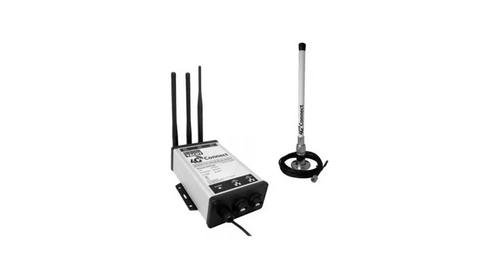
DIGITAL DEPP SEA 4GXtream Premium LTE Internet Access Router Instruction Manual

prolink DL-7306 4G LTE Wireless Router Installation Guide

Cudy WR3600E BE3600 Gigabit WiFi 7 Router Installation Guide

TP-Link Archer MR600 Wireless 4G LTE Router Installation Guide