
×
- 1. Ax5400 Multi-gigabit Wi-fi 6 Router (Installation → Setup → Configuration → Troubleshooting → Safety Information → Technical Support)
- 2. About This Guide (Connect The Hardware → Log In To Your Router → Set Up Internet Connection → Use Quick Setup Wizard → Manually Set Up Your Internet Connection → Specify Wireless Settings)
- 3. Maximum Wireless Signal Rates (Use Of Wi-fi 6 (802.11ax) → Saving Clients Battery Power → Use Of Wpa3 → Router Feature Support → Software Upgrades For Feature Availability → Actual Network Speed Limitations)
- 4. Get To Know About Your Router (Product Overview → Appearance → Top Panel)
- 5. Get To Know About Your Router (Back Panel → Button And Port Explanation)
- 6. Get To Know About Your Router (Wps Button → Wi-fi Button → Reset Button → Lan Port (1-3) → Gbps Wan/lan Port → 5 Gbps Wan/lan Port)
- 7. Connect The Hardware (Position Your Router → Connect Your Router)
- 8. Connect The Hardware (Position Your Router → Connect Your Router)
- 9. Connect The Hardware (Internet → Method 1: Wired → Method 2: Wirelessly)
- 10. Connect The Hardware (Wi-fi → Method 3: Use The Wps Button → Wireless Network Connection)
- 11. Log In To Your Router
- 12. Log In To Your Router (Set Up The Tcp/ip Protocol → Visit Http://tplinkwifi.net → Create A Login Password For Secure Management → Refer To The Faq Section)
- 13. Set Up Internet Connection (Use Quick Setup Wizard → Quick Setup Via Tp-link Tether App → Manually Set Up Your Internet Connection → Set Up The Router As An Access Point → Set Up An Ipv6 Internet Connection)
- 14. Set Up Internet Connection (Use Quick Setup Wizard → Set Up An Ipv6 Internet Connection → Quick Setup Via Tp-link Tether App → Tp-link Cloud Service)
- 15. Set Up Internet Connection (Manually Set Up Your Internet Connection)
- 16. Set Up Internet Connection (Dynamic Ip → Static Ip → Pppoe)
- 17. Set Up Internet Connection
- 18. Set Up Internet Connection (Set Up The Router As An Access Point)
- 19. Set Up Internet Connection (Set Up An Ipv6 Internet Connection)
- 20. Set Up Internet Connection (Dynamic Ip(slaac/dhcpv6) → Pppoe)
- 21. Set Up Internet Connection (Manually Set Up Your Internet Connection → To4 Tunnel → Pass-through (bridge))
- 22. Set Up Internet Connection (Configure Lan Ports → Check Ipv6 Connection → Visit The Faq Section)
- 23. Register A Tp-link Id (Change Your Tp-link Id Information → Manage The User Tp-link Ids → Manage The Router Via The Tp-link Tether App)
- 24. Register A Tp-link Id (Change Your Tp-link Id Information)
- 25. Tp-link Cloud Service (Manage The User Tp-link Ids)
- 26. Addtp-linkidtomanagetherouter (Removetp-linkid(s)frommanagingtherouter → Manage The Router Via The Tp-link Tether App)
- 27. Manage The Router Via The Tp-link Tether App (Launch The Apple App Store Or Google Play Store → Connect Your Device To The Routers Wireless Network → Log In With Your Tp-link Id → Register A Tp-link Id)
- 28. Network Map
- 29. Network Map (Visit Http://tplinkwifi.net, And Log In With Your Tp-link Id Or The Password You Set For The Router. → Click Each Network Device Icon To Check And Manage General Network Settings. → Click Internet To Check Internet Status. → Click The Router To Check Device Status And Network Settings. → You Can Turn On Or Off The Wireless Network Or Guest Network, Or Click Edit To Change Related Settings.)
- 30. Network Map (Mesh Devices)
- 31. Network Map (Speed Limit)
- 32. Wireless Settings (Specify Wireless Settings → Schedule Your Wireless Function → Use Wps For Wireless Connection → Advanced Wireless Settings)
- 33. Wireless Settings (Specify Wireless Settings → Enable Or Disable Ofdma → Enable Or Disable Twt → Use The Smart Connect Function)
- 34. Wireless Settings (Enable Or Disable The Wireless Function → Change The Wireless Network Name (ssid) And Wireless Password → Hide Ssid → Change The Security Option → Change The Transmit Power And Channel Settings)
- 35. Wireless Settings (To Use The Mu-mimo Function → Schedule Your Wireless Function)
- 36. Wireless Settings (Use Wps For Wireless Connection → Connect Via The Clients Pin)
- 37. Wireless Settings (Connect Via The Routers Pin → Push The Wps Button → Advanced Wireless Settings)
- 38. Wireless Settings (Configure Advanced Wireless Settings → Wmm → Ap Isolation → Airtime Fairness → Zero Wait Dfs → Beacon Interval)
- 39. Wireless Settings (Group Key Update Period)
- 40. Guest Network (Create A Network For Guests → Set Up Portal Authentication For The Guest Network → Limit The Bandwidth Of The Guest Network → Specify The Effective Time Of The Guest Network → Customize Guest Network Options)
- 41. Create A Network For Guests (Enable 2.4ghz And/or 5ghz → Customize The Ssid → Select The Security Type And Customize Your Own Password → Click Save → Share Network → View Guest Network Information)
- 42. Guest Network (Set Up Portal Authentication For The Guest Network → Visit Http://tplinkwifi.net, And Log In With Your Tp-link Id Or The Password You Set For The Router. → Go To Wireless And Locate The Guest Network Section. → Set Security To Portal. → Select The Authentication Type. → Specify The Authentication Timeout.)
- 43. Guest Network (Limit The Bandwidth Of The Guest Network → Enable Redirect → Edit The Login Page → Save)
- 44. Guest Network (Limit The Download And Upload Bandwidth For The Network → Specify The Effective Time Of The Guest Network)
- 45. Guest Network (Customize Guest Network Options)
- 46. Guest Network
- 47. Usb Settings (Access The Usb Storage Device → Media Sharing → Time Machine)
- 48. Usb Settings (Access The Usb Storage Device → Access The Usb Device Locally)
- 49. Usb Settings (To Set Up Authentication For Data Security → To Customize The Address Of The Usb Storage Device → Access The Usb Device Remotely)
- 50. Usb Settings (Configure Remote Access Settings → Access Your Usb Disk Remotely)
- 51. Usb Settings (Customize The Access Settings → Set Up Authentication For Data Security → Access With The Username And Password → Set Up A Dynamic Dns Service Account → Customize The Address Of The Usb Storage Device → Use A Third-party App For Network Files Management)
- 52. Usb Settings (To Only Share Specific Content → To Set Up Authentication For Data Security)
- 53. Usb Settings (Media Sharing → Accessing As An Administrator → Changing Authentication Settings → Customizing The Address Of The Usb Storage Device → Default Administrator Account → Default Visitor Account)
- 54. Usb Settings (Time Machine)
- 55. Usb Settings (Time Machine → Size Limit For Backups → Save)
- 56. Network Security (Parental Controls → Network Analysis & Optimization)
- 57. Network Security (Iot Protection → Intrusion Prevention System → Malicious Content Filter → Ddos Protection → Parental Controls)
- 58. Homeshield (Child Protection → Family Incentive Program → Family Time → Network Analysis & Optimization → Weekly And Monthly Reports → Quality Of Service (qos))
- 59. Homeshield
- 60. Set Up A Onemesh Network (Manage Devices In The Onemesh Network)
- 61. Onemesh With Seamless Roaming (Same Network Name & Password → Internet For Seamless Roaming → Unified Wi-fi Network → Seamless Roaming → Easy Setup And Management → Set Up A Onemesh Network)
- 62. Onemesh With Seamless Roaming (Connect A Onemesh Extender To This Router → Check Full List Of Tp-link Onemesh Devices → Set Up The Extender To Join The Onemesh Network → Find It In The Available Onemesh Devices List → Add It To The Onemesh Network → Router And Extender Successfully Form A Onemesh Network)
- 63. Onemesh With Seamless Roaming (Manage Devices In The Onemesh Network)
- 64. Onemesh With Seamless Roaming (Manage The Onemesh Device As Needed → Change Device Information → Click Manage Device To Redirect To The Web Management Page → Click Leave Onemesh To Delete This Device From The Onemesh Network)
- 65. Protect The Network From Cyber Attacks (Access Control → Ip & Mac Binding)
- 66. Protect The Network From Cyber Attacks (Access Control)
- 67. Network Security (Allow Specific Device(s) → Add Connected Devices)
- 68. Network Security (Add Unconnected Devices → Ip & Mac Binding)
- 69. Network Security (Ip & Mac Binding → Enable Ip & Mac Binding → Bind Your Device(s) → Binding List → View Connected Devices → Save)
- 70. Network Security (Bind The Unconnected Device → Alg → Sip Alg Configuration)
- 71. Share Local Resources On The Internet By Port Forwarding (Open Ports Dynamically By Port Triggering → Make Applications Free From Port Restriction By Dmz → Make Xbox Online Games Run Smoothly By Upnp)
- 72. Nat Forwarding (Share Local Resources On The Internet By Port Forwarding → Assign A Static Ip Address To Your Pc → Visit Http://tplinkwifi.net → Go To Advanced > Nat Forwarding > Port Forwarding)
- 73. Nat Forwarding (View Common Services → View Connected Devices → Save → Tips)
- 74. Nat Forwarding (Set Up A Dynamic Dns Service Account → Open Ports Dynamically By Port Triggering → Configure The Port Triggering Rules)
- 75. Nat Forwarding (Make Applications Free From Port Restriction By Dmz → Warning: Dmz Host Is Totally Exposed To The Internet, Which May Bring Some Potential Safety Hazards.)
- 76. Nat Forwarding (Assign A Static Ip Address To Your Pc → Enable Dmz → Make Xbox Online Games Run Smoothly By Upnp → Upnp Protocol Overview → Tips For Upnp Usage)
- 77. Nat Forwarding (Upnp)
- 78. Vpn Server (Openvpn → Pptp Vpn → L2tp/ipsec Vpn → Vpn Client → Use Openvpn To Access Your Home Network → Use Pptp Vpn To Access Your Home Network)
- 79. Use Openvpn To Access Your Home Network (Set Up Openvpn Server On Your Router)
- 80. Vpn Server&client (Configure Openvpn Connection On Your Remote Device → Use Pptp Vpn To Access Your Home Network → Set Up Pptp Vpn Server On Your Router)
- 81. Vpn Server & Client (Enable Pptp → Dynamic Dns Service Configuration → Client Ip Address Configuration → Pptp Connection Permission Settings → Save Configuration → Pptp Vpn Connection Account Setup)
- 82. Vpn Server&client (Configure Pptp Vpn Connection On Your Remote Device → Set Up A New Connection Or Network → Connect To A Workplace)
- 83. Vpn Server&client
- 84. Vpn Server&client
- 85. Use L2tp/ipsec Vpn To Access Your Home Network (Set Up L2tp/ipsec Vpn Server On Your Router)
- 86. Vpn Server & Client (Client Ip Address → Ipsec Encryption → Ipsec Pre-shared Key → Configure L2tp/ipsec Vpn Connection → Username And Password → Authenticate Devices)
- 87. Vpn Server&client (Set Up A New Connection Or Network → Connect To A Workplace)
- 88. Vpn Server&client (Use My Internet Connection (vpn) → Enter The Internet Ip Address Of The Router → Dont Connect Now; Just Set It Up So I Can Connect Later → Enter The User Name And Password)
- 89. Vpn Server&client (Network And Sharing Center → Change Adapter Settings → Click Close When The Vpn Connection Is Ready To Use)
- 90. Vpn Server&client
- 91. Vpn Server&client (Security → Layer 2 Tunneling Protocol With Ipsec (l2tp/ipsec) → Advanced Settings → Use Preshared Key For Authentication → Ipsec Pre-shared Key → Connect To Start Vpn Connection)
- 92. Vpn Client To Access A Remote Vpn Server (Use The Vpn Feature → Visit Http://tplinkwifi.net → Go To Advanced > Vpn Client → Enable Vpn Client → Add Vpn Servers → Specify A Description For The Vpn)
- 93. Vpn Server&client (Openvpn → Pptp)
- 94. Vpn Server&client (L2tp/ipsec Vpn → Save The Settings → Enable The One You Need)
- 95. Vpn Server&client (Add And Manage The Devices That Will Use The Vpn Function → Device List → Save The Settings)
- 96. Vpn Server&client
- 97. Customizeyournetworksettings (Change Thelansettings → Setuplinkaggregation → Configuretosupportiptvservice → Specifydhcpserversettings → Setupadynamicdnsserviceaccount → Createstaticroutes)
- 98. Change The Lan Settings (Set Up Link Aggregation)
- 99. Customizeyournetworksettings (Configuretosupportiptvservice → Staticlagorlacpmode → Igmpproxyandigmpsnooping → Advanced>network>iptv/vlan → Save → Connectyourset-topboxtoanyoftheroutersethernetport)
- 100. Customizeyournetworksettings (Specifydhcpserversettings → Enableiptv/vlan → Selecttheappropriatemode → Connecttheset-topboxtothecorrespondinglanport → Clicksave → Youriptvsetupisdonenow)
- 101. Customizeyournetworksettings (Reserveanipaddressforaspecifiedclientdevice → Setupadynamicdnsserviceaccount)
- 102. Customizeyournetworksettings (Dynamicdns → Ddnsserviceprovider → Registernow → Domainnamelist)
- 103. Customizeyournetworksettings (Createstaticroutes)
- 104. Customizeyournetworksettings (Changetherouterslanipaddresses → Visithttp://tplinkwifi.net → Gotoadvancednetworkrouting → Clickaddandfinishthesettings → Networkdestination → Subnetmask)
- 105. Customizeyournetworksettings (Interface → Description → Clicksave → Checktheroutingtable → Done → Openawebbrowseronyourpc)
- 106. Manage The Router (Update The Firmware → Backup And Restore Configuration Settings → Change The Login Password → Password Recovery → Local Management → Remote Management)
- 107. Manage The Router (Update The Firmware → Auto Update → Online Update)
- 108. Manage The Router (Online Update → Local Update → Firmware Update → Advanced → System)
- 109. Manage The Router (Backup And Restore Configuration Settings)
- 110. Manage The Router (Change The Login Password)
- 111. Manage The Router (Password Recovery → Advanced > Tp-link Id → Advanced > System > Administration → Enable Password Recovery → Smtp Server Configuration → Click Save)
- 112. Manage The Router (Local Management → Access The Router Via Https And Http → Allow All Lan Connected Devices To Manage The Router → Allow Specific Devices To Manage The Router)
- 113. Manage The Router (Remote Management)
- 114. Manage The Router (Remote Management → Set Up A Dynamic Dns Service Account)
- 115. Manage The Router (System Log)
- 116. Manage The Router (Save Log → Send System Log To Mailbox → Log In To Tp-link → Advanced > System Tools > System Log → Enter Required Information)
- 117. Manage The Router (Test The Network Connectivity)
- 118. Manage The Router (Diagnostics → Ping → Traceroute → Ip Address Or Domain Name → Ping Count → Ping Packet Size)
- 119. Manage The Router (Set System Time And Language)
- 120. Manage The Router (Ntp Server I → Ntp Server Ii → Set Time → Get From Managing Device → Manually Set The Date And Time → Enable Daylight Saving Time)
- 121. Manage The Router (Set The Router To Reboot Regularly → Select The Correct Start Date And Time → Select The Correct End Date And Time → Set System Language → Click Save → Enable Reboot Schedule)
- 122. Manage The Router (Control The Led → Reboot Time → Night Mode → Led Control)
- 123. What Should I Do If I Forget My Wireless Password? (What Should I Do If I Forget My Web Management Password? → What Should I Do If I Cant Log In To The Routers Web Management Page?)
- 124. Clicklansettingsanddeselectthefollowingthreeoptionsandclickok.go Toadvanced>restoreadvancedsettings,clickoktosavethesettings.
- 125. Reset The Router To Factory Default Settings (Reconfigure The Router To Surf The Internet → Check Internet Status → Manually Configure The Dns Server → Enter 8.8.8.8 As Primary Dns)
- 126. Restart The Modem And The Router (Reset The Router To Factory Default Settings And Reconfigure The Router → Upgrade The Firmware Of The Router → Check The Tcp/ip Settings On The Particular Device → Make Sure The Physical Connection Between The Router And The Modem Is Proper → Clone The Mac Address Of Your Computer)
- 127. Visit Http://tplinkwifi.net, And Log In With Your Tp-link Id Or The Password You Set For The Router.
- 128. Power Off Your Modem And Router (Power On Your Modem First → Confirm Your Internet Connection Type → Visit Http://tplinkwifi.net → Select Your Internet Connection Type → Please Upgrade The Firmware Of The Router → What Should I Do If I Cant Find My Wireless Network)
- 129. Make Sure The Wireless Adapter Driver Is Installed Successfully And The Wireless Adapter Is Enabled. (On Windows 7 → On Windows Xp → Check The Wlan Led Indicator On Your Wireless Router/modem. → Go To Wireless Or Advanced > Wireless > Wireless Settings. → Authenticating Problem/password Mismatch)
- 130. Fcc Compliance Information Statement (Product Name: Ax5400 Multi-gigabit Wi-fi 6 Router → Model Number: Archer Ax72 Pro → Responsible Party: Tp-link Usa Corporation → Installation Instructions → Interference Correction Measures → Compliance With Fcc Rules)
- 131. Fcc Rf Radiation Exposure Statement (Fcc Compliance Information Statement → Product Name → Model Number → Responsible Party → Address → Website)
- 132. National Restrictions (Ukca Mark → Uk Declaration Of Conformity → Canadian Compliance Statement)
- 133. Caution (Radiation Exposure Statement → Industry Canada Statement → Korea Warning Statements → Ncc Notice & Bsmi Notice)
- 134. Safety Information
- 135. Explanations Of The Symbols On The Product Label At The Bottom (Caution → Operators Manual → Recycling)
×
TP-Link AX5400 Multi Gigabit Wi-Fi Router User Guide




























Chapter 13
NAT Forwarding
Tips:
•
•
The WAN IP should be a public IP address. For the WAN IP is assigned dynamically by the ISP, it is recommended
to apply and register a domain name for the WAN referring to Set Up a Dynamic DNS Service Account. Then users
on the internet can use http:// domain name to visit the website.
If you have changed the default External Port, you should use http:// WAN IP: External Port or http:// domain name:
External Port to visit the website.
13 2 Open Ports Dynamically by Port Triggering
Port Triggering can specify a triggering port and its corresponding external ports.
When a host on the local network initiates a connection to the triggering port, all the
external ports will be opened for subsequent connections. The router can record the
IP address of the host. When the data from the internet return to the external ports, the
router can forward them to the corresponding host. Port Triggering is mainly applied to
online games, VoIPs, video players and common applications including MSN Gaming
Zone, Dialpad and Quick Time 4 players, etc.
Follow the steps below to configure the Port Triggering rules:
1. Visit http://tplinkwifi.net, and log in with your TP-Link ID or the password you set for
the router.
2. Go to Advanced > NAT Forwarding > Port Triggering and click
.
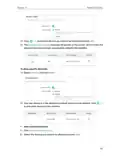
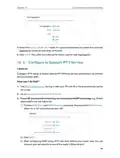
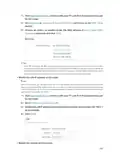
3. Click VIEW COMMON SERVICES, and select the desired application. The Triggering
Port, Triggering Protocol and External Port will be automatically filled in. The following
picture takes application MSN Gaming Zone as an example.
74

| General | Details |
|---|---|
| Name | TP-Link AX5400 Multi Gigabit Wi-Fi Router User Guide |
| Make | TP-Link |
| Language | English |
| Filetype | PDF (Download) |
| File size | 1.92 MB |
 (1 votes, average: 5.00 out of 5)
 Loading...
If you have any questions regarding TP-Link AX5400 Multi Gigabit Wi-Fi Router User Guide, please ask here and describe the problem in detail.

TP-Link VR300 Archer Modem Router User Guide

TP-Link T150500-2-DT WiFi Router Instruction Manual

TP-Link Archer AX55 Wi-Fi 6 Router Installation Guide

TP-Link Omada ER8411 VPN Router Instructions

TP-Link Configure VDSL Router User Guide

TP-Link Archer BE805 BE19000 Tri-Band Wi-Fi 7 Router User Manual

TP-Link VR600 Wireless DSL Modem Router Installation Guide

TP-Link AX58 Dual Band Gigabit Wi-Fi 6 Router Installation Guide

TP-Link AC750 Wireless Dual Band Router Owner’s Manual

TP-Link AX6000 8-Stream Wi-Fi 6 Router Installation Guide


Singtel XGSPON Optical Network Router Installation Guide

MERCUSYS MR60X AX1500 Wi-Fi 6 Router User Guide

cradlepoint CTR35 Wireless Router User Guide

HUAWEI AX3 WiFi Pro Quad-Core WiFi 6 Router User Guide

vodafone PlusBox 340 SipTrunk Router User Guide

TP-Link X10-4G Deco Router Installation Guide

ASUS RT-AX57 Go AX3000 Dual Band Wi-Fi 6 Router User Guide

eero V010001 Router User Guide
TAIKO AUDIO 92592129 Extreme Router User Manual

D Link DIR-822 AC1200 WiFi Router User Guide
Table of Contents
- 1. Ax5400 Multi-gigabit Wi-fi 6 Router - Installation →
- 2. About This Guide - Connect The Hardware →
- 3. Maximum Wireless Signal Rates - Use Of Wi-fi 6 (802.11ax) →
- 4. Get To Know About Your Router - Product Overview →
- 5. Get To Know About Your Router - Back Panel →
- 6. Get To Know About Your Router - Wps Button →
- 7. Connect The Hardware - Position Your Router →
- 8. Connect The Hardware - Position Your Router →
- 9. Connect The Hardware - Internet →
- 10. Connect The Hardware - Wi-fi →
- 11. Log In To Your Router →
- 12. Log In To Your Router - Set Up The Tcp/ip Protocol →
- 13. Set Up Internet Connection - Use Quick Setup Wizard →
- 14. Set Up Internet Connection - Use Quick Setup Wizard →
- 15. Set Up Internet Connection - Manually Set Up Your Internet C... →
- 16. Set Up Internet Connection - Dynamic Ip →
- 17. Set Up Internet Connection →
- 18. Set Up Internet Connection - Set Up The Router As An Access ... →
- 19. Set Up Internet Connection - Set Up An Ipv6 Internet Connect... →
- 20. Set Up Internet Connection - Dynamic Ip(slaac/dhcpv6) →
- 21. Set Up Internet Connection - Manually Set Up Your Internet C... →
- 22. Set Up Internet Connection - Configure Lan Ports →
- 23. Register A Tp-link Id - Change Your Tp-link Id Information →
- 24. Register A Tp-link Id - Change Your Tp-link Id Information →
- 25. Tp-link Cloud Service - Manage The User Tp-link Ids →
- 26. Addtp-linkidtomanagetherouter - Removetp-linkid(s)frommanagi... →
- 27. Manage The Router Via The Tp-link Tether App - Launch The Ap... →
- 28. Network Map →
- 29. Network Map - Visit Http://tplinkwifi.net, And Log In With Y... →
- 30. Network Map - Mesh Devices →
- 31. Network Map - Speed Limit →
- 32. Wireless Settings - Specify Wireless Settings →
- 33. Wireless Settings - Specify Wireless Settings →
- 34. Wireless Settings - Enable Or Disable The Wireless Function →
- 35. Wireless Settings - To Use The Mu-mimo Function →
- 36. Wireless Settings - Use Wps For Wireless Connection →
- 37. Wireless Settings - Connect Via The Routers Pin →
- 38. Wireless Settings - Configure Advanced Wireless Settings →
- 39. Wireless Settings - Group Key Update Period →
- 40. Guest Network - Create A Network For Guests →
- 41. Create A Network For Guests - Enable 2.4ghz And/or 5ghz →
- 42. Guest Network - Set Up Portal Authentication For The Guest N... →
- 43. Guest Network - Limit The Bandwidth Of The Guest Network →
- 44. Guest Network - Limit The Download And Upload Bandwidth For ... →
- 45. Guest Network - Customize Guest Network Options →
- 46. Guest Network →
- 47. Usb Settings - Access The Usb Storage Device →
- 48. Usb Settings - Access The Usb Storage Device →
- 49. Usb Settings - To Set Up Authentication For Data Security →
- 50. Usb Settings - Configure Remote Access Settings →
- 51. Usb Settings - Customize The Access Settings →
- 52. Usb Settings - To Only Share Specific Content →
- 53. Usb Settings - Media Sharing →
- 54. Usb Settings - Time Machine →
- 55. Usb Settings - Time Machine →
- 56. Network Security - Parental Controls →
- 57. Network Security - Iot Protection →
- 58. Homeshield - Child Protection →
- 59. Homeshield →
- 60. Set Up A Onemesh Network - Manage Devices In The Onemesh Net... →
- 61. Onemesh With Seamless Roaming - Same Network Name & Password →
- 62. Onemesh With Seamless Roaming - Connect A Onemesh Extender T... →
- 63. Onemesh With Seamless Roaming - Manage Devices In The Onemes... →
- 64. Onemesh With Seamless Roaming - Manage The Onemesh Device As... →
- 65. Protect The Network From Cyber Attacks - Access Control →
- 66. Protect The Network From Cyber Attacks - Access Control →
- 67. Network Security - Allow Specific Device(s) →
- 68. Network Security - Add Unconnected Devices →
- 69. Network Security - Ip & Mac Binding →
- 70. Network Security - Bind The Unconnected Device →
- 71. Share Local Resources On The Internet By Port Forwarding - O... →
- 72. Nat Forwarding - Share Local Resources On The Internet By Po... →
- 73. Nat Forwarding - View Common Services →
- 74. Nat Forwarding - Set Up A Dynamic Dns Service Account →
- 75. Nat Forwarding - Make Applications Free From Port Restrictio... →
- 76. Nat Forwarding - Assign A Static Ip Address To Your Pc →
- 77. Nat Forwarding - Upnp →
- 78. Vpn Server - Openvpn →
- 79. Use Openvpn To Access Your Home Network - Set Up Openvpn Ser... →
- 80. Vpn Server&client - Configure Openvpn Connection On Your Rem... →
- 81. Vpn Server & Client - Enable Pptp →
- 82. Vpn Server&client - Configure Pptp Vpn Connection On Your Re... →
- 83. Vpn Server&client →
- 84. Vpn Server&client →
- 85. Use L2tp/ipsec Vpn To Access Your Home Network - Set Up L2tp... →
- 86. Vpn Server & Client - Client Ip Address →
- 87. Vpn Server&client - Set Up A New Connection Or Network →
- 88. Vpn Server&client - Use My Internet Connection (vpn) →
- 89. Vpn Server&client - Network And Sharing Center →
- 90. Vpn Server&client →
- 91. Vpn Server&client - Security →
- 92. Vpn Client To Access A Remote Vpn Server - Use The Vpn Featu... →
- 93. Vpn Server&client - Openvpn →
- 94. Vpn Server&client - L2tp/ipsec Vpn →
- 95. Vpn Server&client - Add And Manage The Devices That Will Use... →
- 96. Vpn Server&client →
- 97. Customizeyournetwork... - Change Thelansettings →
- 98. Change The Lan Settings - Set Up Link Aggregation →
- 99. Customizeyournetwork... - Configuretosupportip... →
- 100. Customizeyournetwork... - Specifydhcpserverset... →
- 101. Customizeyournetworksettings - Reserveanipaddressforaspecifi... →
- 102. Customizeyournetwork... - Dynamicdns →
- 103. Customizeyournetwork... - Createstaticroutes →
- 104. Customizeyournetworksettings - Changetherouterslanipaddresse... →
- 105. Customizeyournetwork... - Interface →
- 106. Manage The Router - Update The Firmware →
- 107. Manage The Router - Update The Firmware →
- 108. Manage The Router - Online Update →
- 109. Manage The Router - Backup And Restore Configuration Setting... →
- 110. Manage The Router - Change The Login Password →
- 111. Manage The Router - Password Recovery →
- 112. Manage The Router - Local Management →
- 113. Manage The Router - Remote Management →
- 114. Manage The Router - Remote Management →
- 115. Manage The Router - System Log →
- 116. Manage The Router - Save Log →
- 117. Manage The Router - Test The Network Connectivity →
- 118. Manage The Router - Diagnostics →
- 119. Manage The Router - Set System Time And Language →
- 120. Manage The Router - Ntp Server I →
- 121. Manage The Router - Set The Router To Reboot Regularly →
- 122. Manage The Router - Control The Led →
- 123. What Should I Do If I Forget My Wireless Password? - What Sh... →
- 124. Clicklansettingsanddeselectthefollowingthreeoptionsandclicko... →
- 125. Reset The Router To Factory Default Settings - Reconfigure T... →
- 126. Restart The Modem And The Router - Reset The Router To Facto... →
- 127. Visit Http://tplinkwifi.net, And Log In With Your Tp-link Id... →
- 128. Power Off Your Modem And Router - Power On Your Modem First →
- 129. Make Sure The Wireless Adapter Driver Is Installed Successfu... →
- 130. Fcc Compliance Information Statement - Product Name: Ax5400 ... →
- 131. Fcc Rf Radiation Exposure Statement - Fcc Compliance Informa... →
- 132. National Restrictions - Ukca Mark →
- 133. Caution - Radiation Exposure Statement →
- 134. Safety Information →
- 135. Explanations Of The Symbols On The Product Label At The Bott... →