
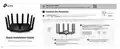
TP-Link AX6000 Stream Wi-Fi 6 Router Installation Guide


2
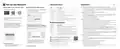
LED Explanation
Need Help?
Set Up the Network
Q1. What should I do if I want to use 1 Gbps WAN/LAN port for internet service?
ꢀ Connect to the 1 Gbps WAN/LAN port with an Ethernet cable. During the quick network setup,
select the 1 Gbps WAN/LAN port as the Internet port. Or after the network setup, you can go
to Tools > Internet Connection > Internet Port (Tether app) or Internet > Internet Port (web
management page) to change it.
Method ONE: Via TP-Link Tether App
Method TWO: Via a Web Browser
LED
Description
Solid Orange
Pulsing Orange
Solid Red
The Wi-Fi is off.
1. Download the Tether app.
1. Connect your device to the router wirelessly
or with an Ethernet cable.
The system is starting up.
No internet connection.
Q2. What should I do if I can’t access the web management page?
ꢀ Reboot your router and try again.
The default wireless network names (SSIDs) and password
are printed on the label at the bottom of the router.
or
ꢀ If the computer is set to a static IP, change its settings to obtain an IP address automatically.
ꢀ Use another web browser and try again.
Scan for Tether
Tether
Pulsing Red
Solid Blue
The Wi-Fi is off and there is no internet connection.
The router is working properly.
2. Open the Tether app and log in with your
TP-Link ID.
ꢀ Disable and enable the network adapter in use.
The firmware is being upgraded, WPS connection is being
established or the router is being reset.
Wireless Password/PIN:XXXXXXXX
SSID:TP-Link_XXXX
SSID:TP-Link_XXXX_5G
Pulsing Blue
Q3. What should I do if I can’t access the internet?
ꢀ Log in to the web management page of the router, go to Internet > Internet Port, and check if
you selected the port that you've already plugged your Ethernet cable into.
• Power off your modem for about 5 minutes, then power it on and check the internet. If your
modem has more than one Ethernet port, keep other ports unconnected.
ꢀ Check if the internet is working normally by connecting a computer directly to the modem via
an Ethernet cable. If it is not, contact your internet service provider.
ꢀ Log in to the web management page, and go to the Network Map page to check whether the
internet IP address is valid or not. If it’s valid, go to Advanced > Network > Internet, click
Advanced Settings, select Use the Following DNS Addresses, set the primary DNS to 8.8.8.8,
and set the secondary DNS to 8.8.4.4. If it is not, check the hardware connection or contact
your internet service provider.
Note: If you don’t have an account, create one first.
Button Explanation
Button
3. Tap the button in the Tether app and
select Wireless Router > Standard
Routers. Follow the steps to complete the
setup and connect to the internet.
2. Launch a web browser, and enter
the address bar. Create a password to log in.
Description
Press the WPS button, and immediately press the WPS
button on your client to start the WPS process.
WPS
Note: If the login window does not appear, please refer to
Q2 of Need Help in this guide.
Press and hold the Wi-Fi button for about 2 seconds to turn
on or off the wireless function of your router.
Wi-Fi
LED
ꢀ For cable modem users, log in to the web management page of the router and go to Advanced
> Network > Internet > MAC Clone. Select Clone Current Device MAC and save the settings.
Then reboot both the modem and the router.
Press the LED button to turn on or off the LED of your router.
New Password:
Choose Your Device Type
Wireless Router
Press and hold the button for about 6 seconds until the LED
blinks to reset the router to its factory default settings.
Reset
Confirm Password:
Q4. What should I do if I forget my wireless password?
ꢀ
If you have not changed the default wireless password, it can be found on the label at the bottom
Let’s Get Started
of the router.
For technical support, replacement services, user guides and
Gaming Router
Range Extender
more, please visit https://www.tp-link.com/support
ꢀ
Connect a computer directly to the router using an Ethernet cable. Log in to the router’s web
To communicate with TP-Link users or engineers, visit
https://community.tp-link.com to join TP-Link Community.
wireless password
.
3. Follow the step-by-step instructions to
set up the internet connection and
register for the TP-Link Cloud service.
Q5. How should I position my router for optimal Wi-Fi performance?
• Don’t place your router in a corner or in a closet.
· Do not attempt to disassemble, repair, or modify the device. If you need service, please contact us.
· Keep the device away from water, fire, humidity or hot environments.
· Do not use any other chargers than those recommended.
• Avoid obstacles and high-powered appliances.
• Keep your router in a central location at a certain height.
• Keep the antennas vertical when the router is placed on a desktop. Keep the antennas upright
when the router is hanging on a wall.
· Do not use damaged charger or USB cable to charge the device.
To enjoy a more complete service from TP-Link,
bind your TP-Link ID to the router.
· Do not use the device where wireless devices are not allowed.
· Adapter shall be installed near the equipment and shall be easily accessible.

| General | Details |
|---|---|
| Name | TP-Link AX6000 Stream Wi-Fi 6 Router Installation Guide |
| Make | TP-Link |
| Language | English |
| Filetype | PDF (Download) |
| File size | 0.53 MB |
 (1 votes, average: 5.00 out of 5)
 Loading...

TP-Link VR300 Archer Modem Router User Guide

TP-Link T150500-2-DT WiFi Router Instruction Manual

TP-Link Archer AX55 Wi-Fi 6 Router Installation Guide

TP-Link Omada ER8411 VPN Router Instructions

TP-Link Configure VDSL Router User Guide

TP-Link Archer BE805 BE19000 Tri-Band Wi-Fi 7 Router User Manual

TP-Link VR600 Wireless DSL Modem Router Installation Guide

TP-Link AX58 Dual Band Gigabit Wi-Fi 6 Router Installation Guide

TP-Link AC750 Wireless Dual Band Router Owner’s Manual

TP-Link AX6000 8-Stream Wi-Fi 6 Router Installation Guide


Juniper NETWORKS SSR120 Router User Guide

AntennaGear TX54 5G Dual Cellular Router Owner’s Manual

TELTONIKA QSG RUT142 RS232 Router User Manual

EnGenius XG60-FIT FitXpress 4 port Gigabit PoE plus VPV Router Owner’s Manual

Tenda RX12 Pro Wi-Fi 6 6E Router Installation Guide

PROSCEND M330 Series Cellular Router Installation Guide

Teltonika RUT241 LTE Router Owner’s Manual

Taiko TAP0016 Audio Extreme Router User Manual

perle IRG5410 Router User Guide

inhand CR202 Portable 4G Router Installation Guide