
TP-Link TL-WR802N 300Mbps Wireless N Nano Router User Manual






FAQ
Q1. What should I do if I cannot access the internet?
• If using a cable modem, unplug the Ethernet cable and reboot the modem. Wait until
its Online LED is on and stable, then reconnect the Ethernet cable to the modem.
• If you’re in a hotel room or on a trade show, the internet may be limited and requires
that you authenticate for the service or purchase the internet access.
• If your internet access is still not available, contact TP-Link Technical Support.
Q2. How do I restore the router to its factory default settings?
With the router powered on, press and hold the Reset button until the LED blinks and
then release the button.
Note: You’ll need to reconfigure the router to surf the internet once the router is reset
Q3. What should I do if I forget my wireless password?
• If you have not changed the default wireless password, it can be found on the Wi-Fi
Info Card or on the label of the router.
• Otherwise, connect a computer to the router via an Ethernet cable. Log in to the Web
Management page, and go to Wireless > Wireless Security to retrieve or reset your
wireless password.
Q4. WhatshouldIdoifIforgetmyloginpasswordofthewebmanagement
page?
The default username and password of the web management page are admin (in
lowercase). If you have altered the password:
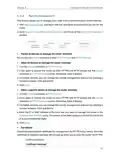
1. Reset the router to factory default settings: With the router powered on, press and
hold the Reset button until the LED blinks and then release the button.
to login.
Note: You’ll need to reconfigure the router to surf the internet once the router is reset, and please mark down your new
password for future use.
Q5. What do I need to do if I want to use NetMeeting?
If you start NetMeeting as a sponsor, you don’t need to do anything with the router. If
you start as a response, please follow the steps below to configure the router:
router.
2. Enable DMZ: Go to Forwarding > DMZ. Select Enable and enter your IP address in the
DMZ Host IP Address field, and then Click Save.
175

| General | Details |
|---|---|
| Name | TP-Link TL-WR802N 300Mbps Wireless N Nano Router User Manual |
| Make | TP-Link |
| Language | English |
| Filetype | PDF (Download) |
| File size | 0.25 MB |
 (1 votes, average: 5.00 out of 5)
 Loading...
If you have any questions regarding TP-Link TL-WR802N 300Mbps Wireless N Nano Router User Manual, please ask here and describe the problem in detail.

TP-Link VR300 Archer Modem Router User Guide

TP-Link T150500-2-DT WiFi Router Instruction Manual

TP-Link Archer AX55 Wi-Fi 6 Router Installation Guide

TP-Link Omada ER8411 VPN Router Instructions

TP-Link Configure VDSL Router User Guide

TP-Link Archer BE805 BE19000 Tri-Band Wi-Fi 7 Router User Manual

TP-Link AC750 Wireless Dual Band Router Owner’s Manual

TP-Link AX6000 8-Stream Wi-Fi 6 Router Installation Guide

TP-Link VR600 Wireless DSL Modem Router Installation Guide

TP-Link AX58 Dual Band Gigabit Wi-Fi 6 Router Installation Guide


Digital Yacht NeXuX Connect WiFi Router Installation Guide

TP-Link Archer C20 Wireless Dual Band Router Installation Guide

Qolsys IQ WiFi 6 Router Instruction Manual

JUniPer MX304 Universal Router User Guide

SEALEY CP20VTR Cordless Trimming Router Instruction Manual

Notion R023 LTE CPE Router User Guide

TP-Link SERCOMM DM1000 Mesh Wi-Fi Router User Guide

Milesight Lite Cellular Router User Guide

NETGEAR M5 Nighthawk 5G Mobile Router User Guide

Todaair 2 Mesh Router Instruction Manual