
UfiSpace S9600-32X 100G Aggregation Router Installation Guide


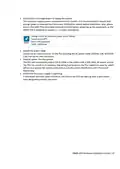




2. Check for serial control availability.
Disable any serial communication programs running on the computer such as synchronization
programs to prevent interference.
3. Launch a terminal emulator.
Open a terminal emulator application such as HyperTerminal (Windows PC), Putty or TeraTerm
and configure the application. The following settings are for a Windows environment (other
operating systems may vary):
• Baud rate: 115200 bps
• Data bits: 8
• Parity: None
• Stop bits: 1
• Flow control: None
4. Login to the device.
After the connection is established, a prompt for the username and password displays. Enter
the username and password to access the CLI. The username and password should be provided
by the Network Operating System (NOS) vendor.
S9600‐32X Hardware Installation Guide | 25

12 Cable Connections
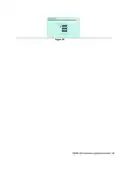
Connecting the USB Extender Cable
Connect the USB 3.0 A Type plug (male connector) into the USB port (female connector) located
on the front panel of the router. This USB port is a maintenance port.
Figure 30.
Connecting a Cable to the ToD Interface
The maximum length of the straight‐through Ethernet cable should not be
more than 3 meters.
1. Connect one end of a straight‐through Ethernet cable to the GNSS unit
2. Connect the other end of the straight‐through Ethernet cable to the port marked “TOD”
located on the front panel of the router.
Figure 31.
S9600‐32X Hardware Installation Guide | 26

| General | Details |
|---|---|
| Name | UfiSpace S9600-32X 100G Aggregation Router Installation Guide |
| Make | UfiSpace |
| Language | English |
| Filetype | PDF (Download) |
| File size | 0.84 MB |
 (1 votes, average: 5.00 out of 5)
 Loading...
If you have any questions regarding UfiSpace S9600-32X 100G Aggregation Router Installation Guide, please ask here and describe the problem in detail.

UfiSpace S9500-30XS Gateway Router Installation Guide
ufiSpace S9600-72XC Router Installation Guide

UfiSpace S9600-64X 100G Aggregation Router Installation Guide

UfiSpace S9501-28SMT Gateway Router Installation Guide


ASUS GT-AX11000 Pro ROG Rapture Pro Tri-band Gaming Router User Guide

TP-Link 5G AX1800 Wireless Dual-Band Gigabit Router Installation Guide

TELTONIKA RUT200 4G Router User Guide

D-Link M60 AX6000 Wi-Fi 6 Smart Mesh Router Installation Guide

SDMC AX3000 Dual Band Mesh Router User Guide

Tenda AC8 Dual-band Gigabit Wireless Router Installation Guide

Digital Yacht NeXuX Connect WiFi Router Installation Guide

TP-Link Archer AX72 AX5400 Multi-Gigabit Wi-Fi 6 Router Installation Guide

PROSCEND 850G-6PI 6 Port GbE Managed PoE Switch 5G Cellular Router Installation Guide

COBALT WAVE RTR-64×64 Router User Manual