
AT T MF985 Velocity 2 WiFi Hotspot Router Instruction Manual
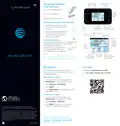


Connect to the Internet
Turn On Your Velocity 2
Press and hold the Power button for
2 seconds.
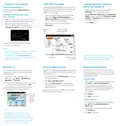
AT&T Wi-Fi Manager
Change the Wi-Fi® Network
Name and Password
1. From the AT&T Wi-Fi Manager, click
Settings in the navigation menu.
2. In the Main Wi-Fi Network or Guest Wi-Fi
SSID section, click on the Network Name
(SSID) or Password field and enter the
new information.
Change advanced settings, such as the Wi-Fi
network name and password, the maximum
number of devices, and more, using the
AT&T Wi-Fi Manager.
Connect Your Laptop or Other
Wi-Fi Devices
1. Find your hotspot’s network name in your
device’s list of available wireless networks.
2. Select the Wi-Fi network name
(e.g., ATT-WIFI-XXXX), and then select
Connect or Join (may vary by device).
1. On a connected device, open a browser
http://192.168.1.1 in the address field to
go to the AT&T Wi-Fi Manager.
2. Enter the login. (The default login is
attadmin.)
3. Click Apply.
Navigation
menu
Main/Guest Wi-Fi
network information
3. Input the Wi-Fi network password.
4. Launch your browser.
Notes:
• The home screen of your Velocity 2 displays
the Wi-Fi network name and password.
•
If needed, press the Power button to
wake your Velocity 2, and then press and
hold the unlock icon.
Note: If you change the network name or
password, you will need to reconnect your
other devices to the mobile hotspot.
Wi-Fi band
Maximum number
of devices
Guest Wi-Fi
Connect WPS Devices
Block/Unblock Devices
Use Wi-Fi Protected Setup (WPS) to connect
WPS-enabled devices without entering the
Wi-Fi password.
To prevent a device from connecting to
the mobile hotspot, you can add it to the
hotspot’s blocked list. You can unblock the
device at any time.
Provide one-time access to your mobile
hotspot with a second (Guest) network
and password.
1. From the home screen of your
Velocity 2, tap Wi-Fi > Guest Wi-Fi
Network > Turn On.
2. The current (default) Guest Wi-Fi network
name and password appear. Tap OK.
Users can now connect using the Guest
Wi-Fi network name and password.
1. Press and hold the WPS button on the top
of your Velocity 2.
Block Devices
1. From the home screen of your Velocity 2,
tap Wi-Fi > Connected Devices.
2. Tap the name of the device you want
to block. (You may need to scroll down
to find it if there are many devices
connected.)
2. Tap Pair with Main Wi-Fi.
3. Press the WPS button on the wireless
device that you want to connect to the
mobile hotspot.
Your Velocity 2 and the wireless device will
find each other and pair.
3. Tap Block.
4. Tap OK to confirm.
Tap to view
Guest Wi-Fi
network
name and
password
Unblock Devices
1. From the home screen of your Velocity 2,
tap Wi-Fi > Connected Devices >
Block List.
2. Locate the name of the device, and
tap Unblock.
Notes:
• A maximum of ten devices total
(split between the Main and Guest
Wi-Fi networks) can be connected
simultaneously to your mobile hotspot.
3. Tap OK to confirm.
• The Guest Wi-Fi network is turned off
when your Velocity 2 is restarted.

| General | Details |
|---|---|
| Name | AT T MF985 Velocity 2 WiFi Hotspot Router Instruction Manual |
| Make | AT&T |
| Language | English |
| Filetype | PDF (Download) |
| File size | 0.14 MB |
 (1 votes, average: 5.00 out of 5)
 Loading...
If you have any questions regarding AT T MF985 Velocity 2 WiFi Hotspot Router Instruction Manual, please ask here and describe the problem in detail.

AT T 5G Mobile Router User Guide

BEC MX-241NP 4G LTE CBRS Wi-Fi Router User Guide
WALLYS DR5018 Router Board User Manual

D-Link DSR-250V2 Unified Services Router Installation Guide

ASUS ZenWiFi BE3600 Dual Band Wi-Fi Router User Guide

TP-Link 5G AX3000 deco Whole Home Mesh Wi-Fi 6 Router User Guide

perle IRG5410 Router User Guide

aparian A-DH485R/B Router User Guide

BLAST u4 Wi-Fi Wireless Router User Guide

TP-Link 5G AX1800 Wireless Dual-Band Gigabit Router Installation Guide

inhand IR305 LTE Router Instruction Manual