
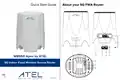
ATEL WB550 5G Fixed Wireless Access Router User Guide
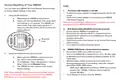


1. LEDs
Indicates device status
with an individual LED.
Refer to the LED
2. DC
Use this port to connect
the Power adapter for
power supply.
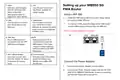
Setting up your WB550 5G
FWA Router
descriptions table on
page 5 for more details.
Install a 4FF SIM
1.
Install the SIM card as directed by the image above
the spring-loaded SIM slot.
3. LAN
4. WAN/LAN
Use this port to connect
your wired device over
Ethernet.
Use this port to connect
your wired device over
Ethernet or connect to WAN
when the port is configured
in WAN mode.
2. To remove a SIM, press the edge of the SIM inward
and the SIM will pop outward from the SIM slot.
NOTE: Use Nano SIM (4FF) Card Size
5. SIM Slot
6WPS
The U-SIM card must
be inserted into the 4FF
SIM Slot (see image).
Press this button for 5
seconds to activate the
WPS feature. This helps
connect wireless devices
without entering the WiFi
Password.
4FF
SIM
7. RST / Reset Button
Use a pin to push and
hold this button for about
5 seconds for factory
reset.
8. Device Label
Provides basic information
about the device (e.g.
Model name, IMEI, WiFi
Details etc).
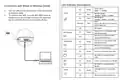
Connect the Power Adaptor
1.
Connect your Power adaptor to wall outlets.
2. Connect the Power Adaptor output with the DC Port
(12V) of the WB550 FWA Router. If power is working,
will find the Power LED is turned On.

| General | Details |
|---|---|
| Name | ATEL WB550 5G Fixed Wireless Access Router User Guide |
| Make | ATEL |
| Language | English |
| Filetype | PDF (Download) |
| File size | 0.32 MB |
 (1 votes, average: 5.00 out of 5)
 Loading...
If you have any questions regarding ATEL WB550 5G Fixed Wireless Access Router User Guide, please ask here and describe the problem in detail.

ATEL RE600 5G CPE Router User Guide

ATEL WB550 Apex 5G CPE Router Owner’s Manual


inseego FW2000e Wavemaker 5G Outdoor CPE Router Owner’s Manual

AZORES AX6600 WiFi-6 Wireless Router Instruction Manual

Dynalink DL-WRX36 WiFi 6 AX3600 Router User Guide

TELTONIKA RUTX14 CAT12 Cellular IoT Router User Guide

xiaomi RA67 AX1800 Mi Router User Manual

Spectrum IP6442B WiFi 6E Router User Manual

Cudy LT18 4G LTE Router Installation Guide

Cudy LT300 4G N300 Wi-Fi Router Installation Guide

ASUS ET12 AXE11000 Tri Band WiFi Router User Guide

YiOBYiOR 300Mbps U8 Wireless WiFi Repeater Range Extender Router Installation Guide