
KEENETIC KN-1310 Wireless Router User Guide





Connecting to Internet
using DSL or PON
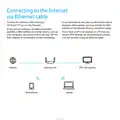
If you have a DSL modem or GPON modem
already installed, connect its LAN port with
port 0 of the Keenetic using a network cable.
In order to use all the features of the Keenetic,
the modem must be in bridge mode. If the
modem is in router mode, contact your ISP
to put the modem in bridge mode before
starting the configuration process.
In this case the process of Internet setup
will not differ from the setup process for
connecting via a leased Ethernet line.
You can use the connection via DSL or GPON as
your primary Internet connection or as a backup
one in addition to other connections.
Internet
Modem
Keenetic Lite
Smart TV
DSL/PON
Smartphone
Laptop

| General | Details |
|---|---|
| Name | KEENETIC KN-1310 Wireless Router User Guide |
| Make | KEENETIC |
| Language | English |
| Filetype | PDF (Download) |
| File size | 0.13 MB |
 (1 votes, average: 5.00 out of 5)
 Loading...
If you have any questions regarding KEENETIC KN-1310 Wireless Router User Guide, please ask here and describe the problem in detail.

KEENETIC KN-3911 Mesh Wi-Fi 6 Multi-Gigabit Router User Guide

KEENETIC Hero KN-1012 Mesh Wi-Fi 6 Multi-Gigabit Router User Guide


Grass Valley MV-825-RTRUM Multiviewer with Integrated Router User Manual

Ruijie 2AX5J-EG105GWX All-in-One Wireless Router User Manual

inseego FW2000e Wavemaker 5G Outdoor CPE Router Owner’s Manual

wm SYSTEM M2M Router Installation Guide

TP-Link AX1450 Dual Band Wi-Fi 6 Router Installation Guide

eero Pro 6 Mesh Wi-Fi Router User Guide

TP-Link Archer AX72 AX5400 Multi-Gigabit Wi-Fi 6 Router Installation Guide

ASUS GT-AX6000 Dual Band Gaming Router User Guide

Gigastone R101 Mini Wireless Pack Travel Router Installation Guide
HIKVISION AX1500 Pro WiFi Router User Guide