
Home > LINOVISION > LINOVISION IOT-R32W Cellular Router User Manual
LINOVISION IOT-R32W Cellular Router User Manual


Log in the Web GUI of Router
1 PC Configuration
Please connect PC to LAN port of IOT-R32. PC can obtain an IP address, or you can configure a
static IP address manually. The following steps are based on Windows 10 operating system for
your reference.
Note: As remote access is disabled by default, you can't access to the router's Web GUI if you
connect PC to WAN port of the router. But it will function properly if you enable it on Web GUI.
②Click “View network status and tasks”.
①Search “Control Panel” on the taskbar and click.
③Click “Ethernet” (May have different names).
④Click “Properties”.
⑤Double Click “Internet
⑥Method 1: Click “Obtain an IP
address automatically”;
Method 2: Click “Use the
following IP address” and fill
in the information above.
Protocol Version 4
(TCP/IPv4)” to configure IP
address and DNS server.
*Remember to click “OK” to finish configuration.
4

| General | Details |
|---|---|
| Name | LINOVISION IOT-R32W Cellular Router User Manual |
| Make | LINOVISION |
| Language | English |
| Filetype | PDF (Download) |
| File size | 0.3 MB |
 (1 votes, average: 5.00 out of 5)
 Loading...
If you have any questions regarding LINOVISION IOT-R32W Cellular Router User Manual, please ask here and describe the problem in detail.

LINOVISION IOT-R32W 4G LTE Cat4 Cellular Router Owner’s Manual

LINOVISION IOT-R32W Versatile Cellular Router User Guide

LINOVISION IOT-R32 Wholesale Rugged and Versatile Cellular Router User Guide

LINOVISION IOT-R41 Mini 4G LTE Router User Manual

LINOVISION IoT-R32L Router User Guide
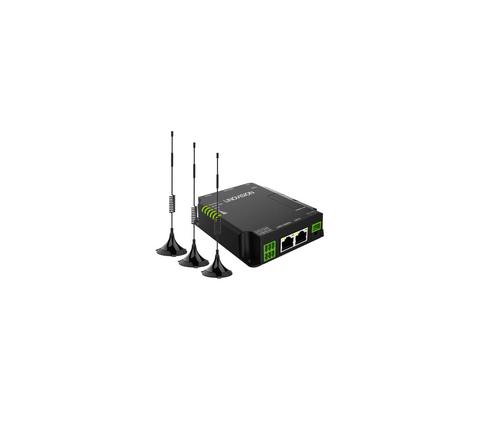
LINOVISION IOT-R32W Unlocked 4G LTE Router User Manual

LINOVISION IOT-R32W Rugged and Versatile Cellular Router Instructions


ZTE U30 Air 5g Portable WiFi Mobile WiFi Router User Guide

TP-Link Archer A7 Wireless Dual Band Gigabit Router User Guide

Cudy LT400 4G Wi-Fi Router Installation Guide

Doonink FW40-WIFI Wi-Fi Router User Manual

Enertex KNX IP Secure Router User Manual

CP PLUS CP-XR-DE21-S 4G Router Installation Guide

TANGERINE BYO Router Instruction Manual

YINUOLINK Y7 AC1200 Wi-Fi Nano Router Installation Guide

ASUS WL500W Wireless Router Instructions

JUNIPER NETWORKS PTX10004 Packet Transport Router User Guide