
Home > LINOVISION > LINOVISION IOT-R32W Cellular Router User Manual
LINOVISION IOT-R32W Cellular Router User Manual


C. Connect WAN port to another router or modem.
D. Log in IOT-R32 web GUI via WAN port IP address and go to “Status > Network” to check if status is
“up”.
E. Go to “Network > Interface > Link Failover” to rise the WAN priority to 1.
F.Open your preferred browser on PC, then type any available web address into address bar and see if
it is able to visit Internet via IOT-R32 router.
2 Cellular Connection Configuration
Take inserting SIM card into SIM1 slot as an example; please refer to the following detailed
operations.
A. Click “Network > Interface > Cellular > Cellular Setting” to configure the cellular info, like APN and
network type.
B. Click “Save” and “Apply” for configuration to take effect.
If you select “Auto”, the router will obtain ISP information from SIM card to set APN, Username, and
Password automatically. This option will only be taken effect when the SIM card is issued from a well-
known ISP.
C. Go to “Network > Interface > Link Failover” to enable SIM1 and rise link priority of SIM1.
6

| General | Details |
|---|---|
| Name | LINOVISION IOT-R32W Cellular Router User Manual |
| Make | LINOVISION |
| Language | English |
| Filetype | PDF (Download) |
| File size | 0.3 MB |
 (1 votes, average: 5.00 out of 5)
 Loading...
If you have any questions regarding LINOVISION IOT-R32W Cellular Router User Manual, please ask here and describe the problem in detail.

LINOVISION IOT-R32W 4G LTE Cat4 Cellular Router Owner’s Manual

LINOVISION IOT-R32W Versatile Cellular Router User Guide

LINOVISION IOT-R32 Wholesale Rugged and Versatile Cellular Router User Guide

LINOVISION IOT-R41 Mini 4G LTE Router User Manual

LINOVISION IoT-R32L Router User Guide
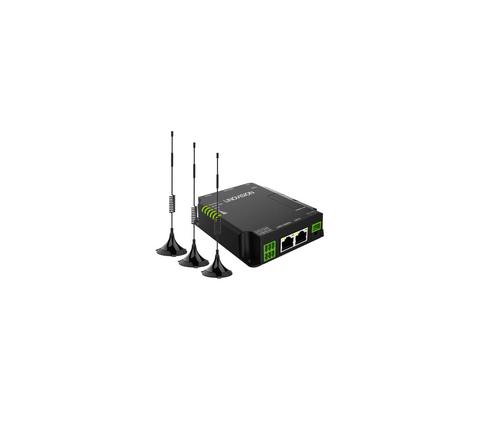
LINOVISION IOT-R32W Unlocked 4G LTE Router User Manual

LINOVISION IOT-R32W Rugged and Versatile Cellular Router Instructions


Inseego FX2000 5G Router User Guide

NETGEAR R6700AX 4 Stream WiFi 6 Router Instructions

Heimgard Hub Pro 4G LTE Mobile Broadband Router User Guide

ZYXEL 1WSM20 Multy M1 Router Instructions

DrayTek Vigor3912 Series Security VPN Router User Guide

WIS HOME WIS-AC1200 WiFi Router User Guide

Zetronix WiFi Network Router User Manual

BT Hub 3 Broadband Router User Guide

DrayTek VigorLTE 200 Series LTE Router User Guide

D-LINK DWM-311 LTE Portable Router User Manual