
Home > LINOVISION > LINOVISION IOT-R32W Cellular Router User Manual
LINOVISION IOT-R32W Cellular Router User Manual


D. Click
to configure ICMP ping detection information.
E. Click “Status > Cellular” to view the status of the cellular connection. If it shows “Connected”,
it means SIM1 has dialed up successfully.
On the other hand, you can check the status of SIM indicator. If it keeps on green light statically,
it means SIM1 has dialed up successfully.
F. Open your preferred browser on PC, then type any available web address into address bar and see
if it is able to visit Internet via IOT-R32 router.
7

| General | Details |
|---|---|
| Name | LINOVISION IOT-R32W Cellular Router User Manual |
| Make | LINOVISION |
| Language | English |
| Filetype | PDF (Download) |
| File size | 0.3 MB |
 (1 votes, average: 5.00 out of 5)
 Loading...
If you have any questions regarding LINOVISION IOT-R32W Cellular Router User Manual, please ask here and describe the problem in detail.

LINOVISION IOT-R32W 4G LTE Cat4 Cellular Router Owner’s Manual

LINOVISION IOT-R32W Versatile Cellular Router User Guide

LINOVISION IOT-R32 Wholesale Rugged and Versatile Cellular Router User Guide

LINOVISION IOT-R41 Mini 4G LTE Router User Manual

LINOVISION IoT-R32L Router User Guide
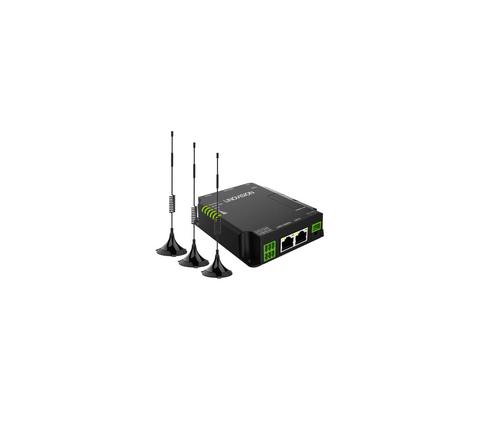
LINOVISION IOT-R32W Unlocked 4G LTE Router User Manual

LINOVISION IOT-R32W Rugged and Versatile Cellular Router Instructions


D-Link DWR-933M Mobile Router Installation Guide

D-Link EXO AX AX1800 Wi-Fi Router User Guide

ASUS RT-AX86U Pro Wireless-AX5700 Dual-Band Gigabit Router User Guide

Tenda 4G06V1.0 4G LTE and VoLTE Router User Guide

DBIT AC1200 Dual Band WiFi Router Instructions
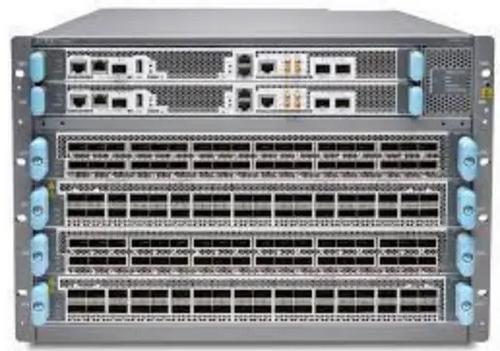
Juniper NETWORKS PTX10004 Ultra-Compact Modular Router User Guide

prolink DL-7302 LTE CAT4 Wi-Fi Home Router Installation Guide

Cudy WR1300 Wi-Fi Mesh Router Instruction Manual
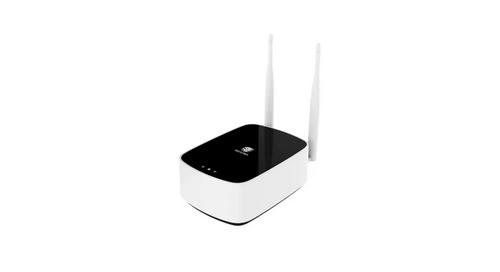
SECU365 SS-1 Router User Guide

SENWA 4G LTE CPE Router User Guide