
Home > LINOVISION > LINOVISION IOT-R32W Cellular Router User Manual
LINOVISION IOT-R32W Cellular Router User Manual


2 Log in the Router
If this is the first time you configure the router,
please use the default settings below:
IP Address: 192.168.1.1
Username: admin
Password: password
A. Start a Web browser on your PC (Chrome is
recommended), type in the IP address, and press
Enter on your keyboard.
B. Enter the username and password, click “Login”.
If you enter the username or password incorrectly more than 5 times, the login page will be
locked for 10 minutes.
Network Configuration
This chapter explains how to connect IOT-R32 to network via WAN connection or cellular.
1
Ethernet WAN Configuration
A. Go to “Network > Interface > Port” to change LAN1 to WAN port.
B. Go to “Network > Interface > WAN” to configure WAN parameters. Take static IP configuration as
an example. DHCP client and PPPoE type are optional according to your requirements.
Click “Save & Apply” button to make the changes take effect.
5

| General | Details |
|---|---|
| Name | LINOVISION IOT-R32W Cellular Router User Manual |
| Make | LINOVISION |
| Language | English |
| Filetype | PDF (Download) |
| File size | 0.3 MB |
 (1 votes, average: 5.00 out of 5)
 Loading...
If you have any questions regarding LINOVISION IOT-R32W Cellular Router User Manual, please ask here and describe the problem in detail.

LINOVISION IOT-R32W 4G LTE Cat4 Cellular Router Owner’s Manual

LINOVISION IOT-R32W Versatile Cellular Router User Guide

LINOVISION IOT-R32 Wholesale Rugged and Versatile Cellular Router User Guide

LINOVISION IOT-R41 Mini 4G LTE Router User Manual

LINOVISION IoT-R32L Router User Guide
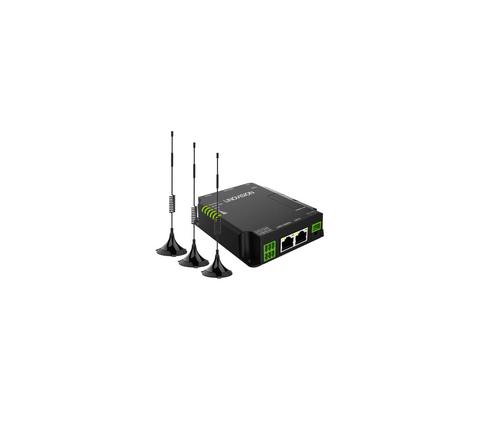
LINOVISION IOT-R32W Unlocked 4G LTE Router User Manual

LINOVISION IOT-R32W Rugged and Versatile Cellular Router Instructions

tehnoteka AX3000 V2 TUF Gaming WiFi Router User Guide

AT T 5G Mobile Router User Guide

TRANSLITE GLOBAL TL-HWR-13 Dual Band Smart Wireless Router Owner’s Manual
LINOVISION IoT-R32L Router User Guide

TechPowerUp Openwrt ONE Wi-Fi 6 Router User Manual

deco X50 Modem Unboxing Router User Guide

ASUS XT8 ZenWiFi Tri Band WiFi Router User Guide

SUNVOT GC600 5G CPE WiFi Router User Guide

Cisco Router RV345/RV345P User Guide

Linksys WRT300N Wireless-N Broadband Router User Guide