
MERCURY RT-N10E Wireless N150 Router Instructions


Asus RT-N10E Fibre Setup
Using your own router? No worries, we’ve got you covered!
Log into the gateway:
1. Ensure your device is connected to the Router (preferably via cable)
2. Open a web browser
3. Type the following in the address bar at the top: 192.168.1.1
4. Default Username: admin
5. Default Password: admin
This should then give access to the router’s user interface
How to add correct settings for the Mercury network:
From the left menu select: WAN.
The Internet Connection page displays. Ensure the following settings are changed:
1. WAN Connection Type: PPPoE
2. Enable UPnP: Yes
3. Get the WAN IP automatically: Yes
4. Connect to DNS Server automatically: Yes
5. PPP Username: (your mercury acct number)@mercurybroadband.co.nz
6. Password: password123
7. Service Name: Leave blank
8. Connection Type: Continuous
9. MTU: 1492
10. Connect to DNS Server automatically: Yes
11. Select ISP: Manual
12. Internet: VID - 10, PRIO – 0
13. The rest can remain unchanged
14. Click: Apply


| General | Details |
|---|---|
| Name | MERCURY RT-N10E Wireless N150 Router Instructions |
| Make | Mercury |
| Language | English |
| Filetype | PDF (Download) |
| File size | 0.05 MB |
 (1 votes, average: 5.00 out of 5)
 Loading...
If you have any questions regarding MERCURY RT-N10E Wireless N150 Router Instructions, please ask here and describe the problem in detail.

Mercury Netcomm NB16DG Fibre Router User Manual

Mercury Netcomm NF4V Fibre WiFi Gigabit Modem Router User Manual

MERCURY 6220 Wireless Dual-Band Router Instructions

Mercury Fritz Box 7360 Fibre Modem Router User Guide

Mercury Netgear D7000 Fibre Modem Router User Guide

Mercury Asus RT-AC66-88U Fiber Dual-Band Wireless AC1750 Gigabit Router User Guide

Mercury NF18ACV-NC2-R6B023 Netcomm WiFi Router User Guide

Mercury TD-W8960 Modem Router User Manual


NETGEAR RS600 Tri Band WiFi 7 Router User Guide

LINKSYS N600 Dual Band Router User Guide
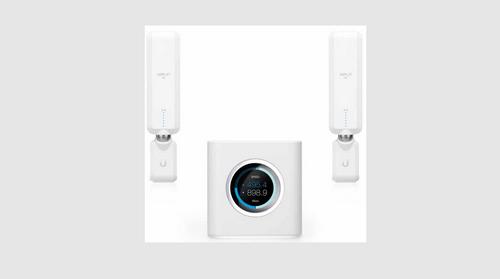
UBIQUITI AFi-HD Amplifi 4-Ports Home Wi-Fi System AFI HD Wireless Router User Guide

Draytek Vigor167 Modem Router User Guide

NETGEAR RS280S Nighthawk WiFi 7 Tri-Band Router Owner’s Manual

robustel R5020 5G WiFi Wireless Router Owner’s Manual

TP-Link AX58 Dual Band Gigabit Wi-Fi 6 Router Installation Guide

REYEE RG-E6 WiFi 6 Router Installation Guide

TP-Link Archer NX600 5G CPE Router Installation Guide

MIKROTIK RB1100AHx4 Powerful Router User Manual