×
- 1. Mofi5500-5gxelte4g/lte/5g* (Advanced High Performance Router → Updated Manual Can Be Located At: Www.mofinetwork.com)
- 2. About The Product (Requirements → Getting Started → Installing Your Router → Connecting To The Internet Via 4g/lte/5g* → How To Do A Firmware Upgrade → Troubleshooting)
- 3. About The Product (Advanced Wireless Security → Wide Wireless Coverage → Easy To Install And Use)
- 4. Installation (Setup → Configuration → Security Features → Network Connection → Antenna Setup → Auto Fail Over)
- 5. Requirements
- 6. Device Design - Front Panel (Internet Using The Sim Card → Normal Use → Wi-fi → Wan → No Ethernet Connection → Ethernet 1-4)
- 7. Front View (Connecting With Computers/devices Using An Ethernet Cable → Connect To A Modem Cable/dsl/satellite Using An Ethernet Cable → Press For 10 Seconds To Reset To The Factory Default. → Use 12v 3.5a Power Adapter → Note To Get 5g Cellular, You Will Need The Mofi5500-5gxelte-em9191 Model)
- 8. Getting Started (Plan Your Network → Remove/disable Conflicts → Connect The Modem, Computer, And Power Adaptor To The Router. → Setup The Router → Connect To The Internet → Ready To Use)
- 9. Plan Your Network (Using A 4g/lte/5g* Usb Modem Stick → Using A Dsl/cable Modem)
- 10. Remove Or Disable Conflicts (Internet Sharing, Proxy, And Security Applications → Configuring The Tcp/ip Settings)
- 11. Configuringinternetproperties (Removingtemporaryinternetfiles)
- 12. Installing Your Router (Using A Sim Card From Your Provider Direct From Provider → Using A Dsl Or Cable Modem Or Satellite Modem → Connect Your Pc To Any Available Ethernet Port Using An Ethernet Cable Or Connect Via Wireless → Check Your Settings → Confirm The Apn Is Correct → Ensure That The Routers Ip Address Does Not Conflict With The Dsl/cable/satellite Modem)
- 13. Connecting To The Internet Via 4g/lte/5g* (To Connect To The Internet Via The Web User Interface → Run The Wizard On The Top Right → If You Have A Micro Or Nano Sim → Turn The Router On The Bottom)
- 14. Wireless Network Name Setup (Change Network Name (essid) → Add Wireless Password → Dual Band Wifi Configuration → Wpa2-psk Encryption → Save Changes)
- 15. How To Forward Ports (Port Forwarding → Select The Protocol → Enter The External Port → Select The Ip Address Of The Device → Public Ip Service → Mofi Cloud Link)
- 16. How To Open Ports In The Router (Log Into The Router → Click On Advanced Mode --> Network Tab --> Firewall → To Actually Use This, You May Have To Set A Port Forward Rule → Click On Network Tab --> Port Forwarding)
- 17. How To Set A Wireless Bridge/repeater (Connect The Router To Your Pc With The Ethernet Cable → Log Into The Router → Go To Wifi Bridge/repeater Under Network → Under 2.4ghz Scan / 5.0ghz → Click On 'select Me' For The Network → Under Wifi 2.4ghz / 5ghz, Make Sure It Is Enabled)
- 18. Under Bridge/repeater 2.4ghz / 5ghz (this) Router (Wifi Name Configuration → Password Setup → Save Changes → Router Connection Status → Power Cycle The Router → Troubleshooting Internet Connection)
- 19. How To Do A Firmware Upgrade (Remote Update → Manual Firmware Update → Factory Default Reset → Mofi Recovery → G Cellular Requirement)
- 20. How To Remote Login Into The Router (Remote Login On The Mofi5500 Router → Port 8080 Is The Official Port For Remote Access → Access Your Router Remotely → Using A Cellular Connection → Contact Your Internet Service Provider → Contact Us For A Public Ip Option)
- 21. How To Modify Settings/ports For Remote Access (To Change The Port → If You Want To Disable Access For Remote Access → If You Want To Limit Remote Access To Specific Ip Address → For The Interface → Under White List → *note To Get 5g Cellular)
- 22. Fail Over (To Activate Fail Over, Go To Mofi Business → Enable By Checking Box → Save & Reboot Router)
- 23. Load Balancing (To Active Load Balancing, Go To Mofi Business → Fail Over/load Balancing → Enable By Checking The Box That Says Enable Load Balancing → Save And Reboot The Router)
- 24. Ip Pass Through (To Enable Ip Pass-through → When Ip Pass Through Is On → If You Need Access Back To The Router → Note That By Default → If You Require A Public Ip Address → If You Make A Mistake And Cant Back In The Router)
- 25. Mofi Recovery (How To Recover Router From Wrong File Update Or Other Problem → Recovery Steps → Boot Recovery Steps → Set Router In Recovery Mode → Set Your Network Connection To Static Ip Address → Note For 5g Cellular)
- 26. Mofi Recovery Interface (Set Back Your Network Cable To Automatic → Log Into The Router)
- 27. How To Enable Remote Management (Basic Mode --> System --> Remote Management → Note: Please Make A Note Of The Returned Password → Server Is Located At: Https://manage.mofimanage.com → Please Contact Support@mofinetwork.com To Reset Your Password)
- 28. Reboot/unplug The Router After Everything Has Been Setup (Log In Using The Username (mac Address Of Your Router) And The Password → Edit: Change Your Password On The Server → Router/wifi Password: Change Both Your Router Admin Password And/or Your Wifi Password → Wifissid: Change The Network Name On Your Router)
- 29. Wifi Status (Show Remote Gui → Bandwidth → Firmware Operation → Factory Default → Reboot)
- 30. Mofi Cloud Link (Static Dedicated Public Ip Service → Do You Need A Public Ip Address Or Do You Know What It Is? → Understanding Private Vs Public Ip Addresses → Checking Your Ip Address → Benefits Of Mofi Cloud → Consistency Of Ip Address Across Providers)
- 31. Instructions On How To Set This Up (Log Into The Router → Go To Business Then Mofi Cloud → Check The Box To Enable Cloudlink → Select The Location That Your Account Is On → Click Browse And Then Select The .conf File → Preparing Your Device For Port Forwarding)
- 32. Going Back To The Mofi Cloud Section, There Is An Option To Add Your Device That You Want To Use With The Public Ip Address. You Can Add As …
- 33. You Will Have To Use Cloudlink/vpn Instead Of Wan For The External Source
- 34. Manually Setting Lte Band (To Do A Selective Band Lock, Follow The Steps Below: → First Log Into The Router By Visiting 192.168.10.1 On Your Browser → From The List On The Left Click On Network And Then Go To Selective Band Lock → At This Point From The Drop Down Menu Of The Lte Bands, Select Custom → The Next Thing You Should Do Is Click On The Button That Says Clear All Lte Bands)
- 35. Selective Band Lock (Speed Band Lock → Logging Into The Router → Internet Service Provider Selection → Band Selection For Locking → Saving Changes → Effect Of Changes On Connection Speed)
- 36. Start Scan (Exceptions → Note → Selective Band Lock)
- 37. Bandwidth Monitoring (Log Into The Router → Bandwidth And Filters → Internet Usage Set Date → Select The Date Of Reset → Save And Then Reboot The Router → Make Sure Your Computer Is Connected To The Mofi5500 Router)
- 38. Bandwidth Monitor (User Limits → Enable User Limits → Add Device → Set Limit → Save And Reboot Router → Unblock Option)
- 39. Troubleshooting (Log Into Router → Mofi5500-5gxelte-em9191 Model)
- 40. Factory Default (Resetting The Router → Manual Reset Procedure → Power Led Indicators → Internet Connection Verification)
- 41. Go To Mofi Internal Modem Then Click On The Configuration Tab (What Does It Say For The Carrier Id? → What Does It Say For The Phone Number? → You Should Contact Your Provider And Verify What Apn (access Point Name) That You Need Use. → Once You Know What Apn You Need To Use, Log Into The Router And Go To Mofiinternal Modem → Then Click On Country And Select Custom Apn → After It Is Saved, Reboot The Router)
- 42. Block By Mac (mac Filtering) (In Order To Enable Mac Filtering You Will Need To Log Into The Router And Follow The Steps Below: → Check The Box That Says Enable Mac Filtering → Also Check The Enable Box Under Schedule Time Slots → You Can Also Set Rules For Certain Days Of A Week And Then Name That Time Slot)
- 43. White List Mac Address (Save And Reboot The Router → Note To Get 5g Cellular)
- 44. Regulatory Compliance Notices (Fcc Notice → Modifications → Exposure Information To Radio Frequency Energy)
- 45. Installation Requirements (Compliance With Fcc Radiation Exposure Limits → European Regulations → Model Requirements For 5g Cellular)
×
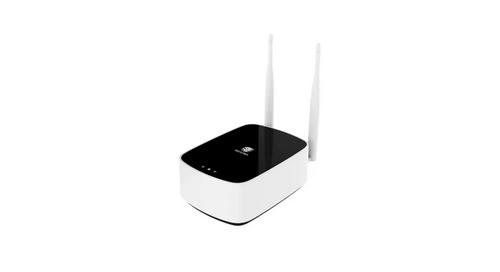
MOFI5500 AdvancedHigh Performance Router User Manual
User Manual v1.0
How to do a Firmware Upgrade:
There are two ways to upgrade the firmware on the MOFI5500 router:
If you have a working internet connection, then you can perform a Remote Update.
You can do this by going to System Remote Update
However, if you do not have internet access on the router, you may have to do a manual firmware update.
Support Downloads, then click on select MOFI5500 Download
Download the latest firmware and then follow the instructions there on how to update.
NOTE: After you have installed the latest firmware update, you will need to perform a factory default to reset the
router.
If you make a mistake or encounter an error during the firmware upgrade process and the router seems to
benon-functional, look at our section on how to do a MOFI Recovery.
*Note to get 5G cellular, you will need the MOFI5500-5GXeLTE-EM9191 model
| General | Details |
|---|---|
| Name | MOFI5500 AdvancedHigh Performance Router User Manual |
| Make | MoFi |
| Language | English |
| Filetype | PDF (Download) |
| File size | 0.85 MB |
If you have any questions regarding MOFI5500 AdvancedHigh Performance Router User Manual, please ask here and describe the problem in detail.


SEALEY CP20VTR Cordless Trimming Router Instruction Manual

TP-Link AC1200 Wireless Dual Band Router Installation Guide

ASUS RT-AX55 Dual Band Router User Guide

legrand RT-20 High Performance Gigabit Router User Guide

SECU365 SS-1 Router User Guide

Cudy LT700 LTE Router Installation Guide

TP-Link TL-ER7206 Omada Gigabit VPN Router Installation Guide

trend T8EK Electric Router Instruction Manual

GL iNet GL-XE3000NR Puli AX 5G NR Wi-Fi 6 Router User Guide

STRONG 5GROUTERAX3000 5G Router Instructions
Table of Contents
- 1. Mofi5500-5gxelte4g/lte/5g* - Advanced High Performance Route... →
- 2. About The Product - Requirements →
- 3. About The Product - Advanced Wireless Security →
- 4. Installation - Setup →
- 5. Requirements →
- 6. Device Design - Front Panel - Internet Using The Sim Card →
- 7. Front View - Connecting With Computers/devices Using An Ethe... →
- 8. Getting Started - Plan Your Network →
- 9. Plan Your Network - Using A 4g/lte/5g* Usb Modem Stick →
- 10. Remove Or Disable Conflicts - Internet Sharing, Proxy, And S... →
- 11. Configuringinternetproperties - Removingtemporaryinternetfil... →
- 12. Installing Your Router - Using A Sim Card From Your Provider... →
- 13. Connecting To The Internet Via 4g/lte/5g* - To Connect To Th... →
- 14. Wireless Network Name Setup - Change Network Name (essid) →
- 15. How To Forward Ports - Port Forwarding →
- 16. How To Open Ports In The Router - Log Into The Router →
- 17. How To Set A Wireless Bridge/repeater - Connect The Router T... →
- 18. Under Bridge/repeater 2.4ghz / 5ghz (this) Router - Wifi Nam... →
- 19. How To Do A Firmware Upgrade - Remote Update →
- 20. How To Remote Login Into The Router - Remote Login On The Mo... →
- 21. How To Modify Settings/ports For Remote Access - To Change T... →
- 22. Fail Over - To Activate Fail Over, Go To Mofi Business →
- 23. Load Balancing - To Active Load Balancing, Go To Mofi Busine... →
- 24. Ip Pass Through - To Enable Ip Pass-through →
- 25. Mofi Recovery - How To Recover Router From Wrong File Update... →
- 26. Mofi Recovery Interface - Set Back Your Network Cable To Aut... →
- 27. How To Enable Remote Management - Basic Mode --> System --> ... →
- 28. Reboot/unplug The Router After Everything Has Been Setup - L... →
- 29. Wifi Status - Show Remote Gui →
- 30. Mofi Cloud Link - Static Dedicated Public Ip Service →
- 31. Instructions On How To Set This Up - Log Into The Router →
- 32. Going Back To The Mofi Cloud Section, There Is An Option To ... →
- 33. You Will Have To Use Cloudlink/vpn Instead Of Wan For The Ex... →
- 34. Manually Setting Lte Band - To Do A Selective Band Lock, Fol... →
- 35. Selective Band Lock - Speed Band Lock →
- 36. Start Scan - Exceptions →
- 37. Bandwidth Monitoring - Log Into The Router →
- 38. Bandwidth Monitor - User Limits →
- 39. Troubleshooting - Log Into Router →
- 40. Factory Default - Resetting The Router →
- 41. Go To Mofi Internal Modem Then Click On The Configuration Ta... →
- 42. Block By Mac (mac Filtering) - In Order To Enable Mac Filter... →
- 43. White List Mac Address - Save And Reboot The Router →
- 44. Regulatory Compliance Notices - Fcc Notice →
- 45. Installation Requirements - Compliance With Fcc Radiation Ex... →