
NetComm NTC-500 5G IoT Router Instructions










NTC-500
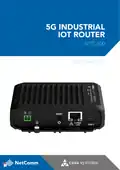
5G Industrial IoT Router
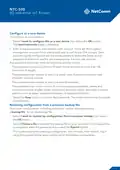
Configure as a new device
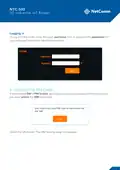
To configure as a new device:
A. Select I want to configure this as a new device then select the OK button.
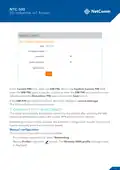
The New Passwords page is displayed.
B. Enter a new password in each field for each account. There are three system
management accounts (root, admin and user) as well as the SSH account. Each
account may be configured with the same password. Select the Same as root
password checkbox to use the same password as the root user account.
Any password used must meet the following security criteria:
› The password must be a minimum of eight characters and no more than 128
characters in length.
› The password must contain at least one upper case character, one lower case
character and one number.
› The password must contain at least one special character.
› The password must not be in a list of common password patterns, names and
surnames, popular English words, popular US television shows, and other common
patterns such as dates, repeated characters, or keyboard patterns.
C. Select the Save button to confirm the passwords. The router reboots into live mode
automatically.
Restoring configuration from a previous backup file
Your router configuration, including passwords, can be restored by using
a backup file. To use the backup file:
A. Select I want to restore my configuration from a previous backup, then select
the OK button.
B. Select Choose a file and locate the backup file on your computer. If the backup file
is encrypted, enter the password, then select the Submit button.
C. The router restores the previous configuration, then reboots. After reboot, log in
using the passwords that were configured on the backup configuration.

| General | Details |
|---|---|
| Name | NetComm NTC-500 5G IoT Router Instructions |
| Make | NetComm |
| Language | English |
| Filetype | PDF (Download) |
| File size | 0.51 MB |
 (1 votes, average: 5.00 out of 5)
 Loading...
If you have any questions regarding NetComm NTC-500 5G IoT Router Instructions, please ask here and describe the problem in detail.

Netcomm NF18MESH Upgraded WiFi Router User Guide

NetComm CF40 Wi-Fi 6 Router User Guide


IMOU AX3000 Wi-Fi 6 Router User Guide

SEALEY CP20VTR Cordless Trimming Router Instruction Manual

PROSCEND 850G-6PI 6 Port GbE Managed PoE Switch 5G Cellular Router Installation Guide

GL iNet GL-XE3000NR Puli AX 5G NR Wi-Fi 6 Router User Guide

GL Technologies 2AFIW-X2000 Wi-Fi 6 4G LTE CAT 12 Router User Guide

hitron CGNM-2250 Cable Modem Router User Guide

D-Link DIR-890L AC3200 Ultra Wi-Fi Router Installation Guide

LANCOM SYSTEMS LANCOM OAP-830 Wireless Router User Guide

netis AC1200 Wireless Dual Band Router Installation Guide

TELTONIKA RUTM31 Router User Guide