
Tenda AC8 AC1200 Dual Band Gigabit WiFi Router Installation Guide






Step 3: Set up the Router
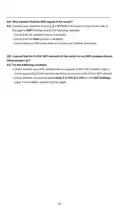
➊ Launch a web browser on a smartphone or computer connected to the
router, visit tendawifi.com to enter the web UI, and then click Start (computer
used as an example).
tendawifi.com
Welcome
Quick Setup Wizard
Start
Tips
If the web UI does not appear, refer to Q1 in FAQ.
➋ The router detects your internet connection type automatically (PPPoE is
used for illustration here).
- If you have imported the PPPoE user name and password to the router from
the original router, you can directly click Next.
- If not, enter the ISP User Name and ISP Password provided by your ISP,
and click Next.
Please select your connection type.
As detected, your connection type may be: PPPoE
Connection Type:
ISP User Name:
ISP Password:
PPPoE
Enter the user name from your ISP.
Enter the password from your ISP.
Import PPPoE user name and password from
the original router. Not Applicable to Malaysia.
Next
Skip
- 3 -

| General | Details |
|---|---|
| Name | Tenda AC8 AC1200 Dual Band Gigabit WiFi Router Installation Guide |
| Make | Tenda |
| Language | English |
| Filetype | PDF (Download) |
| File size | 0.36 MB |
 (1 votes, average: 5.00 out of 5)
 Loading...
If you have any questions regarding Tenda AC8 AC1200 Dual Band Gigabit WiFi Router Installation Guide, please ask here and describe the problem in detail.

Tenda AXE5700 Wi-Fi 6E Router User Manual

Tenda AX1800 Wi-Fi 6 5G NR Router User Manual

Tenda RX2LP Dual Band Gigabit Wi-Fi 6 Router Installation Guide

Tenda TX2L ProV1.0 WiFi 6 Router Installation Guide

Tenda RX12V1.0 Wi-Fi 6 6E Router Installation Guide

Tenda 4G09V1.0 Wifi Router User Manual

Tenda AC19 Dual Band Gigabit WiFi Router Installation Guide

Tenda 4G06V1.0 4G LTE and VoLTE Router User Guide

Tenda 4G03 N300 Wi-Fi 4G LTE Router Installation Guide

Tenda N300 WiFi VDSL/ADSL Modem Router V300 Installation Guide


FALCON 1800 EVO 5G Ready Omni-Directional Antenna Plus Router User Manual

TP-Link Archer BE800 BE19000 Tri-Band Wi-Fi 7 Router Installation Guide

Superbox S3PRO Router User Guide

UBIQUITI UniFi Dream Router Instruction Manual

UniFi WiFi 6 Router User Manual

CNCU E550 EasyRoute CNC Router Instructions

TELTONIKA Networks RUT950 Cellular Router User Guide

BROWAN COMMUNICATIONS INCORPORATION MI14 Wi-Fi 6 AX3000 Dual-Radio Router User Guide

TP-Link AX5400 Multi Gigabit Wi-Fi 6 Router Installation Guide

TP-Link Archer MR505 Wireless Dual Band Gigabit Router Installation Guide