
×
- 1. N300 Wi-fi 4g Lte Router (User Guide)
- 2. Installation (Setup → Configuration → Disclaimer → Copyright Statement)
- 3. Installation (Setup → Configuration → Device Status → User Name → Technical Support)
- 4. Tenda Is Constantly Searching For Ways To Improve Its Products And Documentation. The Following Table Indicates Any Changes That Might Have …
- 5. Get To Know Your Device (Quick Setup → Web Ui → Internet Status → Access The Internet With A Sim Card → Access The Internet Through The Wan Port (example: Pppoe) → Access The Internet With Sim Card And Wan Port)
- 6. Led Indicators (Internet Led Indicator → Wi-fi Led Indicator → Ethernet Port Led Indicator → Signal Strength Led Indicator)
- 7. Ports And Buttons (Pwr → Wps/rst → Wan/lan → Nano Sim)
- 8. Access Url (Power → Wi-fi Name → Wi-fi Key → Mac → Model → Sn → Imei)
- 9. Quick Setup (Procedure:)
- 10. Setup (No Sim Card Detected → Unlock The Sim Card In The Quick Setup Wizard → Set Parameters As Required → No Password → Sync The Login Password With The Wi-fi Password)
- 11. Quick Setup For Internet Access (Connecting Wired Devices → Connecting Wireless Devices)
- 12. Web Ui (Log In To The Web Ui → Procedure:)
- 13. Ensure Router Is Powered On Properly (Ensure Computer Is Connected To A Lan Port Of The Router → Configure The Computer To Obtain An Ip Address Automatically → Restore The Router To Factory Settings)
- 14. Log Out Of The Web Ui
- 15. Unlock The Sim Card In The Quick Setup Wizard
- 16. Sim Settings (Profile Name → Matching Failed → Apn Not Correctly Identified → Internet Settings)
- 17. Data Traffic Disabled (Mobile Data Function → Internet Settings)
- 18. Network Connection Disabled (Monthly Data Limit Reached → Mobile Data)
- 19. Connectionfailed (Internetsettings → Createanapnprofilemanuallytoaccesstheinternet → Access The Internet Through The Wan Port (example: Pppoe) → Troubleshooting → Enablethefailoverfunction → Configureinternetparameters)
- 20. Ethernet Cable Disconnected (Incorrect User Name And Password)
- 21. No Response From The Remote Server (Connection Disconnected)
- 22. Access The Internet With Sim Card And Wan Port (Access The Internet With A Sim Card → Access The Internet Through The Wan Port (example: Pppoe))
- 23. View Wireless Information (Log In To The Web Ui Of The Router → Navigate To Internet Status → Change Wireless Parameters As Required)
- 24. View Wan Status (Internet Settings → G/4g Wan Status)
- 25. Sim Card Status (Connection Status → Signal Strength → Isp → Mobile Network → Statistics)
- 26. Ipv4/ipv6 Address (Ipv4/ipv6 Default Gateway → Ipv4/ipv6 Primary/secondary Dns → Mac Address → Access Band → Ethernet Wan Status)
- 27. Connection Status (Connection Type → Connection Duration → Ipv4 Address → Ipv4 Default Gateway → Ipv4 Primary/secondary Dns → Mac Address)
- 28. View System Information (Basic Information)
- 29. System Time (Uptime → Firmware Version → Hardware Version → Imei → Lan Status)
- 30. Wi-fi Status (Parameter Description → Ip Address → Ipv6 Address → Mac Address → Wi-fi Network → Wi-fi Name)
- 31. View Online Or Blacklist Device Information (Access The Page → Parameter Description → Device Name → Current Speed → Access Type → Blacklist)
- 32. Add Devices To The Blacklist (Remove Devices From The Blacklist)
- 33. Log In To The Web Ui Of The Router (Navigate To Internet Status → Choose Blacklist → Click Remove → After The Configuration Is Completed)
- 34. Internet Settings (Access The Internet With A Sim Card)
- 35. Mobile Data (Data Roaming → Mobile Data Options → Band → Band List → Dial-up User Name → Authentication Type)
- 36. Maximum Transmission Unit (mtu) (Compatibility Mode → Change Mobile Network Preference)
- 37. Create An Apn Profile Manually To Access The Internet (Log In To The Web Ui Of The Router → Navigate To Internet Settings → Click Create A Profile → Enter Required Parameters Inquired From Your Isp)
- 38. Document Version (Step 5 → Save → Wait A Moment → Router Parameters → Internet Access → Apn Profile)
- 39. Access The Internet Through The Wan Port (Access The Internet With A Pppoe Account → Log In To The Web Ui Of The Router → Navigate To Internet Settings → Enable The Failover Function → Set Connection Type To Pppoe → Enter The Pppoe Username And Pppoe Password)
- 40. Internet Status Page (Accessing The Internet → Troubleshooting Connectivity Issues → Dynamic Ip Address Configuration → Technical Support Contact Information → Viewing Internet Status)
- 41. Failover (Connection Type → Pppoe Username → Pppoe Password → Dns Settings → Access The Internet Through Dynamic Ip Address)
- 42. Log In To The Web Ui Of The Router (Internet Settings → Failover → Connection Type → Dynamic Ip Address → Connect → Internet Status)
- 43. View Internet Status (Failover → Connection Type → Dns Settings → Access The Internet With Static Ip Address Information → Procedure → Internet Settings)
- 44. Setconnectiontypetostaticipaddress (Enteripaddress,subnetmask,defaultgatewayandprimary/secondarydnsserver → Clickconnect → Internetstatuspage)
- 45. Failover (Connection Type → Ip Address → Subnet Mask → Default Gateway → Primary Dns Server → Secondary Dns Server)
- 46. Set Failover Connection (Overview → Example Of Setting Up Failover Connection → Access The Internet Through The Wan Port → Failover Settings)
- 47. Connect The Wan/lan Port Of The Router To The Lan Port Of Your Smart Home Gateway. (Log In To The Web Ui Of The Router. → Navigate To Internet Settings. → Enable The Failover Function. → Set Connection Type To Pppoe, And Enter The Pppoe Username And Pppoe Password Provided By Your Isp. → Click Connect.)
- 48. Wi-fi Settings (Wi-fi Name & Password → Overview)
- 49. Encryption Mode (Wi-fi Password → Change The Wi-fi Name And Wi-fi Password → Log In To The Web Ui Of The Router → Navigate To Wi-fi Settings → Change The Parameters Of The 2.4 Ghz Network → Click Save)
- 50. Hide The Wi-fi Network (Log In To The Web Ui Of The Router → Navigate To Wi-fi Settings > Wi-fi Name & Password → Tick Hide → Click Save)
- 51. Connect To A Hidden Wi-fi Network (Procedure For Connecting To The Wi-fi Network On Your Wireless Device → Wi-fi Name And Password → Security Settings)
- 52. Channel & Bandwidth (Wi-fi Settings → Parameter Description → Channel → Bandwidth)
- 53. Wps (Overview → Connect Devices To The Wi-fi Network Using The Wps Button)
- 54. Wps Connection
- 55.
- 56. Connect Devices To The Wi-fi Network Through The Web Ui Of The Router (Log In To The Web Ui Of The Router → Navigate To Wi-fi Settings > Wps → Enable Wps → Configure The Wps Function On Your Wireless Devices Within 2 Minutes)
- 57. Wait A Moment Until The Wps Negotiation Is Completed, And The Smartphone Is Connected To The Wi-fi Network.
- 58. Manage Sms Messages (Send Sms Messages)
- 59. Log In To The Web Ui Of The Router (Navigate To Sms > Messages → Click The Targeted Smartphone Number → Click Send At The Bottom Right Corner)
- 60. Enter The Message Content In The Messages Column At The Bottom. (Click Send. → After The Messages Are Sent, You Can View Them On The Same Page.)
- 61. Log In To The Web Ui Of The Router.
- 62. Clickedit. (Selectthemessagestobedeleted. → Click.)
- 63. Log In To The Web Ui Of The Router (Navigate To Sms > Messages → Click Sim Messages → Click Edit In The Upper Right Corner → Select The Smartphone Number To Be Deleted → Export Sms Messages)
- 64. Select The Smartphone Number To Export Messages. (Click Export To Router. → After The Messages Are Exported, You Can View Them On The Messages Page.)
- 65. Set The Message Center Number (Procedure → Log In To The Web Ui Of The Router → Navigate To Sms > Messages Settings → Enable Message Settings → Enter The Correct Message Center Number → Click Save)
- 66. Inquire Information By Sending Ussd Commands (Procedure → Log In To The Web Ui Of The Router → Navigate To Sms > Ussd → Set The Ussd Cmd → Click Send)
- 67. Vpn (Pptp Server → Overview)
- 68. Pptp Server (Ip Address Pool → Mppe Encryption → User Name → Password → Connection Status → Enable Internet Users To Access Resources Of The Lan)
- 69. Wan Ip Address Requirements (Procedure → Log In To The Web Ui Of The Router → Enable The Pptp Server Function → Add Pptp User Name And Password → Accessing The Ftp Server)
- 70. Choosevpnon The Left Side, And Clickadd A Vpn Connection. (Configure The Vpn Parameters. → Enter A Connection Name, Such Asvpn Connection. → Enter The Server Address, Which Is113.88.112.220in This Example. → Select A Vpn Type, Which Ispoint To Point Tunneling Protocol (pptpin This Example. → Select A Type Of Sign-in Info, Which Isuser Name And Passwordin This Example. → Enter The User Name And Password, Which Are Bothadmin1in This Example.)
- 71. Target The Vpn Connection Added (Click Connect → Access The Ftp Server)
- 72. Enter The User Name And Password For Logging In To The Ftp Server
- 73. Online Pptp Users (Parameter Description → User Name → Dial-in Ip Address → Assigned Ip Address → Uptime)
- 74. Pptp/l2tp Client (Overview → Parameter Description → Client Type → Server Ip Address/domain Name → User Name → Password)
- 75. Access Vpn Resources With The Router (Goal → Solution → Procedure → Log In To The Web Ui Of The Router → Navigate To Vpn > Pptp/l2tp Client → Enable The Pptp/l2tp Client)
- 76. Advanced Settings (Sim Pin → Unlock The Sim Card)
- 77. Enter The Pin Code (Enable The Auto-unlock Pin Function → Contact Your Isp For The Original Pin Code → Use Puk Code To Reset The Pin Code → Perform Operations As Prompted To Complete The Setup Process → Log In To The Web Ui Of The Router → Complete Other Configurations)
- 78. Unlock The Sim Card On The Web Ui (Procedure: → Log In To The Web Ui Of The Router → Click Please Unlock The Sim Card, Or Navigate To Advanced Settings > Sim Pin → Enter The Pin Code, And Click Save → It Is Recommended To Enable The Auto-unlock Pin Function)
- 79. Enable Pin Lock For The Sim Card (Log In To The Web Ui Of The Router → Enable Pin Lock → Specify A Pin Code → Save → Auto-unlock Pin Function → Contact Your Isp For The Original Pin Code)
- 80. Disablepinlockforthesimcard (Procedure → Logintothewebuioftherouter → Navigate Toadvancedsettings>simpin → Disablepinlock → Entertheoriginalpincode → Clicksave)
- 81. Use Puk Code To Set Pin Code
- 82. Tenda Wifi App (Tenda Wifi App Installed → Connected To The Internet → Procedure → Step 1 → Step 2)
- 83. Register With An Email Account (Email Account Confirmation Process)
- 84. Log In With A Registered Account (Follow The Instructions On The Home Page Of The Tenda Wifi App To Add The Router → Choose An Option In Fast Login)
- 85. Bind Your Router With Your Smartphone (Log In To The Web Ui Of The Router → Navigate To Advanced Settings > Tenda Wifi App → Enable The Tenda Wifi App → Enter An Account Registered In The Tenda Wifi App In Cloud Account → Click Save)
- 86. Mobile Data (Overview → Advanced Settings → Data Usage Limit → Usage Alert → Total Used → Monthly Data Statistics)
- 87. Data Limit (Monthly Allowance → Usage Alert → Sms Alert Of Usage → Monthly Data Statistics → Start Date → An Example Of Mobile Data Configurations)
- 88. Set Sms Alert Of Usage (Enable Monthly Data Statistics → Set Start Date → Change The Total Usage → Disable Data Limit → Navigate To Internet Settings)
- 89. Bandwidth Control (Overview → Set The Upload And Download Speed Limit For Users → Procedure)
- 90. Advanced Settings (Bandwidth Control → Download Limit → Save)
- 91. Filter Mac Address (Overview → Mac Address Filter Mode → Blacklisted Device → Whitelisted Device → Parameter Description → Operation)
- 92. Add All Online Devices To The Whitelist (Only Allow Specified Device To Access The Internet → Procedure → Log In To The Web Ui Of The Router → Navigate To Advanced Settings > Filter Mac Address → Set The Mac Address Filter Mode To Whitelist → Enter The Mac Address Of The Device)
- 93. After The Configuration Is Completed, Only The Three Devices Added Can Access The Internet Through The Router.
- 94. Disallow Specified Device To Access The Internet (Solution → Procedure → Log In To The Web Ui Of The Router → Navigate To Advanced Settings > Filter Mac Address → Set The Mac Address Filter Mode To Blacklist → Click Save)
- 95. Firewall (Icmp Flood Attack Defense → Tcp Flood Attack Defense → Udp Flood Attack Defense)
- 96. Ignore Ping Packet From Wan Port
- 97. Isp Update (Procedure → Step 1 → Step 2 → Step 3 → Step 4)
- 98. System Settings (Dhcp Reservation → Overview → Parameter Description → Device Name → Mac Address → Ip Address)
- 99. Assign Static Ip Addresses To Lan Clients (Goal → Solution → Procedure → Log In To The Web Ui Of The Router → Navigate To System Settings > Dhcp Reservation → Set The Mac Address Of The Host)
- 100. Time Settings (Sync System Time With The Internet Time → Set The Time Manually)
- 101. To Access The Page, Log In To The Web Ui Of The Router, And Navigate To System Settings > Time Settings.
- 102. Login Password (System Settings → Reset The Router)
- 103. Reboot And Reset (Reboot The Router → Reset The Router)
- 104. Reset The Router Using The Reset Button (Reset The Router On The Web Ui)
- 105. Firmware Upgrade (Online Upgrade → Procedure)
- 106. Local Upgrade (Ensure That The Firmware Is Applicable To The Router → Upgrade The Firmware By Connecting A Lan Port → Log In To The Web Ui Of The Router → Navigate To System Settings > Firmware Upgrade → Choose Local Upgrade → Reset The Router To Factory Default Settings)
- 107. Lan Settings (Change The Lan Ip Address And Subnet Mask → Change The Dhcp Server Parameters → Configure The Dns Information Assigned To Clients)
- 108. Dhcp Server (Ip Address Range → Lease Time → Dns Settings → Primary Dns Server → Secondary Dns Server)
- 109. Automatic Maintenance (System Settings → Parameter Description → System Reboot Schedule → Reboot At → Delay)
- 110. Configuring The Computer To Obtain An Ipv4 Address Automatically (Windows 10)
- 111. Right Click On The Connection Which Is Being Connected (Click Properties → Double-click Internet Protocol Version 4 (tcp/ipv4))
- 112. Obtain An Ip Address Automatically (Obtain Dns Server Address Automatically → Click Ok → Click Close In The Ethernet Properties Window)
- 113. Windows 8 (Open Network And Sharing Center → Ethernet Properties → Internet Protocol Version 4 (tcp/ipv4))
- 114. Obtain An Ip Address Automatically (Obtain Dns Server Address Automatically → Click Ok In The Ethernet Properties Window)
- 115. Open Network And Sharing Center (Local Area Connection Properties → Internet Protocol Version 4 (tcp/ipv4))
- 116. Selectobtainanipaddressautomaticallyandobtaindnsserveraddressautomatically (Clickokinlocalareaconnectionpropertieswindow)
- 117. Acronyms And Abbreviations
- 118. The Html Code Does Not Contain Any Relevant Subheadings Related To Installation/setup/configuration. Therefore, I Will Take The First Senten… (Document Version: V1.1)
×
Tenda N300 Wi-Fi 4G LTE Router User Guide




Document Version: V1.1
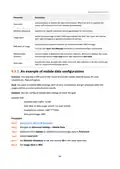
Parameter description
Parameter
Description
System Time
Uptime
Specifies the system time of the router.
Specifies operating time of the router since it is powered on.
Specifies the firmware version of the router.
Specifies the hardware version of the router.
Firmware Version
Hardware Version
IMEI
Specifies the International Mobile Equipment Identity (IMEI) of the mobile device.
4.4.2 LAN status
In this part, you can view the LAN information, such as LAN IPv4 address, subnet mask and MAC
address.
.
26

| General | Details |
|---|---|
| Name | Tenda N300 Wi-Fi 4G LTE Router User Guide |
| Make | Tenda |
| Language | English |
| Filetype | PDF (Download) |
| File size | 3.1 MB |
 (1 votes, average: 5.00 out of 5)
 Loading...
If you have any questions regarding Tenda N300 Wi-Fi 4G LTE Router User Guide, please ask here and describe the problem in detail.

Tenda AXE5700 Wi-Fi 6E Router User Manual

Tenda AX1800 Wi-Fi 6 5G NR Router User Manual

Tenda RX2LP Dual Band Gigabit Wi-Fi 6 Router Installation Guide

Tenda TX2L ProV1.0 WiFi 6 Router Installation Guide

Tenda RX12V1.0 Wi-Fi 6 6E Router Installation Guide

Tenda 4G09V1.0 Wifi Router User Manual

Tenda AC19 Dual Band Gigabit WiFi Router Installation Guide

Tenda 4G06V1.0 4G LTE and VoLTE Router User Guide

Tenda 4G03 N300 Wi-Fi 4G LTE Router Installation Guide

Tenda N300 WiFi VDSL/ADSL Modem Router V300 Installation Guide


hitron CODA5x1xQ Series Cable Modem Router User Guide

Utility Warehouse A5 RGB Super Router Instruction Manual

cradlepoint S5A037A Enterprise Branch Router User Manual

GEWISS GW A9707 KNX/IP Router Installation Guide

TP-Link AC1900 Archer AC1900 MU-MIMO Wi-Fi Router User Guide

Prana Air Ambient Lite GSM Router Instruction Manual

CNCU FC300 Easy Route CNC Router Instructions

TP-Link 7106508102 Deco Router Installation Guide

LANCOM 1790VA-4G Router User Guide

DrayTek Vigor2962 High Performance 2.5G Router User Manual
Table of Contents
- 1. N300 Wi-fi 4g Lte Router - User Guide →
- 2. Installation - Setup →
- 3. Installation - Setup →
- 4. Tenda Is Constantly Searching For Ways To Improve Its Produc... →
- 5. Get To Know Your Device - Quick Setup →
- 6. Led Indicators - Internet Led Indicator →
- 7. Ports And Buttons - Pwr →
- 8. Access Url - Power →
- 9. Quick Setup - Procedure: →
- 10. Setup - No Sim Card Detected →
- 11. Quick Setup For Internet Access - Connecting Wired Devices →
- 12. Web Ui - Log In To The Web Ui →
- 13. Ensure Router Is Powered On Properly - Ensure Computer Is Co... →
- 14. Log Out Of The Web Ui →
- 15. Unlock The Sim Card In The Quick Setup Wizard →
- 16. Sim Settings - Profile Name →
- 17. Data Traffic Disabled - Mobile Data Function →
- 18. Network Connection Disabled - Monthly Data Limit Reached →
- 19. Connectionfailed - Internetsettings →
- 20. Ethernet Cable Disconnected - Incorrect User Name And Passwo... →
- 21. No Response From The Remote Server - Connection Disconnected →
- 22. Access The Internet With Sim Card And Wan Port - Access The ... →
- 23. View Wireless Information - Log In To The Web Ui Of The Rout... →
- 24. View Wan Status - Internet Settings →
- 25. Sim Card Status - Connection Status →
- 26. Ipv4/ipv6 Address - Ipv4/ipv6 Default Gateway →
- 27. Connection Status - Connection Type →
- 28. View System Information - Basic Information →
- 29. System Time - Uptime →
- 30. Wi-fi Status - Parameter Description →
- 31. View Online Or Blacklist Device Information - Access The Pag... →
- 32. Add Devices To The Blacklist - Remove Devices From The Black... →
- 33. Log In To The Web Ui Of The Router - Navigate To Internet St... →
- 34. Internet Settings - Access The Internet With A Sim Card →
- 35. Mobile Data - Data Roaming →
- 36. Maximum Transmission Unit (mtu) - Compatibility Mode →
- 37. Create An Apn Profile Manually To Access The Internet - Log ... →
- 38. Document Version - Step 5 →
- 39. Access The Internet Through The Wan Port - Access The Intern... →
- 40. Internet Status Page - Accessing The Internet →
- 41. Failover - Connection Type →
- 42. Log In To The Web Ui Of The Router - Internet Settings →
- 43. View Internet Status - Failover →
- 44. Setconnectiontypetostaticipaddress - Enteripaddress,subnetma... →
- 45. Failover - Connection Type →
- 46. Set Failover Connection - Overview →
- 47. Connect The Wan/lan Port Of The Router To The Lan Port Of Yo... →
- 48. Wi-fi Settings - Wi-fi Name & Password →
- 49. Encryption Mode - Wi-fi Password →
- 50. Hide The Wi-fi Network - Log In To The Web Ui Of The Router →
- 51. Connect To A Hidden Wi-fi Network - Procedure For Connecting... →
- 52. Channel & Bandwidth - Wi-fi Settings →
- 53. Wps - Overview →
- 54. Wps Connection →
- 55. Page 55 →
- 56. Connect Devices To The Wi-fi Network Through The Web Ui Of T... →
- 57. Wait A Moment Until The Wps Negotiation Is Completed, And Th... →
- 58. Manage Sms Messages - Send Sms Messages →
- 59. Log In To The Web Ui Of The Router - Navigate To Sms > Messa... →
- 60. Enter The Message Content In The Messages Column At The Bott... →
- 61. Log In To The Web Ui Of The Router. →
- 62. Clickedit. - Selectthemessagestob... →
- 63. Log In To The Web Ui Of The Router - Navigate To Sms > Messa... →
- 64. Select The Smartphone Number To Export Messages. - Click Exp... →
- 65. Set The Message Center Number - Procedure →
- 66. Inquire Information By Sending Ussd Commands - Procedure →
- 67. Vpn - Pptp Server →
- 68. Pptp Server - Ip Address Pool →
- 69. Wan Ip Address Requirements - Procedure →
- 70. Choosevpnon The Left Side, And Clickadd A Vpn Connection. - ... →
- 71. Target The Vpn Connection Added - Click Connect →
- 72. Enter The User Name And Password For Logging In To The Ftp S... →
- 73. Online Pptp Users - Parameter Description →
- 74. Pptp/l2tp Client - Overview →
- 75. Access Vpn Resources With The Router - Goal →
- 76. Advanced Settings - Sim Pin →
- 77. Enter The Pin Code - Enable The Auto-unlock Pin Function →
- 78. Unlock The Sim Card On The Web Ui - Procedure: →
- 79. Enable Pin Lock For The Sim Card - Log In To The Web Ui Of T... →
- 80. Disablepinlockforthe... - Procedure →
- 81. Use Puk Code To Set Pin Code →
- 82. Tenda Wifi App - Tenda Wifi App Installed →
- 83. Register With An Email Account - Email Account Confirmation ... →
- 84. Log In With A Registered Account - Follow The Instructions O... →
- 85. Bind Your Router With Your Smartphone - Log In To The Web Ui... →
- 86. Mobile Data - Overview →
- 87. Data Limit - Monthly Allowance →
- 88. Set Sms Alert Of Usage - Enable Monthly Data Statistics →
- 89. Bandwidth Control - Overview →
- 90. Advanced Settings - Bandwidth Control →
- 91. Filter Mac Address - Overview →
- 92. Add All Online Devices To The Whitelist - Only Allow Specifi... →
- 93. After The Configuration Is Completed, Only The Three Devices... →
- 94. Disallow Specified Device To Access The Internet - Solution →
- 95. Firewall - Icmp Flood Attack Defense →
- 96. Ignore Ping Packet From Wan Port →
- 97. Isp Update - Procedure →
- 98. System Settings - Dhcp Reservation →
- 99. Assign Static Ip Addresses To Lan Clients - Goal →
- 100. Time Settings - Sync System Time With The Internet Time →
- 101. To Access The Page, Log In To The Web Ui Of The Router, And ... →
- 102. Login Password - System Settings →
- 103. Reboot And Reset - Reboot The Router →
- 104. Reset The Router Using The Reset Button - Reset The Router O... →
- 105. Firmware Upgrade - Online Upgrade →
- 106. Local Upgrade - Ensure That The Firmware Is Applicable To Th... →
- 107. Lan Settings - Change The Lan Ip Address And Subnet Mask →
- 108. Dhcp Server - Ip Address Range →
- 109. Automatic Maintenance - System Settings →
- 110. Configuring The Computer To Obtain An Ipv4 Address Automatic... →
- 111. Right Click On The Connection Which Is Being Connected - Cli... →
- 112. Obtain An Ip Address Automatically - Obtain Dns Server Addre... →
- 113. Windows 8 - Open Network And Sharing Center →
- 114. Obtain An Ip Address Automatically - Obtain Dns Server Addre... →
- 115. Open Network And Sharing Center - Local Area Connection Prop... →
- 116. Selectobtainanipaddressautomaticallyandobtaindnsserveraddres... →
- 117. Acronyms And Abbreviations →
- 118. The Html Code Does Not Contain Any Relevant Subheadings Rela... →