
×
- 1. Installation Guide (Wi-fi 6/6e Router)
- 2. There Are No Relevant Subheadings In The Provided Html Code.
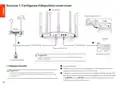
- 3. Set Up The Device As A Router (Connect The Router → Tips)
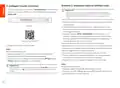
- 4. Scenario 2: Set Up As An Add-on Node (Connect The Router To The Internet → Download Tenda Wifi App → Relocation Tips → Access The Internet With Wifi-enabled Devices → Access The Internet With Wired Devices → Tips)
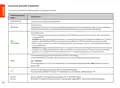
- 5. Led Indicator (Node Type → Description)
- 6. Jack/port/button (Power Jack → Reset Button → Wps/mesh Button → /100/1000 Mbps Auto-negotiation Wan Port → /100/1000 Mbps Auto-negotiation Lan Port → /100/1000 Mbps Auto-negotiation Lan/iptv Port)
- 7. Precautions (Internet Settings → Wifi Settings → Restore To Factory Settings → Operating Environment → Safety Precautions)
- 8. Szenario 1: Gerät Als Router Einrichten (Stromversorgung → Den Router Anschließen → Tipps)
- 9. Szenario 2: Als Eine Zusätzliche Station Einrichten (Den Router Mit Dem Internet Verbinden → Platzieren Sie Den Router An Einer Erhöhten Und Offenen Stelle → Nehmen Sie Die Entsprechenden Einstellungen Vor → Für Den Internetzugriff Mit: → Halten Sie Ihre Mesh-stationen Fern Von Elektronikgeräten → Sollten Sie Die Konfigurationen Mit Der Tenda Wifi-app Abgeschlossen Haben)
- 10. Led-anzeige (Stationstyp → Led-anzeigestatus → Beschreibung)
- 11. Buchse, Anschlüsse Und Tasten (Wps/mesh → Wan-port Mit 10/100/1000 Mbit/s Und Auto-übertragung → Lan-port Mit 10/100/1000 Mbit/s Und Auto-negotiation → Iptv/3 → Iptv/2)
- 12. Sicherheitshinweise (Werkseinstellungen Zurücksetzen → Betriebsumgebung → Interneteinstellungen → Wlan-einstellungen)
- 13. Scénář 1: Nastavení Zařízení Jako Router (I. Připojení Routeru → Kabel Sítě Ethernet → Zařízení S Přístupem K Síti Wifi → Tipy)
- 14. Scénáře 2: Nastavit Jako Přídavný Uzel (Ii. Připojte Router K Internetu → Umístěte Router Na Vyvýšenou A Otevřenou Pozici Nanejvýš 3 Metry Od Vašeho Stávajícího Uzlu. → Proveďte Operace Podle Pokynů. → Přístup Na Internet Přes: → Tipy)
- 15. Led Kontrolka (Typ Uzlu → Stav Led Kontrolky → Popis → Primární Uzel → Sekundární Uzel → Propojení Pomocí Tlačítka Wps)
- 16. Konektor, Porty A Tlačítka (Konektor Napájení → Tlačítko Reset → Wps/mesh Tlačítko → Wan → Lan → Iptv)
- 17. Bezpečnostní Upozornění (Nastavení Internetu → Nastavení Wifi → Obnovení Továrního Nastavení → Instalace A Montáž → Připojení K Síti → Použití Napájecího Adaptéru)
- 18. Scenario 1: Configurare Il Dispositivo Come Router (I. Collegare Il Router → Alimentatore → Dispositivi Abilitati Wi-fi: → Cavo Ethernet → Suggerimenti)
- 19. Scenario2:impostarecomeunulteriore Nodo (Collegareilrouterainternet → Suggerimenti → Posizionareilnodoinunaposizioneelevataeaperta → Utilizzarel'adattatoredialimentazionepercollegareilrouter → Scaricarel'apptendawifi → Suggerimentiperaccedereainternetcon)
- 20. Spia Led (Tipo Di Nodo → Indicatore Led Stato → Descrizione → Nodo Primario → Nodo Secondario)
- 21. Connettore, Porte E Pulsanti (Pulsante Di Ripristino → Pulsante Wps/mesh → Porta Wan Di Autonegoziazione 10/100/1000 Mbps → Porta Lan Di Autonegoziazione 10/100/1000 Mbps → Porta Lan/iptv Di Autonegoziazione 10/100/1000 Mbps)
- 22. Precauzioni Di Sicurezza (Impostazioni Internet → Impostazioni Wifi → Ripristinare Le Impostazioni Di Fabbrica → Collegamento Della Porta Wan → Montaggio Del Dispositivo → Ambiente Operativo)
- 23. Scénario 1 : Configurer L'appareil En Tant Que Routeur (I. Connecter Le Routeur → Astuces)
- 24. Scénario 2 : Configurez Comme Nœud De Nova (Connecter Le Routeur À Internet → Télécharger L'application Tenda Wifi → Astuces → Pour Accéder À Internet Avec : → Assurez-vous Que La Distance Entre Deux Nœuds Soit De Moins De 10 Mètres. → Garder Vos Nœuds À Lécart Des Composants Électroniques Présentant De Fortes Interférences.)
- 25. Indicateur Led (Type De Nœud → Statut Du Voyant Led → Description → Mise En Réseau Réussie. Qualité De Connexion Optimale. → Mise En Réseau Réussie. Qualité De Connexion Moyenne. → Mise En Réseau Réussie. Qualité De Connexion Médiocre.)
- 26. Prises, Ports Et Boutons (Prise/port/bouton → Bouton Réinitialiser → Bouton Wps/mesh → Port Wan À Autonégociation 10/100/1 000 Mbit/s → Port Lan À Autonégociation 10/100/1000 Mbit/s → Port Lan/iptv À Autonégociation 10/100/1 000 Mbit/s)
- 27. Précautions De Sécurité (Connexion À L'iu Web → Restauration Aux Paramètres D'usine → Accès À Internet Après Configuration → Installation Et Utilisation De L'appareil → Conditions D'exploitation → Utilisation De L'adaptateur Secteur)
- 28. Forgatókönyv: Állítsa Be Az Eszközt Routerként (Áramforrás → Wifi-képes Készülékek: → Csatlakoztassa A Routert → Kapcsolja Be A Routert → Csatlakoztassa A Router Wan-portját A Modem Lan-portjához → Csatlakoztassa Vezeték Nélküli Kliensét)
- 29. Csatlakoztassa A Routert Az Internethez (Helyezze A Routert Egy Magasan Lévő És Nyílt Terű Pozícióba → Végezze El A Műveleteket Az Utasításoknak Megfelelően → Az Internet Elérése → Tippek)
- 30. Led-visszajelző (Csomópont → Leírás → Típusa → Elsődleges Mód → Másodlagos Mód)
- 31. Csatlakozó, Portok És Gombok (Csatlakozó/port/gomb → Power/pwr → Rst/reset → Wps/mesh Gomb → Wan → Lan-port)
- 32. Gyakori Kérdések (Biztonsági Előírások → Hogyan Állíthatom Vissza Az Eszközt A Gyári Beállításokra? → Amikor A Terméket Routerként Használom, A Konfigurálás Után Nem Tudok Hozzáférni Az Internethez. → Wifi Használatára Képes Eszköz, Például Okostelefon Használata Esetén: → Ellenőrizze, Hogy A Router Wan-portja Megfelelően Csatlakozik-e A Modemhez Vagy Az Ethernet-csatlakozóhoz. → Jelentkezzen Be A Router Webes Felhasználói Felületére, És Lépjen Az Internetbeállítások Oldalra.)
- 33. Scenariusz 1: Skonfiguruj Urządzenie Jako Router (I. Podłączanie Routera → Wskazówki)
- 34. Sytuacja 2: Skonfiguruj Jako Dodatkowy Router (Podłącz Router Do Internetu → Użyj Zasilacza, Aby Podłączyć Router Do Źródła Zasilania → Aby Uzyskać Dostęp Do Internetu → Urządzenia Przewodowe: Podłącz Do Portów Lan Routerów → Urządzenia Bezprzewodowe: Połącz Się Ze Swoją Siecią Wi-fi)
- 35. Kontrolka Led (Typ Routera → Status Wskaźnika Led → Opis)
- 36. Gniazdo, Porty I Przyciski (Gniazdo Zasilania → Przycisk Reset → Przycisk Wps/mesh → Port Sieci Wan 10/100/1000 Mb/s → Port Sieci Lan 10/100/1000 Mb/s → Port Sieci Lan/iptv 10/100/1000 Mb/s)
- 37. Polski: Środki Ostrożności (Jak Mogę Przywrócić Moje Urządzenie Do Ustawień Fabrycznych? → Gdy Korzystam Z Produktu Jako Routera, Po Konfiguracji Nie Mogę Uzyskać Dostępu Do Internetu. → Ustawienia Internetowe → Ustawienia Sieci Wi-fi → Urządzenie Przeznaczone Wyłącznie Do Użytku W Pomieszczeniach → Montaż Na Biurku)
- 38. Scenariul 1: Configuraţi Dispozitivul Ca Router (Conectaţi Routerul → Porniţi Routerul → Conectaţi Portul Wan Al Routerului → Conectaţi-vă Clientul Wireless → Sugestii)
- 39. Conectaţi Routerul La Internet (Așezaţi Routerul Într-o Poziţie La Înălţime → Folosiţi Adaptorul De Alimentare → Apăsaţi Butonul Wps Sau Wps/mesh → Efectuaţi Operaţiunile După Cum Vi Se Solicită → Relocarea Routerului → Accesaţi Internetul)
- 40. Indicator Led (Tipul Nodului → Indicator Led Stare → Descriere)
- 41. Mufe, Porturi Și Butoane (Mufă/port/buton → Buton De Resetare → Butonul Wps/mesh → Port Wan 10/100/1000 Mbps De Auto-negociere → Port Lan 10/100/1000 Mbps De Auto-negociere → Port Lan/iptv 10/100/1000 Mbps Cu Auto-negociere)
- 42. Întrebări Frecvente (Măsuri De Siguranţă → Cum Procedez Pentru Ca Dispozitivul Meu Să Revină La Setările Din Fabrică? → Atunci Când Folosesc Produsul Ca Router, Nu Pot Accesa Internetul După Configurare. Ce Trebuie Să Fac?)
- 43. Scenario 1: Stel Het Toestel Op Als Een Router (Voedingsbron → Wifi-apparaten: → Setting → Tips → Ethernet-aansluiting → Verbind De Router)
- 44. Scenario 2: Opstellen Als Een Add-on Knooppunt (Verbind De Router Met Het Internet → Download Tenda Wifi-app → Tips)
- 45. Led-indicator (Knooppunttype → Status Led-indicator → Beschrijving)
- 46. Aansluiting, Poorten En Knoppen (Aansluiting/poort/ → Voedingsaansluiting → Resetknop → Wps/mesh-knop → /100/1000 Mbps Auto-onderhandelings-wan-poort → /100/1000 Mbps Auto-onderhandelings-lan-poort → /100/1000 Mbps Auto-onderhandelings-lan/iptv-poort)
- 47. Veelgestelde Vragen (Nederlands: Veiligheidsmaatregelen → Hoe Zet Ik Mijn Apparaat Terug Naar De Fabrieksinstellingen? → Wanneer Ik Het Product Als Router Gebruik, Kan Ik Na Het Configureren Geen Toegang Krijgen Tot Internet. Wat Moet Ik Doen?)
- 48. Senaryo 1: Aygıtı Router Olarak Ayarla (Power Source → Wifi Özellikli Cihazlar: → Kablolu Cihazlar: → I. Routerı Bağla)
- 49. Senaryo 2: Eklenti Düğümü Olarak Ayarla (Ii. Router'ı Internete Bağlayın → Tenda Wifi Uygulamasını Indirin → İnternete Erişmek Için: → Düğümleri Az Sayıda Engel Bulunan Yüksek Bir Konuma Yerleştirin. → İpuçları → Kablolu Cihazlar: Düğümlerinizin Lan Bağlantı Noktalarına Bağlanın.)
- 50. Led Göstergesi (Ünite Tipi → Açıklama → Birincil Düğüm → İkincil Düğüm)
- 51. Jaklar, Bağlantı Noktaları Ve Düğmeler (Wps/mesh Butonu → /100/1000 Mbps Otomatik Anlaşmalı Wan Bağlantı Noktası → /100/1000 Mbps Otomatik Anlaşmalı Lan Bağlantı Noktası → /100/1000 Mbps Otomatik Anlaşmalı Lan/iptv Bağlantı Noktası)
- 52. Sıkça Sorulan Sorular (Güvenlik Önlemleri → Cihazımı Fabrika Ayarlarına Nasıl Geri Yüklerim? → Ürünü Router Olarak Kullandığımda, Yapılandırmadan Sonra Internete Erişemiyorum. Ne Yapmalıyım?)
- 53. Escenario 1: Configurar El Dispositivo Como Rúter (I. Conexión Del Rúter → Dispositivos Compatibles Con Wifi: → Consejos → Conector Ethernet → Cable Ethernet → Fuente De Alimentación)
- 54. Opción 2: Configurar Como Rúter Complementario (Conectar El Rúter A Internet → Descargar La App Tenda Wifi → Consejos De Reubicación)
- 55. Indicador Led (Tipo De Nodo → Estado Del Indicador Led → Descripción)
- 56. Conector, Puertos Y Botones (Conector/puerto/ → Descripción → Botón Wps/mesh → Wps → Wan → Puerto Lan/iptv De Negociación Automática De 10/100/1000 Mbps)
- 57. Preguntas Frecuentes (faq) (Precauciones De Seguridad → Restaurar Dispositivo A La Configuración De Fábrica → Configuración De Internet → Configuración De Wifi)
- 58. Configurar O Dispositivo Como Um Roteador (Fonte De Alimentação → Dispositivos Com Wi-fi → Dispositivos Com Fios → Conecte O Roteador → Dicas)
- 59. Cenário 2: Configurar Como Um Nó Adicional (Ligue O Roteador À Internet → Descarregue A Aplicação Tenda Wifi → Para Aceder À Internet Com: → Dicas)
- 60. Indicador Led (Tipo De Nó → Descrição)
- 61. Ficha, Portas E Botões (Ficha/porta/botão → Botão De Reinicialização → Botão Wps/mesh → Porta Wan De Negociação Automática De 10/100/1000 Mbps → Porta Lan De Negociação Automática De 10/100/1000 Mbps → Porta Lan/iptv De Negociação Automática De 10/100/1000 Mbps)
- 62. Perguntas Frequentes (Precauções De Segurança → Como Posso Repor As Definições De Fábrica Do Meu Dispositivo? → Quando Utilizo O Produto Como Router, Não Consigo Aceder À Internet Após A Configuração. O Que Devo Fazer?)
- 63. Сценарий 1: Настройване На Устройството Като Рутер (Източник На Захранване → Свързване На Рутера → Съвети)
- 64. Сценарий 2: Настройка Като Един Допълнителен Възел (Ii. Свържете Рутера Към Интернет → Изтеглете Приложението За Wifi На Tenda → Готово. → За Достъп До Интернет: → Съвети → Съхранявайте Своите Възли Далеч От Електроника Със Силни Смущения, Като Микровълнови Фурни, Индукционни Котлони И Хладилници.)
- 65. Led Индикатор (Статус На Led Индикатора → Тип Възел → Описание)
- 66. Жак, Портове И Бутони (Жак/порт/бутон → Power/pwr → Rst/reset → Wps/mesh Бутон → Wan → Lan Порт)
- 67. Не Мога Да Вляза В Уеб Интерфейса, Като Посетя Tendawifi.com. Какво Да Направя? (Как Да Възстановя Устройството Си До Фабрични Настройки? → Когато Използвам Продукта Като Рутер, Не Мога Да Вляза В Интернет След Конфигурацията. Какво Трябва Да Направя? → Мерки За Безопасност)
- 68. Installation Of The Router (Connecting To Wan And Lan → Setting Up Wifi → Ethernet Connections → Configuring Iptv Settings → Router Power And Reset Options → Wps/mesh Setup)
- 69. Installation Of The Router (Configuration Of The Router → Wps And Mesh Setup → Tenda Wifi App Configuration → Led Indicators And Troubleshooting → Ethernet Connection Setup → Wifi Network Configuration)
- 70. Installation Of The Router (Wps Configuration → Mesh Setup → Led Indicators → Troubleshooting → Safety Information → User Manual Overview)
- 71. Wps (Wps/mesh → Wan → Lan → Iptv)
- 72. Installation Of Web Ui (Configuration Of Ip And Dns → Ethernet Connection Setup → Wifi Configuration → Led Indicators And Status → Environmental Requirements → Troubleshooting And Support)
- 73. Scenario 1: Napravo Nastavite Kot Usmerjevalnik (Napajanje → Setting → Povežite Usmerjevalnik → Nasveti)
- 74. Vzpostavite Povezavo Z Internetom V Usmerjevalniku (Prenos Aplikacije Tenda Wifi → Nasveti → Za Dostop Do Interneta V:)
- 75. Led Indikator (Vrsta Vozlišča → Status Led Indikatorja → Opis → Primarno Vozlišče → Sekundarno Vozlišče)
- 76. Vtič, Priključki In Gumbi (Napajalni Vtič → Reset Gumb → Wps/mrežni Gumb → Priključek Wan → Priključek Lan → Priključek Lan/iptv)
- 77. Varnostni Ukrepi (Kako Obnoviti Tovarniške Nastavitve Naprave? → Internetne Nastavitve)
- 78. Installation (Setup → Configuration → W A R N I N G)
- 79.
- 80. إعداد الاتصال (حالة Led → إعداد Wps → إعداد الشبكة → فشل الاتصال → جودة الاتصال → حالة النظام)
- 81. Power (Rst/reset → Wps → Wps/mesh → Wan → Iptv/3 → Iptv/2)
- 82.
- 83. Skenario 1: Siapkan Perangkat Sebagai Router (I. Hubungkan Router)
- 84. Skenario 2: Siapkan Sebagai Node Tambahan (Hubungkan Router Ke Internet → Unduh Aplikasi Tenda Wifi → Untuk Mengakses Internet Dengan: → Tips)
- 85. Indikator Led (Tipe Node → Status Indikator Led → Deskripsi)
- 86. Jack/port/tombol (Deskripsi → Jack Daya → Tombol Wps/mesh → Wps → Wan → Port Lan/iptv)
- 87. Pertanyaan Umum (faq) (Bahasa Indonesia: Tindakan Pengamanan → T2: Bagaimana Cara Mengembalikan Perangkat Saya Ke Pengaturan Pabrik? → T3: Saat Saya Menggunakan Produk Sebagai Router, Saya Tidak Dapat Mengakses Internet Setelah Konfigurasi. Apa Yang Harus Saya Lakukan?)
- 88. Scenarij 1: Postavite Uređaj Kao Usmjerivač (Izvor Napajanja → Uređaj S Omogućenom Wifi Mrežom → I. Spojite Ruter → Savjeti)
- 89. Scenarij 2: Postavite Kao Dodatni Čvor (Spojite Ruter Na Internet → Savjeti → Postavite Usmjerivač Na Povišeno I Otvoreno Mjesto Unutar 3 Metra Od Postojećeg Čvora. → Preuzmite Aplikaciju Tenda Wifi → Savjeti → Za Pristup Internetu Koristeći:)
- 90. Led Indikator (Vrsta Čvora → Opis → Primarni Čvor → Sekundarni Čvor)
- 91. Utičnica/priključak (Gumb Za Resetiranje → Gumb Wps/mesh → Wan → Lan → Iptv)
- 92. Često Postavljana Pitanja (Sigurnosne Mjere Opreza → Uvjeti Rada → Uvjeti Skladištenja → Kako Vratiti Uređaj Na Tvorničke Postavke? → Kada Koristim Proizvod Kao Usmjerivač, Ne Mogu Pristupiti Internetu Nakon Konfiguracije. → Isprobajte Sljedeća Rješenja:)
- 93. Scenarie 1: Konfigurer Enheden Som En Router (Strømkilde → Tilslut Routeren)
- 94. Scenarie 2: Konfigurer Som En Tilføjelsesknude (Tilslut Routeren Til Internettet → Download Tenda Wifi-appen → Udfør Handlinger Som Bedt Om)
- 95. Led Indikator (Node Type → Beskrivelse)
- 96. Jack/port/knap (Wps/mesh Knap → Wan → /100/1000 Mbps Auto-forhandling Wan-port → /100/1000 Mbps Auto-negotiation Lan-port → /100/1000 Mbps Auto-negotiation Lan/iptv-port → Strømstik)
- 97. Ofte Stillede Spørgsmål (Sikkerhedsforanstaltninger → Installation Og Vedligeholdelse → Driftsmiljø → Gendannelse Af Fabriksindstillinger → Internetadgang Efter Konfiguration → Wifi-indstillinger)
- 98. Skenaario 1: Aseta Laite Reitittimeksi (Virtalähde → Liitä Reititin → Vinkkejä → Ethernet-liitäntä)
- 99. Määritä Lisäsolmuksi (Yhdistä Reititin Internetiin → Aseta Reititin Korkeaan Ja Avoimeen Asentoon → Liitä Reititin Virtalähteeseen → Paina Reitittimen Wps Tai Wps/mesh Painiketta → Päästäksesi Internetiin → Lataa Tenda Wifi -sovellus)
- 100. Led-valo (Solmun Tyyppi → Verkottaminen)
- 101. Liitännät, Portit Ja Painikkeet (Virtaliitin → Reset-painike → Wps/mesh-painike → Wan-portti → Lan-portti → Iptv-portti)
- 102. Suomi: Turvallisuusohjeet (Lue Käyttöohjeet Ja Varotoimenpiteet Ennen Toimenpiteen Suorittamista Ja Noudata Niitä Onnettomuuksien Välttämiseksi. → Käyttöympäristö: Lämpötila: 0 - 40; Kosteus: (10% - 90%) Suhteellinen Kosteus, Kondensoimaton; Varastotila: Lämpötila: -40 - 70; Kosteus: (5% - 90%) Suhteellinen Kosteus, Kondensoimaton. → Kuinka Palauttaa Laitteeni Tehdasasetukset? → Kun Käytän Tuotetta Reitittimenä, En Pääse Internetiin Määrityksen Jälkeen.)
- 103. Stsenarium 1: Seadistage Seade Ruuteriks (Energiaallikas → Wifi-ühendusega Seadmed: → Juhtmega Seadmed: → I. Ühendage Ruuter → Näpunäited)
- 104. Stsenarium 2: Seadistage Lisandsõlmena (Ühendage Ruuter Internetiga → Veebiliidesele Pääsemine → Ruuteri Paigutamine Ja Ühendamine → Internetti Pääsemiseks → Juhtmeta Seadmed: Ühendage Oma Wifi Võrku → Võrgu Haldamine Tenda Wifi Rakendusega)
- 105. Led Märgutuli (Sõlme Tüüp → Võrgustiku Loomine)
- 106. Jack/port/nupp (Power/pwr → Rst/reset → Wps/mesh Nupp → Wan → Lan-port → Iptv)
- 107. Eesti: Ohutusabinõud (K1: Ma Ei Saa Sisse Logida Veebi Kasutajaliidesesse, Kui Külastan Veebilehte Tendawifi.com. Mida Ma Peaksin Tegema? → K2: Kuidas Taastada Seadme Tehaseseaded? → K3: Kui Kasutan Toodet Ruuterina, Ei Saa Ma Pärast Konfigureerimist Internetti Juurde Pääseda. Mida Ma Peaksin Tegema?)
- 108. Scenārijs:iestatietierīcikāmaršrutētāju (Enerģijasavots → I. Pievienojietmaršrutētāju → Savienojietmaršrutētājawanportu Armodemalanportu → Savienojiet Savu Bezvadu Klientu → Padomi)
- 109. Ii Pievienojiet Maršrutētāju Internetam (Lejupielādējiet Tenda Wifi Lietotni → Gatavs. → Padomi)
- 110. Led Indikators (Mezgla Veids → Apraksts)
- 111. Jack/port/poga (Wps/mesh → Wan → Barošanas Ligzda → Atiestatīšanas Poga → /100/1000 Mb/s Automātiskās Sarunas Lan Ports → Iptv/3)
- 112. Drošības Pasākumi (Kā Atjaunot Ierīces Rūpnīcas Iestatījumus? → Kad Es Izmantoju Produktu Kā Maršrutētāju, Pēc Konfigurācijas Nevaru Piekļūt Internetam. → Izmēģiniet Tālāk Norādītos Risinājumus. → Darbības Vide: → Ierīces Vai Tās Piederumu Izjaukšana Vai Pārveidošana Bez Atļaujas Anulē Garantiju Un Var Radīt Drošības Apdraudējumu. → Neizmantojiet Strāvas Adapteri, Ja Tā Spraudnis Vai Vads Ir Bojāts.)
- 113. Prijunkite Maršrutizatorių (Įjunkite Maršrutizatorių → Prijunkite Maršrutizatoriaus Wan Prievadą Prie Modemo Lan Prievado → Prijunkite Belaidį Klientą → Patarimai)
- 114. Ii Prijunkite Maršrutizatorių Prie Interneto (Patarimai → Prieiga Prie Interneto Naudojant: → Maitinimo Adapteriu Prijunkite Maršruto Parinktuvą Prie Maitinimo Šaltinio → Mazgus Statykite Aukštoje Vietoje, Kur Yra Nedaug Kliūčių → Jei Atlikote Konfigūraciją Naudodami T Enda Wifi App')
- 115. Led Indikatorius (Mazgo Tipas → Aprašas → Pirminis Mazgas → Antrinis Mazgas → Tinklo Kūrimas Naudojant Wps Arba Wps/mesh Mygtuką)
- 116. Lizdai, Prievadai Ir Mygtukai Gali Skirtis Priklausomai Nuo Modelio. (Maitinimo Lizdas. → Atstatymo Mygtukas. → Wps/mesh Mygtukas. → /100/1000 Mbps Automatinio Derybų Wan Prievadas. → /100/1000 Mbps Automatinio Derybų Lan Prievadas. → /100/1000 Mbps Automatinio Derybų Lan/iptv Prievadas.)
- 117. Atsargumo Priemonės (Kaip Atkurti Įrenginio Gamyklinius Nustatymus? → Negaliu Prisijungti Prie Žiniatinklio Vartotojo Sąsajos Apsilankęs Svetainėje → Kai Naudoju Gaminį Kaip Maršrutizatorių, Sukonfigūravęs Negaliu Prisijungti Prie Interneto)
- 118. Scenario 1: Ställ In Enheten Som En Router (Kraftkälla → Wifi-aktiverade Enheter: → Anslut Routern → Tips)
- 119. Scenario 2: Ställ In Som En Tilläggsnod (Anslut Routern Till Internet → Ladda Ner Tenda Wifi-appen → För Att Komma Åt Internet Med: → Tips)
- 120. Led-indikator (Nodtyp → Led-indikatorstatus → Beskrivning)
- 121. Jack/port/knapp (Strömuttag → Återställningsknapp → Wps/mesh-knapp → Wan → Lan-port → Iptv-port)
- 122. Säkerhetsåtgärd (Installation Och Underhåll → Driftmiljö → Återställning Av Enheten → Internetinställningar → Anslutning Av Enheter → Användning Av Strömadapter)
- 123. Scenár 1: Nastavte Zariadenie Ako Smerovač (Zdroj Energie → Zariadenia S Podporou Wifi: → Káblové Zariadenia: → I. Pripojte Smerovač → Tipy)
- 124. Scenár 2: Nastavte Ako Doplnkový Uzol (Pripojte Smerovač K Internetu → Umiestnite Smerovač Do Vyvýšenej A Otvorenej Polohy → Pomocou Napájacieho Adaptéra Pripojte Smerovač K Zdroju Napájania → Stlačte Tlačidlo Wps Alebo Wps/mesh Na Smerovači → Na Zaistenie Prístupu K Internetu → Tipy)
- 125. Led Indikáto (Typ Uzla → Popis Indikátora Led → Primárny Uzol → Sekundárny Uzol → Vytváranie Siete Pomocou Tlačidla Wps → Smerovaču Sa Nepodarilo Pripojiť K Internetu)
- 126. Jack/port/tlačidlo (Napájací Konektor → Tlačidlo Obnovenia → Tlačidlo Wps/mesh → Port Wan S Automatickým Vyjednávaním 10/100/1000 Mbps → Port Lan S Automatickým Vyjednávaním 10/100/1000 Mbps → Port Lan/iptv S Automatickým Vyjednávaním 10/100/1000 Mbps)
- 127. Často Kladené Otázky (Bezpečnostné Opatrenia → Otázka Č. 1 Nemôžem Sa Prihlásiť Do Webového Používateľského Rozhrania → Otázka Č. 2 Ako Obnoviť Výrobné Nastavenia Zariadenia? → Otázka Č. 3 Keď Produkt Používam Ako Smerovač, Po Konfigurácii Nemám Prístup Na Internet.)
- 128. For Technical Specifications, User Guides And More Information, Please Visit The Product Page Or Service Page On Www.tendacn.com. Multiple L…
- 129. За Технически Спецификации, Ръководства За Потребителя И Повече Информация (Можете Да Видите Името И Модела На Продукта На Етикета На Продукта → Dapatkan Bantuan Dan Layanan → Získajte Podporu A Údržbu → Dobijte Podršku I Usluge → Få Support Og Tjenester → Lai Iegūtu Tehniskās Specifikācijas, Lietotāja Rokasgrāmatas Un Vairāk Informācijas)
×
Tenda RX12V1.0 Wi-Fi 6 6E Router Installation Guide






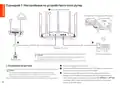


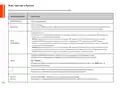
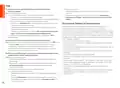









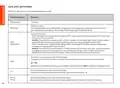









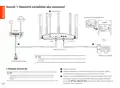

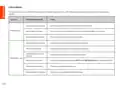


Jack, ports and buttons
The jacks, ports and buttons may vary with models.
Jack/Port/Button
Description
Power jack.
POWER/PWR
Reset button.
RST/Reset
When the router is working normally, hold the button down using a needle-like item (such as a pin) for about 8
seconds, and then release it when the LED indicator blinks red fast. The router is reset.
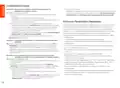
WPS/Mesh button.
• WPS: When it is used as a WPS negotiation button, you can connect to the WiFi network of the router
without entering the WiFi password.
Method: Press this button for about 1–3 seconds. The LED indicator blinks fast. Within 2 minutes, enable the
WPS function of the other WPS-supported device to establish a WPS connection.
• Mesh: When it is used as a Mesh networking button, you can extend your network with another device that
supports the Mesh function.
WPS
WPS/MESH
Method: Press this button for about 1–3 seconds. The LED indicator blinks green fast, which indicates the
device is searching for another device to form a network. Within 2 minutes, press the MESH/WPS button of
another device for 1 to 3 seconds to negotiate with this device.
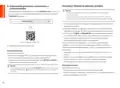
10/100/1000 Mbps auto-negotiation WAN port.
Used to connect to a modem or the Ethernet jack using an Ethernet cable for internet access.
WAN
Tips
After the router is connected to an existing network as a secondary node, this WAN port is used as a LAN port.
10/100/1000 Mbps auto-negotiation LAN port.
1, 2
Used to connect to computers, switches or game machines, etc.
10/100/1000 Mbps auto-negotiation LAN/IPTV port.
IPTV/3
IPTV/2
It is a LAN port by default. When the IPTV function is enabled, it can only serve as an IPTV port to connect to
a set-top box.
04

| General | Details |
|---|---|
| Name | Tenda RX12V1.0 Wi-Fi 6 6E Router Installation Guide |
| Make | Tenda |
| Language | English |
| Filetype | PDF (Download) |
| File size | 5.62 MB |
 (1 votes, average: 5.00 out of 5)
 Loading...
If you have any questions regarding Tenda RX12V1.0 Wi-Fi 6 6E Router Installation Guide, please ask here and describe the problem in detail.

Tenda AXE5700 Wi-Fi 6E Router User Manual

Tenda AX1800 Wi-Fi 6 5G NR Router User Manual

Tenda RX2LP Dual Band Gigabit Wi-Fi 6 Router Installation Guide

Tenda TX2L ProV1.0 WiFi 6 Router Installation Guide

Tenda 4G09V1.0 Wifi Router User Manual

Tenda AC19 Dual Band Gigabit WiFi Router Installation Guide

Tenda 4G06V1.0 4G LTE and VoLTE Router User Guide

Tenda 4G03 N300 Wi-Fi 4G LTE Router Installation Guide

Tenda N300 WiFi VDSL/ADSL Modem Router V300 Installation Guide

Tenda AC9 AC1200 Dual Band Gigabit WiFi Router Installation Guide


CNCU E550 EasyRoute CNC Router Instructions

intwine connected ICG-150 Gateway 150 Cellular Router User Guide

D-Link R3 AX3000 MU-MIMO WiFi Gigabit Router Installation Guide

ASUS BT8 Tri Band WiFi Router User Guide

ASUS BE6800 Dual Band WiFi Router User Guide

ELPRO 641M-X Iot Connectivity 4g-Lte Router User Manual

ASUS RT-AX92U Wireless AX6100 Tri band Gigabit Router User Guide

Qolsys IQ WiFi 6 Router Instruction Manual

ASUS TUF-AX3000 V2 TUF Gaming AX3000 V2 Dual Band WiFi 6 Router User Guide

SMAWAVE SRE410 LTE CPE Router User Guide
Table of Contents
- 1. Installation Guide - Wi-fi 6/6e Router →
- 2. There Are No Relevant Subheadings In The Provided Html Code. →
- 3. Set Up The Device As A Router - Connect The Router →
- 4. Scenario 2: Set Up As An Add-on Node - Connect The Router To... →
- 5. Led Indicator - Node Type →
- 6. Jack/port/button - Power Jack →
- 7. Precautions - Internet Settings →
- 8. Szenario 1: Gerät Als Router Einrichten - Stromversorgung →
- 9. Szenario 2: Als Eine Zusätzliche Station Einrichten - Den Ro... →
- 10. Led-anzeige - Stationstyp →
- 11. Buchse, Anschlüsse Und Tasten - Wps/mesh →
- 12. Sicherheitshinweise - Werkseinstellungen Zurücksetzen →
- 13. Scénář 1: Nastavení Zařízení Jako Router - I. Připojení Rout... →
- 14. Scénáře 2: Nastavit Jako Přídavný Uzel - Ii. Připojte Router... →
- 15. Led Kontrolka - Typ Uzlu →
- 16. Konektor, Porty A Tlačítka - Konektor Napájení →
- 17. Bezpečnostní Upozornění - Nastavení Internetu →
- 18. Scenario 1: Configurare Il Dispositivo Come Router - I. Coll... →
- 19. Scenario2:impostarecomeunulteriore Nodo - Collegareilroutera... →
- 20. Spia Led - Tipo Di Nodo →
- 21. Connettore, Porte E Pulsanti - Pulsante Di Ripristino →
- 22. Precauzioni Di Sicurezza - Impostazioni Internet →
- 23. Scénario 1 : Configurer L'appareil En Tant Que Routeur - I. ... →
- 24. Scénario 2 : Configurez Comme Nœud De Nova - Connecter Le Ro... →
- 25. Indicateur Led - Type De Nœud →
- 26. Prises, Ports Et Boutons - Prise/port/bouton →
- 27. Précautions De Sécurité - Connexion À L'iu Web →
- 28. Forgatókönyv: Állítsa Be Az Eszközt Routerként - Áramforrás →
- 29. Csatlakoztassa A Routert Az Internethez - Helyezze A Routert... →
- 30. Led-visszajelző - Csomópont →
- 31. Csatlakozó, Portok És Gombok - Csatlakozó/port/gomb →
- 32. Gyakori Kérdések - Biztonsági Előírások →
- 33. Scenariusz 1: Skonfiguruj Urządzenie Jako Router - I. Podłąc... →
- 34. Sytuacja 2: Skonfiguruj Jako Dodatkowy Router - Podłącz Rout... →
- 35. Kontrolka Led - Typ Routera →
- 36. Gniazdo, Porty I Przyciski - Gniazdo Zasilania →
- 37. Polski: Środki Ostrożności - Jak Mogę Przywrócić Moje Urządz... →
- 38. Scenariul 1: Configuraţi Dispozitivul Ca Router - Conectaţi ... →
- 39. Conectaţi Routerul La Internet - Așezaţi Routerul Într-o Poz... →
- 40. Indicator Led - Tipul Nodului →
- 41. Mufe, Porturi Și Butoane - Mufă/port/buton →
- 42. Întrebări Frecvente - Măsuri De Siguranţă →
- 43. Scenario 1: Stel Het Toestel Op Als Een Router - Voedingsbro... →
- 44. Scenario 2: Opstellen Als Een Add-on Knooppunt - Verbind De ... →
- 45. Led-indicator - Knooppunttype →
- 46. Aansluiting, Poorten En Knoppen - Aansluiting/poort/ →
- 47. Veelgestelde Vragen - Nederlands: Veiligheidsmaatregel... →
- 48. Senaryo 1: Aygıtı Router Olarak Ayarla - Power Source →
- 49. Senaryo 2: Eklenti Düğümü Olarak Ayarla - Ii. Router'ı Inter... →
- 50. Led Göstergesi - Ünite Tipi →
- 51. Jaklar, Bağlantı Noktaları Ve Düğmeler - Wps/mesh Butonu →
- 52. Sıkça Sorulan Sorular - Güvenlik Önlemleri →
- 53. Escenario 1: Configurar El Dispositivo Como Rúter - I. Conex... →
- 54. Opción 2: Configurar Como Rúter Complementario - Conectar El... →
- 55. Indicador Led - Tipo De Nodo →
- 56. Conector, Puertos Y Botones - Conector/puerto/ →
- 57. Preguntas Frecuentes (faq) - Precauciones De Seguridad →
- 58. Configurar O Dispositivo Como Um Roteador - Fonte De Aliment... →
- 59. Cenário 2: Configurar Como Um Nó Adicional - Ligue O Roteado... →
- 60. Indicador Led - Tipo De Nó →
- 61. Ficha, Portas E Botões - Ficha/porta/botão →
- 62. Perguntas Frequentes - Precauções De Segurança →
- 63. Сценарий 1: Настройване На Устройството Като Рутер - Източни... →
- 64. Сценарий 2: Настройка Като Един Допълнителен Възел - Ii. Свъ... →
- 65. Led Индикатор - Статус На Led Индикатора →
- 66. Жак, Портове И Бутони - Жак/порт/бутон →
- 67. Не Мога Да Вляза В Уеб Интерфейса, Като Посетя Tendawifi.com... →
- 68. Installation Of The Router - Connecting To Wan And Lan →
- 69. Installation Of The Router - Configuration Of The Router →
- 70. Installation Of The Router - Wps Configuration →
- 71. Wps - Wps/mesh →
- 72. Installation Of Web Ui - Configuration Of Ip And Dns →
- 73. Scenario 1: Napravo Nastavite Kot Usmerjevalnik - Napajanje →
- 74. Vzpostavite Povezavo Z Internetom V Usmerjevalniku - Prenos ... →
- 75. Led Indikator - Vrsta Vozlišča →
- 76. Vtič, Priključki In Gumbi - Napajalni Vtič →
- 77. Varnostni Ukrepi - Kako Obnoviti Tovarniške Nastavitve Napra... →
- 78. Installation - Setup →
- 79. Page 79 →
- 80. إعداد الاتصال - حالة Led →
- 81. Power - Rst/reset →
- 82. Page 82 →
- 83. Skenario 1: Siapkan Perangkat Sebagai Router - I. Hubungkan ... →
- 84. Skenario 2: Siapkan Sebagai Node Tambahan - Hubungkan Router... →
- 85. Indikator Led - Tipe Node →
- 86. Jack/port/tombol - Deskripsi →
- 87. Pertanyaan Umum (faq) - Bahasa Indonesia: Tindakan Pengamana... →
- 88. Scenarij 1: Postavite Uređaj Kao Usmjerivač - Izvor Napajanj... →
- 89. Scenarij 2: Postavite Kao Dodatni Čvor - Spojite Ruter Na In... →
- 90. Led Indikator - Vrsta Čvora →
- 91. Utičnica/priključak - Gumb Za Resetiranje →
- 92. Često Postavljana Pitanja - Sigurnosne Mjere Opreza →
- 93. Scenarie 1: Konfigurer Enheden Som En Router - Strømkilde →
- 94. Scenarie 2: Konfigurer Som En Tilføjelsesknude - Tilslut Rou... →
- 95. Led Indikator - Node Type →
- 96. Jack/port/knap - Wps/mesh Knap →
- 97. Ofte Stillede Spørgsmål - Sikkerhedsforanstalt... →
- 98. Skenaario 1: Aseta Laite Reitittimeksi - Virtalähde →
- 99. Määritä Lisäsolmuksi - Yhdistä Reititin Internetiin →
- 100. Led-valo - Solmun Tyyppi →
- 101. Liitännät, Portit Ja Painikkeet - Virtaliitin →
- 102. Suomi: Turvallisuusohjeet - Lue Käyttöohjeet Ja Varotoimenpi... →
- 103. Stsenarium 1: Seadistage Seade Ruuteriks - Energiaallikas →
- 104. Stsenarium 2: Seadistage Lisandsõlmena - Ühendage Ruuter Int... →
- 105. Led Märgutuli - Sõlme Tüüp →
- 106. Jack/port/nupp - Power/pwr →
- 107. Eesti: Ohutusabinõud - K1: Ma Ei Saa Sisse Logida Veebi Kasu... →
- 108. Scenārijs:iestatieti... - Enerģijasavots →
- 109. Ii Pievienojiet Maršrutētāju Internetam - Lejupielādējiet Te... →
- 110. Led Indikators - Mezgla Veids →
- 111. Jack/port/poga - Wps/mesh →
- 112. Drošības Pasākumi - Kā Atjaunot Ierīces Rūpnīcas Iestatījumu... →
- 113. Prijunkite Maršrutizatorių - Įjunkite Maršrutizatorių →
- 114. Ii Prijunkite Maršrutizatorių Prie Interneto - Patarimai →
- 115. Led Indikatorius - Mazgo Tipas →
- 116. Lizdai, Prievadai Ir Mygtukai Gali Skirtis Priklausomai Nuo ... →
- 117. Atsargumo Priemonės - Kaip Atkurti Įrenginio Gamyklinius Nus... →
- 118. Scenario 1: Ställ In Enheten Som En Router - Kraftkälla →
- 119. Scenario 2: Ställ In Som En Tilläggsnod - Anslut Routern Til... →
- 120. Led-indikator - Nodtyp →
- 121. Jack/port/knapp - Strömuttag →
- 122. Säkerhetsåtgärd - Installation Och Underhåll →
- 123. Scenár 1: Nastavte Zariadenie Ako Smerovač - Zdroj Energie →
- 124. Scenár 2: Nastavte Ako Doplnkový Uzol - Pripojte Smerovač K ... →
- 125. Led Indikáto - Typ Uzla →
- 126. Jack/port/tlačidlo - Napájací Konektor →
- 127. Často Kladené Otázky - Bezpečnostné Opatrenia →
- 128. For Technical Specifications, User Guides And More Informati... →
- 129. За Технически Спецификации, Ръководства За Потребителя И Пов... →