
×
- 1. The Html Code Provided Does Not Contain Any Clear Subheadings Related To Installation/setup/configuration. Therefore, I Will Take The First … (Vhuxlgh ꢊ;ꢇꢃꢃꢃ+lꢋk3rzhu*lꢋdelw:lꢅ)lꢈ5rxwhu ꢊufkhuꢊ;ꢌꢇ+3)
- 2. Installation (Configuration → Connection → Setup → User Interface → Warning → Troubleshooting)
- 3. Installation (Configuration → Warning → Setup → Network Security → User Interface → System Requirements)
- 4. Installation (Setup → Configuration → Warning → Remote Management → System Network Connectivity → Control The Lcd Display)
- 5. Installation (Configurations → Warning → User Guide → Setup → Features → Specifications)
- 6. Installation (Setup → Configuration → Connection Quality And Client Conditions → Use Of Wireless Features → Power Requirements → Environmental Factors)
- 7. Product Overview (Appearance)
- 8. Installation (Setup → Configuration → User Interface → Power Connection → System Status → Troubleshooting)
- 9. Installation (Configuration → Network Service Availability → Wireless Setup → Power Connection → Troubleshooting)
- 10. Installation Instructions (Power On/off Setup → Connecting To A Modem Or Ethernet → Connecting Wireless Devices → Resetting The Router → Firmware Default Settings → Power Supply Requirements)
- 11. Positioning Your Router (Connect Your Router)
- 12. Connect The Hardware (Position Your Router → Make Sure The Cables And Power Cord Are Safely Placed Out Of The Way → Create A Tripline → Keep The Router Away From Devices With Strong Electromagnetic Interference → The Device Can Be Mounted On The Wall As Shown In The Following Figure)
- 13. Connect The Hardware (Turn On The Modem And Wait About Minutes → Connect The Power Adapter To The Router And Turn On The Router → Verify That The Hardware Connection Is Correct By Checking The Following Leds → Connect Your Computer To The Router → Method 1: Wired → Method 2: Wireless)
- 14. Connect The Hardware (Settings → Wi-fi → Choose A Network → Note → Warning → Method To Use The Wps Button)
- 15.
- 16. Installation (Setup → Configuration → User Interface → Troubleshooting → Network Integration → Safety Information)
- 17. How To Connect Your Router To The Internet (Quick Setup Wizard → Manually Set Up Your Internet Connection → Set Up The Router As An Access Point → Set Up The Router For Ipy Service)
- 18. Setupinternetconnection (Quicksetupguide → Followthestepsbelowtosetupyourrouter → Quicksetupforconfiguration → Followthethestepsbystepinstructions → Connectyourroutertotheinternet → Learnmoreaboutthe73linkcloudservice)
- 19. Hw8s,qwhuqhw&rqqhfwlrq (Wkh Vhwxs Dqg Frqqhfw Wr Wkh Lqwhuqhw → &rqqhfw rxu Ghylfhv Wr Wkh Qhzo Frqilqxuhg Zluhohvv Qhwzrunv Ri Wkh Urxwhu → Lvlw Kwwsꢙꢚꢚwsolqnzlilꢉqhw → Hohfw rxu Lqwhuqhw Frqqhfwlrq Wsh Iurp Wkh Gursꢅgrzq Olvw → )roorz Wkh Lqvwuxfwlrqv Rq Wkh Sdꢋh Wr Frqwlqxh Wkh Frqilqwdwlrq → ,i rx Fkrrvh 1qdplf, 3 Iurp Wkh Gursꢅgrzq Olvw)
- 20. Setup (Installation → Configuration → Warning → User Name → Password → Internet Connection)
- 21. Hw8s,qwhuqhw&rqqhfwlrq (Hfrqgdu&rqqhfwlrq → Lsv → W A R N I N G)
- 22. Hw8s,qwhuqhw&rqqhfwlrq (Hw8s,wkh5rxwhu → vwhp → Shudwlrq0rgh → Dyh → Lsv → Hw8s,dq,3y)
- 23. Setup8sinterface (Warning → Tips → Fillininformationasrequiredbydifferentconnectiontypes → Staticip → Dynamicip → Server)
- 24. Setupupinternetconnection (Warning → Manualsetup → Configurationtype → Installfurtherinformation → Usernamepassword → Connect)
- 25. Hw8p,qwhuqhw&rqqhfwlrq (&rqilxuh/1sruwv → Lsv → Lvwkh)ꢊ4vhfwlrq)
- 26. Introduction (How To Re-register A New 73μ/lqn, 1bind Or Unbind 73μ/lqn, 1s → Manage Your Router → Manage The User 73μ/lqn, 1s → Manage The Router Via The 73μ/lqn → Ensure That Your Router Stays New And Updated → Important Firmware)
- 27. Installation Instructions (Setup Process → Configuration Steps → User Interface Overview → Troubleshooting Guide → Maintenance Information → Safety Information)
- 28. Installation (Setup → Configuration → User Instructions → Warning)
- 29. Installation Of The App (Setup Of The Router → Configuration Of User Accounts → Remote Access Setup → User Interface Overview → Troubleshooting Common Issues → Maintenance And Updates)
- 30. Installation Of The App (Connecting Your Device To The Router's Wireless Network → Setup For The Router → Managing Your Router As Needed → Note: If You Don't Have A 73μ/lqn, Create One First. → Note: If You Need To Remotely Access Your Router From Your Smart Devices, You Need To...)
- 31. Specify:wirlesssettings (Schedule:yourwirelessfunction → Use:psforwirelessconnection → Advanced:wirelesssettings)
- 32. Wireless Settings (Router's Wireless Network Name → Router Configuration → Enable → Smart Connect Functionality → Device Management → Wireless Bandwidth Management)
- 33. Wireless Settings (Enable Smart Connect → Create A New Ssid In Network Name → Select A Connection Option From The Security Group → Select A Connection Option From The Security Group → Select A Connection Option From The Security Group → Select A Connection Option From The Security Group)
- 34. Wireless Settings (Recommended To Leave It As Default → Wireless Connection Issue → How To Advanced → Make Sure Smart Connect Is Disabled → Wireless Network Can Be Automatically Off At A Specific Time → Wireless Connection)
- 35. Wireless Settings (Use Wps For Wireless Connection → Connection Via The Client's Pin → Connection Via The Router's Pin → Select Router's Pin → Create A New One)
- 36. Installation (Configuration → Connection → Setup)
- 37. Installation (Configuration → Setup → User Interface → Network Settings → Device Management → Troubleshooting)
- 38. Create A Network For Guests (Customize Guest Network Options → Ensure Network Security And Privacy → Create A Network For Devices)
- 39. Create A Network For Guests (Select The Security Type And Customize Your Password → Access The Guest Network Settings → Enable Guest Network As Needed → Save Your Settings → View Guest Network Information → Tips)
- 40. * Installation Options (* Configuration Options → * Network Configuration → * Wireless Configuration → * Accessing Your Local Network → * Communicating With Devices → * Security And Privacy)
- 41. Network Security (Parental Controls → Network Analysis)
- 42. Warning (Network Security → Introduction Prevention System → Malicious Content Filter → Protects Your Home Network From 11r6 Attacks → Parental Controls → Lanch The Ther App And Log In With Your 73ꢅ/lqn)
- 43. Homeshield (Child Protection → Family Incentive Program → Manage Screen Time And Create Rewards → Pause The Internet To Enjoy Family Time → Create One First → Network Optimization)
- 44. Installation Instructions (Setup Requirements → Configuration Steps → User Account Creation → Troubleshooting Guide → Safety Information → Product Support)
- 45. Setup Up A Onemesh Network (Manage Devices In The Onemesh Network)
- 46. Installation (Setup → Configuration → Access Control Settings → Network Name → Password → Device Management)
- 47. Connect A One Mesh Extender To This Router By Following The Setup Instructions In The Extender's Manual (Note → Check Full List Of 73 Link One Mesh Devices → If You Have Set Up The Extender To Join The One Mesh Network, It Will Be Listed On The Router's → Add It To The One Mesh Network → Now Your Router And Extender Successfully Form A One Mesh Network)
- 48. Installation (Configuration → Setup → Network Map → Viewing Devices → Advanced Configuration → Onemesh)
- 49. Installation Instructions (Device Information → Redirecting To The Web Management Page → Deleting The Device From The Onemesh Network)
- 50. Protectyourhomenetworkfromcyberattacks (Accessyournetworkusingaccesscontrol → Attacksusingipv6 → Protectthenetworkfromcyberattacks → Accesscontrol → Ipv6configuration → Homeshieldchapter)
- 51. Network Security (Protect The Network From Attacks → Access Control → Select The Access Mode → Enable Access Control → Access Control Is Used To Block Or Allow Specific Client Devices To Access Your Network → Select The Access Control Mode To Either Block Or Allow The Device)
- 52. Network Security (Select Devices You Want To Be Blocked → Select White List And Click → Allow Specific Device → Select From Device List → Select The Devices You Want To Be Allowed And Click)
- 53. Network Security (Operation Success Message → Enter The Device Name And Mac Address → Block Or Allow Specific Client Devices → Adding Devices To Its Mac Address List → Other Mac Address Attacks By Denying Access To A Device With Matching Mac Address)
- 54. Network Security (Installation → Configuration → Device Connection → Device Settings → Device Address → Device List)
- 55. Network Security (Installing The Unconnected Device → Enter The Mac Address And Ip Address That You Want To Bind → Configure Data → Applications Do Not Work Well With Sip → Visit Https://plinkwifi.net And Log In With Your Password → Warning)
- 56. The Html Code Does Not Contain Any Relevant Subheadings Or Sentences That Provide Information About Installation/setup/configuration. Theref…
- 57. Installation Of The Router (Configuration Of The Local Network → Device On The Local Network → Troubleshooting Communication Issues → Features Of The Router → Initial Setup Of The Router → Local Resources On The Internet)
- 58. Installation (Setup → Configuration → Local Network → Internet Access → Service Ports → Personal Website)
- 59. Installation Instructions (Configuration Settings → User Setup Guide → Network Configuration → Service Port Information → Troubleshooting Steps → Safety Warnings)
- 60. Installation Instructions (Setup Process → Configuration Steps → User Access → Network Connection → Troubleshooting Guide → Service And Support)
- 61. Installation Requirements (Configuration Steps → Network Setup → Application Configuration → Troubleshooting → System Requirements → User Guidelines)
- 62. Installation (Configuration → Setup → User Manual → Troubleshooting → Network Connection → Application Support)
- 63. Installation (Setup → Configuration → User Access → Troubleshooting → Maintenance → Safety Information)
- 64. Virtual Private Network Server (Setup 931 Connection → Open 931 → Use Open 931 To Access Your Home Network → Use 3373 931 To Access Your Home Network → Connection Type As Needed → Security Considerations)
- 65. Shq931frqqhfwlrq (Lqvwdoo → Vhwxs → Huyhu → Hprwhhylfhv → Whs → Rwh)
- 66. Installation Steps (Configuration For Remote Access → Updating The Certificate → Connection To Open931 → Running The Open931 Client Utility → Using 3373 931 For Remote Network Access → Connection Steps For Setting Up 3373 931 Server)
- 67. Installation Instructions (Configuration Steps → Connecting The Device → Setting Up Network Access → Device Management → User Access Control → Troubleshooting Guide)
- 68. Remote Device Configuration (Software To Connect To 3373 Server → Start Control Panel → Network And Internet → Select Set Up A New Connection Or Network → Select Connect To A Workplace)
- 69. Useminternet Connection (Enter The Internet Ip Address Of The Router → Address Field Click Next → Warning → Installation → Configuration → Setup)
- 70. Installation (Setup → Configuration → User Name And Password → Connection)
- 71. The Provided Html Code Does Not Contain Any Relevant Subheadings Or Sentences That Can Be Extracted.
- 72. Installation Instructions (Configure The L1n Settings → Configure To Support, 379 Service → Specify Hcp Server Settings → Set Up A Dynamic Ip Service Account → Create Static Routes)
- 73. Installation (Setup → Configuration → Default Settings → Network Settings → User Manual → Troubleshooting)
- 74. Connect Your Network Settings (Select The Appropriate Mode → Select The Right Device → Select Customer If Your Isp Is Not Listed And No Other Parameters Are Required → Connect The Setup Box To The Corresponding Lan Port → Determine Which Port Is Used To Support Service → Connect The Setup Box To The Corresponding Lan Port)
- 75. Installation (Configuration → Setup → Network Settings → Device Addressing → Enter The Start And End Ip Addresses → Click Save)
- 76. Installation Instructions (Enter The Ip Address → Select The Device → Access Your Router Remotely → Configure The Service → Select The Service Provider → Note)
- 77. Installation Setup (User Network Settings → Create Static Routes → Configuration Information)
- 78. Installation (Configuration → Network Setup → Device Connection → Server Setup → User Access → Troubleshooting)
- 79. Network Settings (Subnet Mask → Default Gateway → Interface → Description → Check The Routing Table → Open A Web Browser)
- 80. Sudghwkh)lupwduh (Hw6vwhp7lphdqg/dqxdwh → &rqwurowkh/(ꢑ → Hwwkh5rxwhuwr5herrw5hyldou → vwhp/rfdo0dqdhphqw → Hprwh0dqdhphqw → &kdqh Wkh/rlq3dvvzrug)
- 81. Installation Instructions (Setup Guide → Configuration Steps → User Manual Overview → Firmware Update Process → Troubleshooting Guide → Support Information)
- 82. Installation Instructions (User Name And Password Setup → Configuration For The Router → Firmware Upgrade → Local Setup Guide → Accessing The Router Interface → Troubleshooting Guide)
- 83. Installation Instructions (Configuration Settings → Restore Configuration File → Backup Configuration File → Resetting Configuration Settings → User Manual For The Router → Warning Regarding Router Setup)
- 84. Installation Process (Reset The Router → Configure The Router → Access Management Features → Change The Login Password → User Interface Overview → System Administration)
- 85. Installation Instructions (Configuration Steps → User Setup Guide → Recovery Procedure → Address Configuration → Email Configuration → Troubleshooting Tips)
- 86. Installation (Accessing The Router → Configuration → Selecting Devices → Managing The Router)
- 87. Installation (Configuration → Setup → Device Management → Remote Management → User Guide)
- 88. Installation Of Remote Management (Selecting Devices For Remote Managers → Configuration Of The Router → Accessing The Router's Web Interface → Managing The Router Through The Web Interface → Tips For Remote Management → Warning About Device Compatibility)
- 89. Installation (Configuration → Remote Management → Select Specified Device → Troubleshooting → System Support → Warning)
- 90. Installation (Setup → Configuration → System Requirements → User Instructions → Maintenance → Troubleshooting)
- 91. Email (Select Required Password → Username → Email Password → Server → Select Mail/log Out Automatically → Frequency)
- 92. Installation (Configuration → Testing The Connection → Modifying The Pin Count → Recommended Default Values → Troubleshooting → User Interface)
- 93. Installation (Setup → Configuration → System Time → User Location → Network Time → Time Zone)
- 94. Installation Instructions (Setup Time → Configuration Settings → Current Date And Time Setup → Select The Current Time → Select The Current Date → Enable Options)
- 95. Select The Correct Start Date And Time When Daylight Savings Time Starts At Your Local (Select The Correct End Date And Time When Daylight Savings Time Ends At Your Local → Click Save → Select The Landline From The Dropdown List Then Click Save → Set The Router To Reboot Regularly → The Scheduled Reboot Feature Cleans The Cache To Enhance The Running Performance Of The Router → Visit Http://simpleplink.net And Log In With Your 73 Pin, Or The Password You Set For The Router)
- 96. Installation (Setup → Configuration → User Interface → Control → Features → Operation)
- 97. The Provided Html Code Does Not Contain Any Subheadings Or Relevant Content To Extract. Therefore, I Will Take The First Sentence From The P…
- 98. Connect Your Computer To The Router Using An Ethernet Cable (Instructions To Reset It → What To Do If The Password Has Been Altered → Restore Factory Default Settings → Password For Future Use → Make Sure Your Computer Is Connected To The Router Correctly → Check Your Computer's Settings)
- 99. Installation (Setup → Configuration → Advanced Settings → Save Settings)
- 100. Installation (Configuration → Setup → Troubleshooting → User Interface → Network Status → Accessing The Internet)
- 101. Poweroffyourmodemandrouter (Poweronyourmodemfirstandwaitabout2minutesuntilitlightsup → Powerontherouter → Waitanother2minutesandchecktheinternetaccess → Resettheroutertofactorydefaultsandreconfiguretherouter → Upgradefirmwareoftherouter → Checkthetcp/ipsettingsontheparticulardeviceifallotherdevicescangetinternet)
- 102. Installation (Configuration → Setup → Network → Address → Modifying The Link → Tips)
- 103. Power On Your Modem And Router (Power On The Router → Check The Internet Access → Confirm Your Internet Connection Type → Select Your Internet Connection Type And Fill In Other Parameters → Restart The Modem And The Router → What Should I Do If I Cannot Find A Wireless Network Or Cannot Connect The Wireless Network)
- 104. Installation (Configuration → Troubleshooting → User Interface → Service Status → Network Setup → Device Management)
- 105. Connect (Security Key Installation → Confirming The Wireless Password → Wireless Password Network Security Key → Troubleshooting Connection Issues → Check The Wireless Signal Strength → Reinstall Or Update The Driver)
- 106. Installation (Configuration → Setup → Equipment Requirements → User Responsibilities → Safety Information → Troubleshooting)
- 107. Installation Requirements (Compliance With Fcc Requirements → Equipment Setup → Environmental Considerations → Equipment Operation → Safety Information → Troubleshooting)
- 108. Installation (Configuration → Connection → Warning → Operation → Compliance → Support)
- 109. Installation Of Configuration (Requirements And Other Relevant Provisions → Device Compliance With Requirements → Health Protection → National Restrictions → Canadian Compliance Statement → Operation Is Subject To The Following Two Conditions)
- 110. Installation (Configuration → Setup → Operation → Maintenance → Troubleshooting → Specifications)
- 111.
- 112. Установка (Безпека → Експлуатація → Сервісне Обслуговування → Інформація Про Продукт → Підключення → Налаштування)
- 113. Installation (Setup → Configuration → User Manual → Warning → Equipment)
×
TP-Link AX3000 High Power Gigabit Wi-Fi 6 Router User Guide



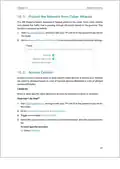


&KDSWHUꢁꢔ
ꢂꢈHVWꢃꢋHWꢅRUN
7KLVꢁIXQFWLRQꢁDOORZVꢁ\RXꢁWRꢁSURYLGHꢁ:Lꢅ)LꢁDFFHVVꢁIRUꢁꢋXHVWVꢁ ZLWKRXWꢁ GLVFORVLQꢋꢁ\RXUꢁ
PDLQꢁQHWZRUNꢉꢁ:KHQꢁ\RXꢁKDYHꢁꢋXHVWVꢁLQꢁ\RXUꢁKRXVHꢘꢁDSDUWPHQWꢘꢁRUꢁZRUNSODFHꢘꢁ\RXꢁFDQꢁ
FUHDWHꢁDꢁꢋXHVWꢁQHWZRUNꢁIRUꢁWKHPꢉꢁ,QꢁDGGLWLRQꢘꢁ\RXꢁFDQꢁFXVWRPLꢐHꢁꢋXHVWꢁQHWZRUNꢁRSWLRQVꢁ
WRꢁHQVXUHꢁQHWZRUNꢁVHFXULW\ꢁDQGꢁSULYDF\ꢉ
,WꢁFRQWDLQVꢁWKHꢁIROORZLQꢋꢁVHFWLRQVꢙ
rꢁ &UHDWHꢁDꢁ1HWZRUNꢁIRUꢁ*XHVWV
rꢁ &XVWRPLꢐHꢁ*XHVWꢁ1HWZRUNꢁ2SWLRQV

| General | Details |
|---|---|
| Name | TP-Link AX3000 High Power Gigabit Wi-Fi 6 Router User Guide |
| Make | TP-Link |
| Language | English |
| Filetype | PDF (Download) |
| File size | 1.84 MB |
 (1 votes, average: 5.00 out of 5)
 Loading...
If you have any questions regarding TP-Link AX3000 High Power Gigabit Wi-Fi 6 Router User Guide, please ask here and describe the problem in detail.

TP-Link VR300 Archer Modem Router User Guide

TP-Link T150500-2-DT WiFi Router Instruction Manual

TP-Link Archer AX55 Wi-Fi 6 Router Installation Guide

TP-Link Omada ER8411 VPN Router Instructions

TP-Link Configure VDSL Router User Guide

TP-Link Archer BE805 BE19000 Tri-Band Wi-Fi 7 Router User Manual

TP-Link AC750 Wireless Dual Band Router Owner’s Manual

TP-Link AX6000 8-Stream Wi-Fi 6 Router Installation Guide

TP-Link VR600 Wireless DSL Modem Router Installation Guide

TP-Link AX58 Dual Band Gigabit Wi-Fi 6 Router Installation Guide


JUNIPer SSR120 Session Smart Router User Guide

TP-Link NX200 5G CPE Router Installation Guide

ASUS AC1750 WiFi Dual Band Wireless Internet Router User Guide

STARLINK Mini Kit Dish With Router User Guide

SEALEY CP20VTR Cordless Trimming Router Instruction Manual

Zyxel Nebula FWA510 5G LTE Modem Router User Guide

CNCU E550 EasyRoute CNC Router Instructions

netgate 8200 Secure Router User Manual

Edge-core AS7926-40XKFB 100G Aggregation Router User Guide

RV WI-FI 2024 V3 DishyDock Router User Manual
Table of Contents
- 1. The Html Code Provided Does Not Contain Any Clear Subheading... →
- 2. Installation - Configuration →
- 3. Installation - Configuration →
- 4. Installation - Setup →
- 5. Installation - Configurations →
- 6. Installation - Setup →
- 7. Product Overview - Appearance →
- 8. Installation - Setup →
- 9. Installation - Configuration →
- 10. Installation Instructions - Power On/off Setup →
- 11. Positioning Your Router - Connect Your Router →
- 12. Connect The Hardware - Position Your Router →
- 13. Connect The Hardware - Turn On The Modem And Wait About Minu... →
- 14. Connect The Hardware - Settings →
- 15. Page 15 →
- 16. Installation - Setup →
- 17. How To Connect Your Router To The Internet - Quick Setup Wiz... →
- 18. Setupinternetconnect... - Quicksetupguide →
- 19. Hw8s,qwhuqhw&rqqhfwlrq - Wkh Vhwxs Dqg Frqqhfw Wr Wkh Lqwhuq... →
- 20. Setup - Installation →
- 21. Hw8s,qwhuqhw&rqqhfwl... - Hfrqgdu&rqqhfwlrq →
- 22. Hw8s,qwhuqhw&rqqhfwl... - Hw8s,wkh5rxwhu →
- 23. Setup8sinterface - Warning →
- 24. Setupupinternetconne... - Warning →
- 25. Hw8p,qwhuqhw&rqqhfwl... - &rqilxuh/1sruwv →
- 26. Introduction - How To Re-register A New 73μ/lqn, 1bind Or Un... →
- 27. Installation Instructions - Setup Process →
- 28. Installation - Setup →
- 29. Installation Of The App - Setup Of The Router →
- 30. Installation Of The App - Connecting Your Device To The Rout... →
- 31. Specify:wirlesssetti... - Schedule:yourwireles... →
- 32. Wireless Settings - Router's Wireless Network Name →
- 33. Wireless Settings - Enable Smart Connect →
- 34. Wireless Settings - Recommended To Leave It As Default →
- 35. Wireless Settings - Use Wps For Wireless Connection →
- 36. Installation - Configuration →
- 37. Installation - Configuration →
- 38. Create A Network For Guests - Customize Guest Network Option... →
- 39. Create A Network For Guests - Select The Security Type And C... →
- 40. * Installation Options - * Configuration Options →
- 41. Network Security - Parental Controls →
- 42. Warning - Network Security →
- 43. Homeshield - Child Protection →
- 44. Installation Instructions - Setup Requirements →
- 45. Setup Up A Onemesh Network - Manage Devices In The Onemesh N... →
- 46. Installation - Setup →
- 47. Connect A One Mesh Extender To This Router By Following The ... →
- 48. Installation - Configuration →
- 49. Installation Instructions - Device Information →
- 50. Protectyourhomenetworkfromcyberattacks - Accessyournetworkus... →
- 51. Network Security - Protect The Network From Attacks →
- 52. Network Security - Select Devices You Want To Be Blocked →
- 53. Network Security - Operation Success Message →
- 54. Network Security - Installation →
- 55. Network Security - Installing The Unconnected Device →
- 56. The Html Code Does Not Contain Any Relevant Subheadings Or S... →
- 57. Installation Of The Router - Configuration Of The Local Netw... →
- 58. Installation - Setup →
- 59. Installation Instructions - Configuration Settings →
- 60. Installation Instructions - Setup Process →
- 61. Installation Requirements - Configuration Steps →
- 62. Installation - Configuration →
- 63. Installation - Setup →
- 64. Virtual Private Network Server - Setup 931 Connection →
- 65. Shq931frqqhfwlrq - Lqvwdoo →
- 66. Installation Steps - Configuration For Remote Access →
- 67. Installation Instructions - Configuration Steps →
- 68. Remote Device Configuration - Software To Connect To 3373 Se... →
- 69. Useminternet Connection - Enter The Internet Ip Address Of T... →
- 70. Installation - Setup →
- 71. The Provided Html Code Does Not Contain Any Relevant Subhead... →
- 72. Installation Instructions - Configure The L1n Settings →
- 73. Installation - Setup →
- 74. Connect Your Network Settings - Select The Appropriate Mode →
- 75. Installation - Configuration →
- 76. Installation Instructions - Enter The Ip Address →
- 77. Installation Setup - User Network Settings →
- 78. Installation - Configuration →
- 79. Network Settings - Subnet Mask →
- 80. Sudghwkh)lupwduh - Hw6vwhp7lphdqg/dqxdw... →
- 81. Installation Instructions - Setup Guide →
- 82. Installation Instructions - User Name And Password Setup →
- 83. Installation Instructions - Configuration Settings →
- 84. Installation Process - Reset The Router →
- 85. Installation Instructions - Configuration Steps →
- 86. Installation - Accessing The Router →
- 87. Installation - Configuration →
- 88. Installation Of Remote Management - Selecting Devices For Re... →
- 89. Installation - Configuration →
- 90. Installation - Setup →
- 91. Email - Select Required Password →
- 92. Installation - Configuration →
- 93. Installation - Setup →
- 94. Installation Instructions - Setup Time →
- 95. Select The Correct Start Date And Time When Daylight Savings... →
- 96. Installation - Setup →
- 97. The Provided Html Code Does Not Contain Any Subheadings Or R... →
- 98. Connect Your Computer To The Router Using An Ethernet Cable ... →
- 99. Installation - Setup →
- 100. Installation - Configuration →
- 101. Poweroffyourmodemandrouter - Poweronyourmodemfirstandwaitabo... →
- 102. Installation - Configuration →
- 103. Power On Your Modem And Router - Power On The Router →
- 104. Installation - Configuration →
- 105. Connect - Security Key Installation →
- 106. Installation - Configuration →
- 107. Installation Requirements - Compliance With Fcc Requirements →
- 108. Installation - Configuration →
- 109. Installation Of Configuration - Requirements And Other Relev... →
- 110. Installation - Configuration →
- 111. Page 111 →
- 112. Установка - Безпека →
- 113. Installation - Setup →