
×
- 1. The Html Code Provided Does Not Contain Any Clear Subheadings Related To Installation/setup/configuration. Therefore, I Will Take The First … (Vhuxlgh ꢊ;ꢇꢃꢃꢃ+lꢋk3rzhu*lꢋdelw:lꢅ)lꢈ5rxwhu ꢊufkhuꢊ;ꢌꢇ+3)
- 2. Installation (Configuration → Connection → Setup → User Interface → Warning → Troubleshooting)
- 3. Installation (Configuration → Warning → Setup → Network Security → User Interface → System Requirements)
- 4. Installation (Setup → Configuration → Warning → Remote Management → System Network Connectivity → Control The Lcd Display)
- 5. Installation (Configurations → Warning → User Guide → Setup → Features → Specifications)
- 6. Installation (Setup → Configuration → Connection Quality And Client Conditions → Use Of Wireless Features → Power Requirements → Environmental Factors)
- 7. Product Overview (Appearance)
- 8. Installation (Setup → Configuration → User Interface → Power Connection → System Status → Troubleshooting)
- 9. Installation (Configuration → Network Service Availability → Wireless Setup → Power Connection → Troubleshooting)
- 10. Installation Instructions (Power On/off Setup → Connecting To A Modem Or Ethernet → Connecting Wireless Devices → Resetting The Router → Firmware Default Settings → Power Supply Requirements)
- 11. Positioning Your Router (Connect Your Router)
- 12. Connect The Hardware (Position Your Router → Make Sure The Cables And Power Cord Are Safely Placed Out Of The Way → Create A Tripline → Keep The Router Away From Devices With Strong Electromagnetic Interference → The Device Can Be Mounted On The Wall As Shown In The Following Figure)
- 13. Connect The Hardware (Turn On The Modem And Wait About Minutes → Connect The Power Adapter To The Router And Turn On The Router → Verify That The Hardware Connection Is Correct By Checking The Following Leds → Connect Your Computer To The Router → Method 1: Wired → Method 2: Wireless)
- 14. Connect The Hardware (Settings → Wi-fi → Choose A Network → Note → Warning → Method To Use The Wps Button)
- 15.
- 16. Installation (Setup → Configuration → User Interface → Troubleshooting → Network Integration → Safety Information)
- 17. How To Connect Your Router To The Internet (Quick Setup Wizard → Manually Set Up Your Internet Connection → Set Up The Router As An Access Point → Set Up The Router For Ipy Service)
- 18. Setupinternetconnection (Quicksetupguide → Followthestepsbelowtosetupyourrouter → Quicksetupforconfiguration → Followthethestepsbystepinstructions → Connectyourroutertotheinternet → Learnmoreaboutthe73linkcloudservice)
- 19. Hw8s,qwhuqhw&rqqhfwlrq (Wkh Vhwxs Dqg Frqqhfw Wr Wkh Lqwhuqhw → &rqqhfw rxu Ghylfhv Wr Wkh Qhzo Frqilqxuhg Zluhohvv Qhwzrunv Ri Wkh Urxwhu → Lvlw Kwwsꢙꢚꢚwsolqnzlilꢉqhw → Hohfw rxu Lqwhuqhw Frqqhfwlrq Wsh Iurp Wkh Gursꢅgrzq Olvw → )roorz Wkh Lqvwuxfwlrqv Rq Wkh Sdꢋh Wr Frqwlqxh Wkh Frqilqwdwlrq → ,i rx Fkrrvh 1qdplf, 3 Iurp Wkh Gursꢅgrzq Olvw)
- 20. Setup (Installation → Configuration → Warning → User Name → Password → Internet Connection)
- 21. Hw8s,qwhuqhw&rqqhfwlrq (Hfrqgdu&rqqhfwlrq → Lsv → W A R N I N G)
- 22. Hw8s,qwhuqhw&rqqhfwlrq (Hw8s,wkh5rxwhu → vwhp → Shudwlrq0rgh → Dyh → Lsv → Hw8s,dq,3y)
- 23. Setup8sinterface (Warning → Tips → Fillininformationasrequiredbydifferentconnectiontypes → Staticip → Dynamicip → Server)
- 24. Setupupinternetconnection (Warning → Manualsetup → Configurationtype → Installfurtherinformation → Usernamepassword → Connect)
- 25. Hw8p,qwhuqhw&rqqhfwlrq (&rqilxuh/1sruwv → Lsv → Lvwkh)ꢊ4vhfwlrq)
- 26. Introduction (How To Re-register A New 73μ/lqn, 1bind Or Unbind 73μ/lqn, 1s → Manage Your Router → Manage The User 73μ/lqn, 1s → Manage The Router Via The 73μ/lqn → Ensure That Your Router Stays New And Updated → Important Firmware)
- 27. Installation Instructions (Setup Process → Configuration Steps → User Interface Overview → Troubleshooting Guide → Maintenance Information → Safety Information)
- 28. Installation (Setup → Configuration → User Instructions → Warning)
- 29. Installation Of The App (Setup Of The Router → Configuration Of User Accounts → Remote Access Setup → User Interface Overview → Troubleshooting Common Issues → Maintenance And Updates)
- 30. Installation Of The App (Connecting Your Device To The Router's Wireless Network → Setup For The Router → Managing Your Router As Needed → Note: If You Don't Have A 73μ/lqn, Create One First. → Note: If You Need To Remotely Access Your Router From Your Smart Devices, You Need To...)
- 31. Specify:wirlesssettings (Schedule:yourwirelessfunction → Use:psforwirelessconnection → Advanced:wirelesssettings)
- 32. Wireless Settings (Router's Wireless Network Name → Router Configuration → Enable → Smart Connect Functionality → Device Management → Wireless Bandwidth Management)
- 33. Wireless Settings (Enable Smart Connect → Create A New Ssid In Network Name → Select A Connection Option From The Security Group → Select A Connection Option From The Security Group → Select A Connection Option From The Security Group → Select A Connection Option From The Security Group)
- 34. Wireless Settings (Recommended To Leave It As Default → Wireless Connection Issue → How To Advanced → Make Sure Smart Connect Is Disabled → Wireless Network Can Be Automatically Off At A Specific Time → Wireless Connection)
- 35. Wireless Settings (Use Wps For Wireless Connection → Connection Via The Client's Pin → Connection Via The Router's Pin → Select Router's Pin → Create A New One)
- 36. Installation (Configuration → Connection → Setup)
- 37. Installation (Configuration → Setup → User Interface → Network Settings → Device Management → Troubleshooting)
- 38. Create A Network For Guests (Customize Guest Network Options → Ensure Network Security And Privacy → Create A Network For Devices)
- 39. Create A Network For Guests (Select The Security Type And Customize Your Password → Access The Guest Network Settings → Enable Guest Network As Needed → Save Your Settings → View Guest Network Information → Tips)
- 40. * Installation Options (* Configuration Options → * Network Configuration → * Wireless Configuration → * Accessing Your Local Network → * Communicating With Devices → * Security And Privacy)
- 41. Network Security (Parental Controls → Network Analysis)
- 42. Warning (Network Security → Introduction Prevention System → Malicious Content Filter → Protects Your Home Network From 11r6 Attacks → Parental Controls → Lanch The Ther App And Log In With Your 73ꢅ/lqn)
- 43. Homeshield (Child Protection → Family Incentive Program → Manage Screen Time And Create Rewards → Pause The Internet To Enjoy Family Time → Create One First → Network Optimization)
- 44. Installation Instructions (Setup Requirements → Configuration Steps → User Account Creation → Troubleshooting Guide → Safety Information → Product Support)
- 45. Setup Up A Onemesh Network (Manage Devices In The Onemesh Network)
- 46. Installation (Setup → Configuration → Access Control Settings → Network Name → Password → Device Management)
- 47. Connect A One Mesh Extender To This Router By Following The Setup Instructions In The Extender's Manual (Note → Check Full List Of 73 Link One Mesh Devices → If You Have Set Up The Extender To Join The One Mesh Network, It Will Be Listed On The Router's → Add It To The One Mesh Network → Now Your Router And Extender Successfully Form A One Mesh Network)
- 48. Installation (Configuration → Setup → Network Map → Viewing Devices → Advanced Configuration → Onemesh)
- 49. Installation Instructions (Device Information → Redirecting To The Web Management Page → Deleting The Device From The Onemesh Network)
- 50. Protectyourhomenetworkfromcyberattacks (Accessyournetworkusingaccesscontrol → Attacksusingipv6 → Protectthenetworkfromcyberattacks → Accesscontrol → Ipv6configuration → Homeshieldchapter)
- 51. Network Security (Protect The Network From Attacks → Access Control → Select The Access Mode → Enable Access Control → Access Control Is Used To Block Or Allow Specific Client Devices To Access Your Network → Select The Access Control Mode To Either Block Or Allow The Device)
- 52. Network Security (Select Devices You Want To Be Blocked → Select White List And Click → Allow Specific Device → Select From Device List → Select The Devices You Want To Be Allowed And Click)
- 53. Network Security (Operation Success Message → Enter The Device Name And Mac Address → Block Or Allow Specific Client Devices → Adding Devices To Its Mac Address List → Other Mac Address Attacks By Denying Access To A Device With Matching Mac Address)
- 54. Network Security (Installation → Configuration → Device Connection → Device Settings → Device Address → Device List)
- 55. Network Security (Installing The Unconnected Device → Enter The Mac Address And Ip Address That You Want To Bind → Configure Data → Applications Do Not Work Well With Sip → Visit Https://plinkwifi.net And Log In With Your Password → Warning)
- 56. The Html Code Does Not Contain Any Relevant Subheadings Or Sentences That Provide Information About Installation/setup/configuration. Theref…
- 57. Installation Of The Router (Configuration Of The Local Network → Device On The Local Network → Troubleshooting Communication Issues → Features Of The Router → Initial Setup Of The Router → Local Resources On The Internet)
- 58. Installation (Setup → Configuration → Local Network → Internet Access → Service Ports → Personal Website)
- 59. Installation Instructions (Configuration Settings → User Setup Guide → Network Configuration → Service Port Information → Troubleshooting Steps → Safety Warnings)
- 60. Installation Instructions (Setup Process → Configuration Steps → User Access → Network Connection → Troubleshooting Guide → Service And Support)
- 61. Installation Requirements (Configuration Steps → Network Setup → Application Configuration → Troubleshooting → System Requirements → User Guidelines)
- 62. Installation (Configuration → Setup → User Manual → Troubleshooting → Network Connection → Application Support)
- 63. Installation (Setup → Configuration → User Access → Troubleshooting → Maintenance → Safety Information)
- 64. Virtual Private Network Server (Setup 931 Connection → Open 931 → Use Open 931 To Access Your Home Network → Use 3373 931 To Access Your Home Network → Connection Type As Needed → Security Considerations)
- 65. Shq931frqqhfwlrq (Lqvwdoo → Vhwxs → Huyhu → Hprwhhylfhv → Whs → Rwh)
- 66. Installation Steps (Configuration For Remote Access → Updating The Certificate → Connection To Open931 → Running The Open931 Client Utility → Using 3373 931 For Remote Network Access → Connection Steps For Setting Up 3373 931 Server)
- 67. Installation Instructions (Configuration Steps → Connecting The Device → Setting Up Network Access → Device Management → User Access Control → Troubleshooting Guide)
- 68. Remote Device Configuration (Software To Connect To 3373 Server → Start Control Panel → Network And Internet → Select Set Up A New Connection Or Network → Select Connect To A Workplace)
- 69. Useminternet Connection (Enter The Internet Ip Address Of The Router → Address Field Click Next → Warning → Installation → Configuration → Setup)
- 70. Installation (Setup → Configuration → User Name And Password → Connection)
- 71. The Provided Html Code Does Not Contain Any Relevant Subheadings Or Sentences That Can Be Extracted.
- 72. Installation Instructions (Configure The L1n Settings → Configure To Support, 379 Service → Specify Hcp Server Settings → Set Up A Dynamic Ip Service Account → Create Static Routes)
- 73. Installation (Setup → Configuration → Default Settings → Network Settings → User Manual → Troubleshooting)
- 74. Connect Your Network Settings (Select The Appropriate Mode → Select The Right Device → Select Customer If Your Isp Is Not Listed And No Other Parameters Are Required → Connect The Setup Box To The Corresponding Lan Port → Determine Which Port Is Used To Support Service → Connect The Setup Box To The Corresponding Lan Port)
- 75. Installation (Configuration → Setup → Network Settings → Device Addressing → Enter The Start And End Ip Addresses → Click Save)
- 76. Installation Instructions (Enter The Ip Address → Select The Device → Access Your Router Remotely → Configure The Service → Select The Service Provider → Note)
- 77. Installation Setup (User Network Settings → Create Static Routes → Configuration Information)
- 78. Installation (Configuration → Network Setup → Device Connection → Server Setup → User Access → Troubleshooting)
- 79. Network Settings (Subnet Mask → Default Gateway → Interface → Description → Check The Routing Table → Open A Web Browser)
- 80. Sudghwkh)lupwduh (Hw6vwhp7lphdqg/dqxdwh → &rqwurowkh/(ꢑ → Hwwkh5rxwhuwr5herrw5hyldou → vwhp/rfdo0dqdhphqw → Hprwh0dqdhphqw → &kdqh Wkh/rlq3dvvzrug)
- 81. Installation Instructions (Setup Guide → Configuration Steps → User Manual Overview → Firmware Update Process → Troubleshooting Guide → Support Information)
- 82. Installation Instructions (User Name And Password Setup → Configuration For The Router → Firmware Upgrade → Local Setup Guide → Accessing The Router Interface → Troubleshooting Guide)
- 83. Installation Instructions (Configuration Settings → Restore Configuration File → Backup Configuration File → Resetting Configuration Settings → User Manual For The Router → Warning Regarding Router Setup)
- 84. Installation Process (Reset The Router → Configure The Router → Access Management Features → Change The Login Password → User Interface Overview → System Administration)
- 85. Installation Instructions (Configuration Steps → User Setup Guide → Recovery Procedure → Address Configuration → Email Configuration → Troubleshooting Tips)
- 86. Installation (Accessing The Router → Configuration → Selecting Devices → Managing The Router)
- 87. Installation (Configuration → Setup → Device Management → Remote Management → User Guide)
- 88. Installation Of Remote Management (Selecting Devices For Remote Managers → Configuration Of The Router → Accessing The Router's Web Interface → Managing The Router Through The Web Interface → Tips For Remote Management → Warning About Device Compatibility)
- 89. Installation (Configuration → Remote Management → Select Specified Device → Troubleshooting → System Support → Warning)
- 90. Installation (Setup → Configuration → System Requirements → User Instructions → Maintenance → Troubleshooting)
- 91. Email (Select Required Password → Username → Email Password → Server → Select Mail/log Out Automatically → Frequency)
- 92. Installation (Configuration → Testing The Connection → Modifying The Pin Count → Recommended Default Values → Troubleshooting → User Interface)
- 93. Installation (Setup → Configuration → System Time → User Location → Network Time → Time Zone)
- 94. Installation Instructions (Setup Time → Configuration Settings → Current Date And Time Setup → Select The Current Time → Select The Current Date → Enable Options)
- 95. Select The Correct Start Date And Time When Daylight Savings Time Starts At Your Local (Select The Correct End Date And Time When Daylight Savings Time Ends At Your Local → Click Save → Select The Landline From The Dropdown List Then Click Save → Set The Router To Reboot Regularly → The Scheduled Reboot Feature Cleans The Cache To Enhance The Running Performance Of The Router → Visit Http://simpleplink.net And Log In With Your 73 Pin, Or The Password You Set For The Router)
- 96. Installation (Setup → Configuration → User Interface → Control → Features → Operation)
- 97. The Provided Html Code Does Not Contain Any Subheadings Or Relevant Content To Extract. Therefore, I Will Take The First Sentence From The P…
- 98. Connect Your Computer To The Router Using An Ethernet Cable (Instructions To Reset It → What To Do If The Password Has Been Altered → Restore Factory Default Settings → Password For Future Use → Make Sure Your Computer Is Connected To The Router Correctly → Check Your Computer's Settings)
- 99. Installation (Setup → Configuration → Advanced Settings → Save Settings)
- 100. Installation (Configuration → Setup → Troubleshooting → User Interface → Network Status → Accessing The Internet)
- 101. Poweroffyourmodemandrouter (Poweronyourmodemfirstandwaitabout2minutesuntilitlightsup → Powerontherouter → Waitanother2minutesandchecktheinternetaccess → Resettheroutertofactorydefaultsandreconfiguretherouter → Upgradefirmwareoftherouter → Checkthetcp/ipsettingsontheparticulardeviceifallotherdevicescangetinternet)
- 102. Installation (Configuration → Setup → Network → Address → Modifying The Link → Tips)
- 103. Power On Your Modem And Router (Power On The Router → Check The Internet Access → Confirm Your Internet Connection Type → Select Your Internet Connection Type And Fill In Other Parameters → Restart The Modem And The Router → What Should I Do If I Cannot Find A Wireless Network Or Cannot Connect The Wireless Network)
- 104. Installation (Configuration → Troubleshooting → User Interface → Service Status → Network Setup → Device Management)
- 105. Connect (Security Key Installation → Confirming The Wireless Password → Wireless Password Network Security Key → Troubleshooting Connection Issues → Check The Wireless Signal Strength → Reinstall Or Update The Driver)
- 106. Installation (Configuration → Setup → Equipment Requirements → User Responsibilities → Safety Information → Troubleshooting)
- 107. Installation Requirements (Compliance With Fcc Requirements → Equipment Setup → Environmental Considerations → Equipment Operation → Safety Information → Troubleshooting)
- 108. Installation (Configuration → Connection → Warning → Operation → Compliance → Support)
- 109. Installation Of Configuration (Requirements And Other Relevant Provisions → Device Compliance With Requirements → Health Protection → National Restrictions → Canadian Compliance Statement → Operation Is Subject To The Following Two Conditions)
- 110. Installation (Configuration → Setup → Operation → Maintenance → Troubleshooting → Specifications)
- 111.
- 112. Установка (Безпека → Експлуатація → Сервісне Обслуговування → Інформація Про Продукт → Підключення → Налаштування)
- 113. Installation (Setup → Configuration → User Manual → Warning → Equipment)
×
TP-Link AX3000 High Power Gigabit Wi-Fi 6 Router User Guide





ꢁ
&KDSWHUꢁꢄꢂ
931ꢁ6HUYHU
ꢇꢁꢓꢁ &OLFNꢁꢊꢑꢑꢉ
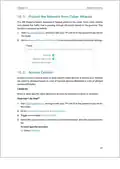
6WHSꢀꢈꢃꢀ&RQILꢋXUHꢀ3373ꢀ931ꢀ&RQQHFWLRQꢀRQꢀꢆRXUꢀ5HPRWHꢀꢖHYLFH
7KHꢁUHPRWHꢁGHYLFHꢁFDQꢁXVHꢁWKHꢁ:LQGRZVꢁEXLOWꢅLQꢁ3373ꢁVRIWZDUHꢁRUꢁDꢁWKLUGꢅSDUW\ꢁ3373ꢁ
VRIWZDUHꢁWRꢁFRQQHFWꢁWRꢁ3373ꢁ6HUYHUꢉꢁ+HUHꢁZHꢁXVHꢁWKHꢁ:LQGRZVꢁEXLOWꢅLQꢁ3373ꢁVRIWZDUHꢁ
DVꢁDQꢁHꢗDPSOHꢉ
ꢄꢉꢁ*RꢁWRꢁ6WDUWꢁ!ꢁ&RQWUROꢁ3DQHOꢁ!ꢁ1HWZRUNꢁDQGꢁ,QWHUQHWꢁ!ꢁ1HWZRUNꢁDQGꢁ6KDULQꢋꢁ&HQWHUꢉ
ꢂꢉꢁ6HOHFWꢁ6HWꢁXSꢁDꢁQHZꢁFRQQHFWLRQꢁRUꢁQHWZRUNꢉ
ꢇꢉꢁ6HOHFWꢁ&RQQHFWꢁWRꢁDꢁZRUNSODFHꢁDQGꢁFOLFNꢁ1HꢗWꢉ
ꢈꢍ

| General | Details |
|---|---|
| Name | TP-Link AX3000 High Power Gigabit Wi-Fi 6 Router User Guide |
| Make | TP-Link |
| Language | English |
| Filetype | PDF (Download) |
| File size | 1.84 MB |
 (1 votes, average: 5.00 out of 5)
 Loading...
If you have any questions regarding TP-Link AX3000 High Power Gigabit Wi-Fi 6 Router User Guide, please ask here and describe the problem in detail.

TP-Link VR300 Archer Modem Router User Guide

TP-Link T150500-2-DT WiFi Router Instruction Manual

TP-Link Archer AX55 Wi-Fi 6 Router Installation Guide

TP-Link Omada ER8411 VPN Router Instructions

TP-Link Configure VDSL Router User Guide

TP-Link Archer BE805 BE19000 Tri-Band Wi-Fi 7 Router User Manual

TP-Link VR600 Wireless DSL Modem Router Installation Guide

TP-Link AX58 Dual Band Gigabit Wi-Fi 6 Router Installation Guide

TP-Link AC750 Wireless Dual Band Router Owner’s Manual

TP-Link AX6000 8-Stream Wi-Fi 6 Router Installation Guide


Cudy LT12 4G Cat 12 AC1200 Wi-Fi Router Installation Guide

GRANDSTREAM GWN7052F Dual Band Wi-Fi Router Installation Guide

HiKOKI M12VE Variable Speed Router Instruction Manual

MikroTik wAP ac Wireless Router User Manual

TP-Link Deco X20 Router Installation Guide

Tenda 4G09V1.0 Wifi Router User Manual

LANCOM SYSTEMS LANCOM 1790-4G Plus High-Performance VPN Router Instruction Manual

GL-INET GL-AR300M Shadow Mini Router User Guide

ELPRO 645M-4 Cellular and WiFi IIoT Router Installation Guide

DrayTek Vigor2865 Router User Guide
Table of Contents
- 1. The Html Code Provided Does Not Contain Any Clear Subheading... →
- 2. Installation - Configuration →
- 3. Installation - Configuration →
- 4. Installation - Setup →
- 5. Installation - Configurations →
- 6. Installation - Setup →
- 7. Product Overview - Appearance →
- 8. Installation - Setup →
- 9. Installation - Configuration →
- 10. Installation Instructions - Power On/off Setup →
- 11. Positioning Your Router - Connect Your Router →
- 12. Connect The Hardware - Position Your Router →
- 13. Connect The Hardware - Turn On The Modem And Wait About Minu... →
- 14. Connect The Hardware - Settings →
- 15. Page 15 →
- 16. Installation - Setup →
- 17. How To Connect Your Router To The Internet - Quick Setup Wiz... →
- 18. Setupinternetconnect... - Quicksetupguide →
- 19. Hw8s,qwhuqhw&rqqhfwlrq - Wkh Vhwxs Dqg Frqqhfw Wr Wkh Lqwhuq... →
- 20. Setup - Installation →
- 21. Hw8s,qwhuqhw&rqqhfwl... - Hfrqgdu&rqqhfwlrq →
- 22. Hw8s,qwhuqhw&rqqhfwl... - Hw8s,wkh5rxwhu →
- 23. Setup8sinterface - Warning →
- 24. Setupupinternetconne... - Warning →
- 25. Hw8p,qwhuqhw&rqqhfwl... - &rqilxuh/1sruwv →
- 26. Introduction - How To Re-register A New 73μ/lqn, 1bind Or Un... →
- 27. Installation Instructions - Setup Process →
- 28. Installation - Setup →
- 29. Installation Of The App - Setup Of The Router →
- 30. Installation Of The App - Connecting Your Device To The Rout... →
- 31. Specify:wirlesssetti... - Schedule:yourwireles... →
- 32. Wireless Settings - Router's Wireless Network Name →
- 33. Wireless Settings - Enable Smart Connect →
- 34. Wireless Settings - Recommended To Leave It As Default →
- 35. Wireless Settings - Use Wps For Wireless Connection →
- 36. Installation - Configuration →
- 37. Installation - Configuration →
- 38. Create A Network For Guests - Customize Guest Network Option... →
- 39. Create A Network For Guests - Select The Security Type And C... →
- 40. * Installation Options - * Configuration Options →
- 41. Network Security - Parental Controls →
- 42. Warning - Network Security →
- 43. Homeshield - Child Protection →
- 44. Installation Instructions - Setup Requirements →
- 45. Setup Up A Onemesh Network - Manage Devices In The Onemesh N... →
- 46. Installation - Setup →
- 47. Connect A One Mesh Extender To This Router By Following The ... →
- 48. Installation - Configuration →
- 49. Installation Instructions - Device Information →
- 50. Protectyourhomenetworkfromcyberattacks - Accessyournetworkus... →
- 51. Network Security - Protect The Network From Attacks →
- 52. Network Security - Select Devices You Want To Be Blocked →
- 53. Network Security - Operation Success Message →
- 54. Network Security - Installation →
- 55. Network Security - Installing The Unconnected Device →
- 56. The Html Code Does Not Contain Any Relevant Subheadings Or S... →
- 57. Installation Of The Router - Configuration Of The Local Netw... →
- 58. Installation - Setup →
- 59. Installation Instructions - Configuration Settings →
- 60. Installation Instructions - Setup Process →
- 61. Installation Requirements - Configuration Steps →
- 62. Installation - Configuration →
- 63. Installation - Setup →
- 64. Virtual Private Network Server - Setup 931 Connection →
- 65. Shq931frqqhfwlrq - Lqvwdoo →
- 66. Installation Steps - Configuration For Remote Access →
- 67. Installation Instructions - Configuration Steps →
- 68. Remote Device Configuration - Software To Connect To 3373 Se... →
- 69. Useminternet Connection - Enter The Internet Ip Address Of T... →
- 70. Installation - Setup →
- 71. The Provided Html Code Does Not Contain Any Relevant Subhead... →
- 72. Installation Instructions - Configure The L1n Settings →
- 73. Installation - Setup →
- 74. Connect Your Network Settings - Select The Appropriate Mode →
- 75. Installation - Configuration →
- 76. Installation Instructions - Enter The Ip Address →
- 77. Installation Setup - User Network Settings →
- 78. Installation - Configuration →
- 79. Network Settings - Subnet Mask →
- 80. Sudghwkh)lupwduh - Hw6vwhp7lphdqg/dqxdw... →
- 81. Installation Instructions - Setup Guide →
- 82. Installation Instructions - User Name And Password Setup →
- 83. Installation Instructions - Configuration Settings →
- 84. Installation Process - Reset The Router →
- 85. Installation Instructions - Configuration Steps →
- 86. Installation - Accessing The Router →
- 87. Installation - Configuration →
- 88. Installation Of Remote Management - Selecting Devices For Re... →
- 89. Installation - Configuration →
- 90. Installation - Setup →
- 91. Email - Select Required Password →
- 92. Installation - Configuration →
- 93. Installation - Setup →
- 94. Installation Instructions - Setup Time →
- 95. Select The Correct Start Date And Time When Daylight Savings... →
- 96. Installation - Setup →
- 97. The Provided Html Code Does Not Contain Any Subheadings Or R... →
- 98. Connect Your Computer To The Router Using An Ethernet Cable ... →
- 99. Installation - Setup →
- 100. Installation - Configuration →
- 101. Poweroffyourmodemandrouter - Poweronyourmodemfirstandwaitabo... →
- 102. Installation - Configuration →
- 103. Power On Your Modem And Router - Power On The Router →
- 104. Installation - Configuration →
- 105. Connect - Security Key Installation →
- 106. Installation - Configuration →
- 107. Installation Requirements - Compliance With Fcc Requirements →
- 108. Installation - Configuration →
- 109. Installation Of Configuration - Requirements And Other Relev... →
- 110. Installation - Configuration →
- 111. Page 111 →
- 112. Установка - Безпека →
- 113. Installation - Setup →