
Home > TP-Link > TP-Link Omada Gigabit VPN Router with PoE+ Ports and Controller Ability Installation Guide
TP-Link Omada Gigabit VPN Router with PoE+ Ports and Controller Ability Installation Guide
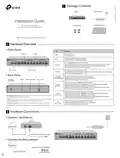


Package Contents
1
Power Adapter
Router
Installation Guide
Installation Guide
Omada Gigabit VPN Router
Rubber Feet
with PoE+ Ports and Controller Ability
Note: The image may differ from the actual product.
Hardware Overview
2
Front Panel
LED
Indication
Speed LED
PoE LED
On: Power is on.
Off: Power is off.
PWR
Flashing: System is running normally.
On/Off: System is running abnormally.
SYS
On: The device is bound to a TP-Link ID.
Slow Flashing: The device is connected to cloud but not bound to a TP-Link ID.
Quick Flashing: The device is being reset to its factory default settings.
Off: The device is disconnected from cloud.
CLOUD
LED SFP Slot
1 Gbps RJ45 Port
On: The remaining PoE power is ≤ 7 W.
Flashing: The remaining PoE power keeps ≤ 7 W after this LED is on for 2 minutes.
Off: The remaining PoE power is > 7 W.
PoE Max
Back Panel
Green On: Connecting to a device but no activity.
Off: No device connected to the corresponding port.
Flashing: Transmitting or receiving data.
Link/Act
(SFP WAN/LAN)
Grounding Terminal Power Socket
Kensington
RESET
Security Slot
Green On: Running at 1000 Mbps, but no activity.
Green Flashing: Running at 1000 Mbps and transmitting or receiving data.
Amber On: Running at 100/10 Mbps, but no activity.
Amber Flashing: Running at 100/10 Mbps and transmitting or receiving data.
Off: No device is linked to the corresponding port.
Link/Act
(Port 3-4)
Green On: Running at 1000 Mbps, but no activity.
Green Flashing: Running at 1000 Mbps and transmitting or receiving data.
Amber On: Running at 100/10 Mbps, but no activity.
Amber Flashing: Running at 100/10 Mbps and transmitting or receiving data.
Off: No device is linked to the corresponding port.
Speed
(Port 5-12)
Kensington Security Slot: Secure the lock (not provided) into the security slot
to prevent the device from being stolen.
RESET: Press and hold the button for 5 seconds, the SYS LED will flash quickly,
indicating the device is being reset to its factory default settings.
Green On: The port is supplying power normally.
Green Flashing: Overload or short circuit is detected.
Off: Not providing PoE power on the port.
PoE
(Port 5-12)
Grounding Terminal: The router comes with lightning protection mechanism.
Power Socket: Connect to the power outlet via the provided power adapter.
Hardware Connection
3
Connect via Ethernet
Modem
Internet
Connect to RJ45 WAN Port
Connect via fiber network
Internet
Connect to SFP WAN Slot
Fiber-Optic Cable
Optical Module


| General | Details |
|---|---|
| Name | TP-Link Omada Gigabit VPN Router with PoE+ Ports and Controller Ability Installation Guide |
| Make | TP-Link |
| Language | English |
| Filetype | PDF (Download) |
| File size | 0.48 MB |
 (1 votes, average: 5.00 out of 5)
 Loading...
If you have any questions regarding TP-Link Omada Gigabit VPN Router with PoE+ Ports and Controller Ability Installation Guide, please ask here and describe the problem in detail.

TP-Link VR300 Archer Modem Router User Guide

TP-Link T150500-2-DT WiFi Router Instruction Manual

TP-Link Archer AX55 Wi-Fi 6 Router Installation Guide

TP-Link Omada ER8411 VPN Router Instructions

TP-Link Configure VDSL Router User Guide

TP-Link Archer BE805 BE19000 Tri-Band Wi-Fi 7 Router User Manual

TP-Link VR600 Wireless DSL Modem Router Installation Guide

TP-Link AX58 Dual Band Gigabit Wi-Fi 6 Router Installation Guide

TP-Link AC750 Wireless Dual Band Router Owner’s Manual

TP-Link AX6000 8-Stream Wi-Fi 6 Router Installation Guide


Mercury NF18ACV-NC2-R6B023 Netcomm WiFi Router User Guide

Cudy LT12 4G Cat 12 AC1200 Wi-Fi Router Installation Guide

dahua AX1500 Wi-Fi6 Wireless Router Instruction Manual

TP-Link Archer MR505 Wireless Dual Band Gigabit Router Installation Guide

D-Link DIR-2660 AC2600 Mesh Wifi Router Installation Guide

JUNIPER SSR1400 Session Router User Guide
REYEE AX3000 Home Wi-Fi Router Instruction Manual

GL iNet GL-MT1300 AC1300 Wireless Travel Router User Manual

D-Link DIR-X5460 AX5400 Wi-Fi 6 Router User Guide

hitron CGNM-2250 Cable Modem Router User Guide