
TP-Link TL-WR902AC Wireless Portable Nano Travel Router Installation Guide
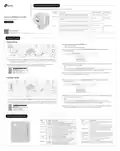


Determine Operation Mode
Refer to the following scenarios to determine an appropriate operation mode.
Operation Mode
Mode Switch
Scenario
I Want To...
The wired network is only limited to one device to connect at a
time and I want to share the internet with more wireless devices.
Router (Default Mode)
Share ETH
During Travel
Quick Installation Guide
I want to turn existing public Wi-Fi into a private network (wired and
wireless).
Hotspot
Share Hotspot
AC750 Wi-Fi Travel Router
Access Point
I want to turn the existing wired-only network into a wireless network.
TL-WR902AC
I am in a Wi-Fi "dead zone" or a place with weak wireless signal. I want
to expand an existing Wi-Fi network for a better internet connection.
Range Extender
Client
At Home
AP/Rng Ext/Client
I have a wired-only device, for example, a smart TV, media player, or
game console. I want to connect it to a Wi-Fi network.
Set up with videos
Scan the QR code, or visit
During Travel
Router Mode
3. Check whether the Internet LED
i
s
o
n
.
- If yes, skip to Step 6.
Internet
- If no, continue with the steps below.
password to log in.
A
B
C
D
Wired Network
Password
Confirm Password
Start
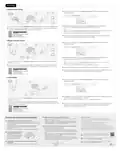
1. Switch the Mode Switch to Share ETH and connect the hardware from Step A to D.
Tip: If you are using a 3G/4G USB modem with a SIM/UIM card, plug the USB modem into the 3G/4G USB port
to transfer the 3G/4G signal to Wi-Fi.
5. Click Next to start the Quick Setup and then follow the step-by-step web instructions
2. Connect your device to the router’s Wi-Fi. The default SSID (network name) and
to set up the internet connection.
Wireless Password are printed on the label at the back of the router.
Notes:
Wireless
Password
If you are not sure about your WAN Connection Type, click Auto Detect.
You can customize your Wireless Network Name and Password for the 2.4GHz/5GHz wireless network during
the Quick Setup, but you need to reconnect your wireless devices to the new Wi-Fi network(s).
/PIN
XXXXXXXX
-
_
2.4G: TP Link XXXX
SSID
-
_
5G: TP Link XXXX_5G
6. Connect your own devices to the router’s Wi-Fi to enjoy the internet. The WAN/LAN
port functions as the WAN port in this mode.
Hotspot Mode
password to log in.
Password
Confirm Password
Start
Public Hotspot
A
B
4. Click Next to start the Quick Setup and then follow the step-by-step web instructions
to set up the internet connection.
Notes:
1. Switch the Mode Switch to Share Hotspot and connect the hardware from Step A to B.
If you are not sure about your WAN Connection Type, use Dynamic IP in most cases or consult the ISP.
You can customize your Local Network SSID and Password for the 2.4GHz/5GHz wireless network during the
Quick Setup, but you need to reconnect your wireless devices to the new Wi-Fi network(s).
2. Connect your device to the router wirelessly or via an Ethernet cable. The default SSID
(network name) and Wireless Password are printed on the label at the back of the router.
Wireless
Password
5. Connect your own device to the router wirelessly or via an Ethernet cable to enjoy the
internet. The WAN/LAN port functions as the LAN port in this mode.
/PIN
XXXXXXXX
-
_
2.4G: TP Link XXXX
SSID
-
_
5G: TP Link XXXX_5G
Hardware Information
Item
Description
LED
(Power)
Status
Indication
On/Off
Blinking
On/Off
The router is on or off.
The router is initializing or being upgraded.
The internet is available or unavailable.
This switch is used to change the operation
mode of the router.
Mode Switch
This port functions as the WAN port in Router
mode and as the LAN port in Hotspot, Range
Extender and Client modes. This port is for
connecting to the existinig router in Access
Point mode.
(Internet)
The WAN/LAN port is connected but internet is
unavailable when in Router or Access Point mode.
Blinking
On
WAN/LAN Port
The wireless network is enabled.
The router is connecting to the host network
when in Range Extender or Client mode.
Blinking
(Wireless)
(USB)
The port is used to connect the power adapter.
POWER Port
The wireless network is disabled.
A USB device is connected.
No USB device is connected.
Off
On
Off
To reset the router, use a pin to press and hold
the button until all the LEDs turn off.
RESET Button
This port is used for plugging in a 3G/4G
modem or USB drive.
3G/4G USB Port
This light stays on for 5 minutes when a WPS
connection is established, then goes off.
On
(WPS)
(
W
P
S
B
u
t
t
o
n
)
T
o
e
s
t
a
b
l
i
s
h
W
P
S
c
o
n
n
e
c
t
i
o
n
,
p
r
e
s
s
t
h
i
s
b
u
t
t
o
n
.
Blinking
W
P
S
c
o
n
n
e
c
t
i
o
n
i
s
i
n
p
r
o
g
r
e
s
s
.
Off
No WPS connection is established.

| General | Details |
|---|---|
| Name | TP-Link TL-WR902AC Wireless Portable Nano Travel Router Installation Guide |
| Make | TP-Link |
| Language | English |
| Filetype | PDF (Download) |
| File size | 0.38 MB |
 (1 votes, average: 5.00 out of 5)
 Loading...
If you have any questions regarding TP-Link TL-WR902AC Wireless Portable Nano Travel Router Installation Guide, please ask here and describe the problem in detail.

TP-Link VR300 Archer Modem Router User Guide

TP-Link T150500-2-DT WiFi Router Instruction Manual

TP-Link Archer AX55 Wi-Fi 6 Router Installation Guide

TP-Link Omada ER8411 VPN Router Instructions

TP-Link Configure VDSL Router User Guide

TP-Link Archer BE805 BE19000 Tri-Band Wi-Fi 7 Router User Manual

TP-Link VR600 Wireless DSL Modem Router Installation Guide

TP-Link AX58 Dual Band Gigabit Wi-Fi 6 Router Installation Guide

TP-Link AC750 Wireless Dual Band Router Owner’s Manual

TP-Link AX6000 8-Stream Wi-Fi 6 Router Installation Guide


Sagemcom FAST 5295 WiFi Router Instructions

ADVANTECH ICR-2531 LTE Router User Manual

eero SN10001 Outdoor 7 PoE Mesh Wi-Fi Router Installation Guide

JUNIPER SSR1400 Session Smart Router User Guide

Doonink FW40-WIFI Wi-Fi Router User Manual

ASUS XD4 Plus Dual Band Wi-Fi Router User Guide

ATEL WB550 Apex 5G CPE Router Owner’s Manual

ASUS ROG Rapture GT6 Router User Guide

TP-Link X10 Deco Router Installation Guide

Prana Air Ambient Lite GSM Router Instruction Manual